13 Feb'26





eBay Motors is a dedicated section for buying and selling everything related to vehicles. Sellers can list vehicle parts and all kinds of cars, trucks, and specialty vehicles. When dealing with this section, eBay has specific tools and features. In this article, we will tell you all about them and how to configure Salestio or the PrestaShop eBay module to work with these kinds of products.
Previously, we published an article focused on the benefits of selling on eBay Motors. Check it out to learn more. Since this article, Salestio has expanded its support for a wider range of item specifics and compatibility options for eBay Motors. Keep reading to learn more about how they are integrated in Salestio.
Marketplaces and categories
eBay organizes the automotive categories differently depending on the part of the world, and that changes how Salestio should be configured.
When publishing cars and parts on eBay US, the listings can be made available worldwide or US only (depending on the eBay seller account settings). In Salestio, select “eBay Motors” as the marketplace to list in this category.
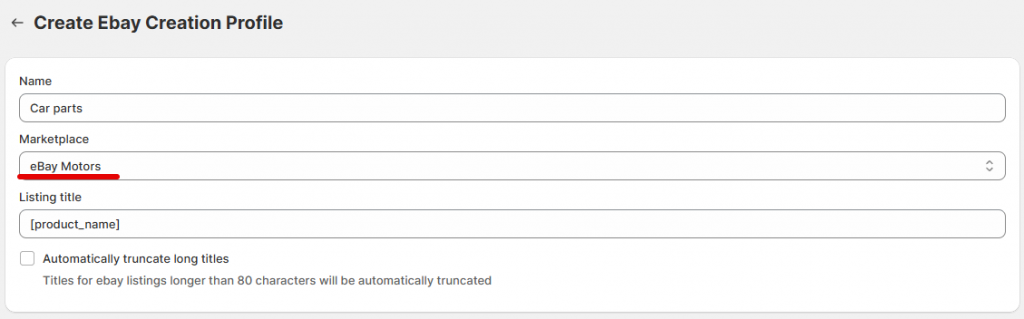
When selling on other eBay marketplaces, the automotive categories can be selected as the usual ones. Pick your target marketplace first, then navigate to the automotive categories in the category mapping. Here are a few examples for different marketplaces:
- ebay.co.uk: Cars, Motorcycles & Vehicles or Vehicle Parts & Accessories categories
- ebay.com.au: Cars, Bikes, Boats or Vehicle Parts & Accessories categories
- ebay.de: Auto & Motorrad: Teile or Auto & Motorrad: Fahrzeuge categories
- ebay.pl: Motoryzacja: Pojazdy or Motoryzacja: Części categories
Below, we will share detailed steps on configuring the app with these categories in mind.
Add a mapping
To organise the listing details, add a profile with category mappings:
Salestio
When using the Salestio app for Shopify, BigCommerce, Shopware, or WooCommerce, add a Creation Profile to set up the listing details. Go to Profiles > Creation Profiles to add one.
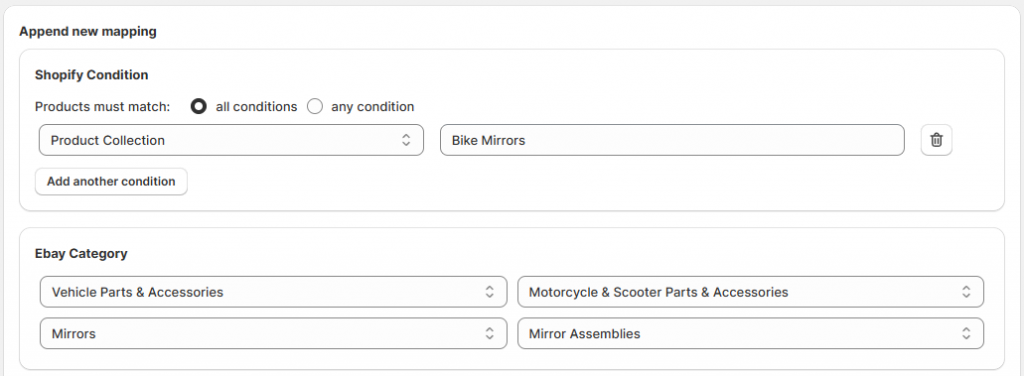
After giving a name to your Creation Profile and selecting a marketplace (eBay Motors for US and your local marketplace for other countries), you should set a mapping. A mapping is a way to place store products in the selected eBay category and provide additional attributes to the product.
Pick a product group from the shop (category, collection, or a product type) and set the eBay category for it below. Here is an example from our store: products from the “Bike Mirrors” collection in Shopify will be listed in the “Mirror Assemblies” category on eBay.
PrestaBay
In the PrestaShop eBay module, add a Selling Profile. In the General tab, you can pick the eBay Category Mode: Selling Profile or Category Mapping. Different modes can be useful depending on your situation.
In Selling Profile mode, you can set a single category to list all of the products assigned to the Selling List through the Selling Profile. This can save some time with setting up when there is only one target eBay category.
If you are going to list products in multiple eBay categories, consider the Category Mapping mode. In this mode, set up a separate profile in Catalog > eBay > Selling Profiles > Category Mapping to specify which PrestaShop categories correspond to the eBay categories.
Adding more different mappings for specific eBay categories helps with the searchability of your listings. Selecting the precise category for each listing improves the chances that a potential buyer can see the product page when using the available filters on eBay.
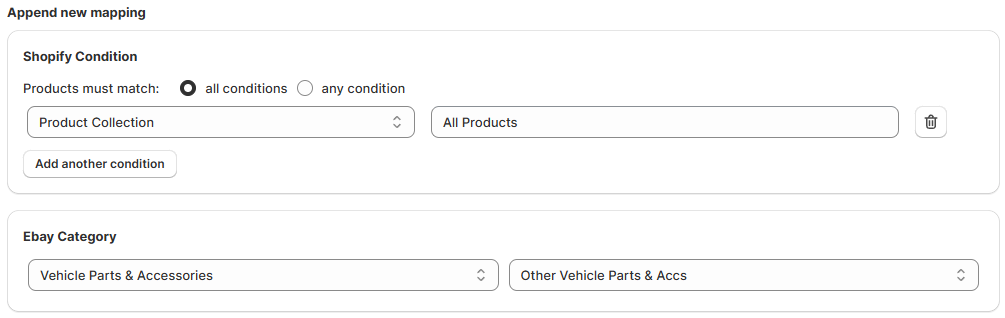
There is another option if you have hundreds of product types and want to save time on adding detailed eBay categories for every kind of product. To get the products listed ASAP, pick a more general category to list all products at once. For example, to streamline this process in Shopify, create a Collection containing all store products, and use it in the mapping condition. Check the example general mapping below:
Configure item specifics
Depending on the category, eBay provides multiple fields for adding Item Specifics. These are the attributes that give your buyers a better understanding of your products. Some fields are required, and some are optional, depending on the product type.
Salestio
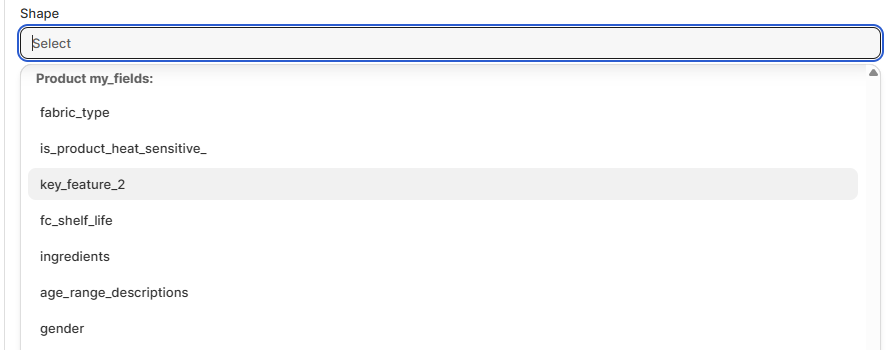
All the available fields appear below the selected eBay category in the mapping. When dealing with large collections of products, it’s easier to fill in the product specifics using the variables from the store (Metafields, Custom Fields, etc.) To use a variable, select it from the dropdown:
PrestaBay
If you opted to use Category Mapping mode, all the available specifics can be added during its configuration, below the category selection. You can select variables from the store, including basic product details and custom features.
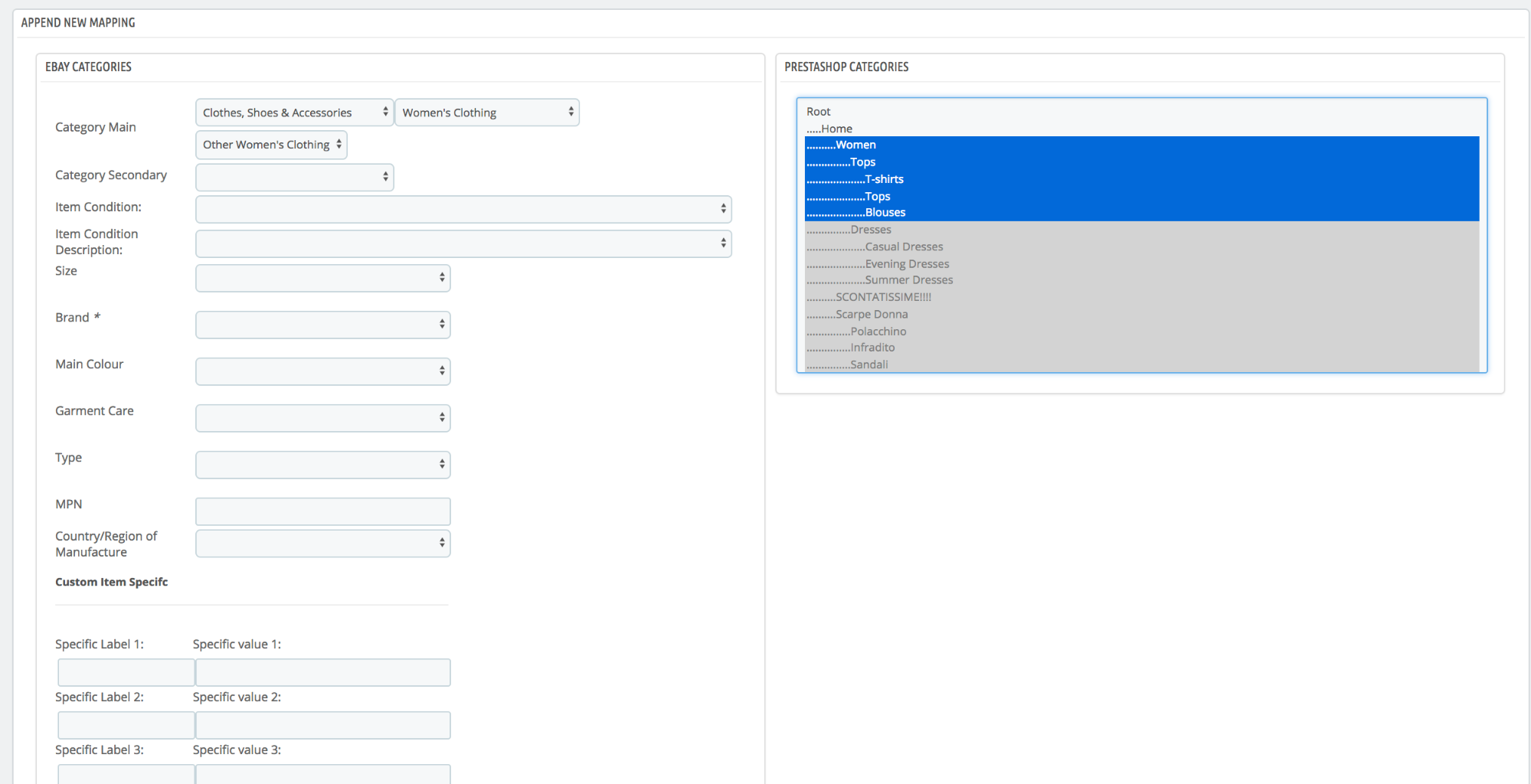
When using the Selling Profile mode, all the product specifics should be added in the Selling Profile > Item Specifics tab instead.
Add KTypes and ePIDs
ePID, or eBay Product Reference IDs, are specific to each eBay site and are based on the product reference IDs of compatible vehicles. These identifiers help to ensure that the listed auto parts match precisely with the buyer’s vehicle model. KType data is a more general form of vehicle compatibility data provided by eBay. Rather than being specific to each eBay site, KType data applies more broadly and can be used across multiple eBay marketplaces.
Sometimes, only one or another kind of identifier may be available, depending on your target eBay marketplace.
Shopify
KType and/or ePID are added below the item specifics. Click “Show Item Compatible” to unfold the settings.
In some cases, you might want to specify car compatibility manually or add to your compatibility identifiers. For cases like that, you can add the car model and other details manually below the KType field.
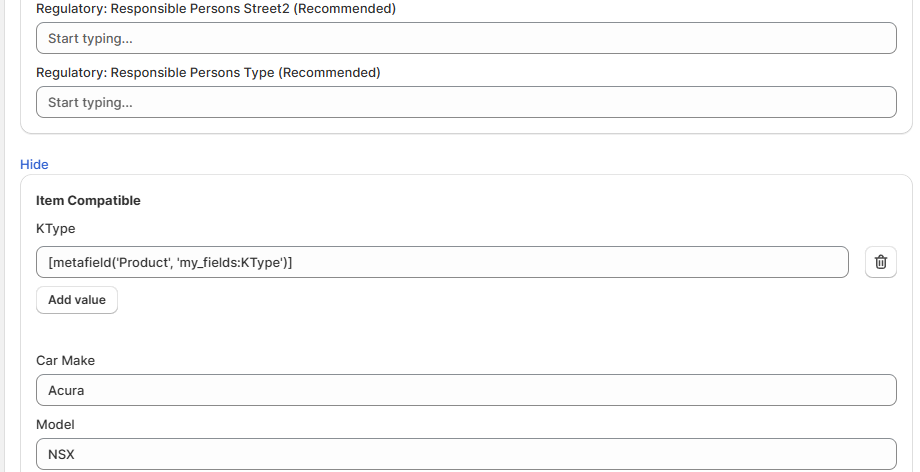
After adding all the mappings, save the Creation Profile and add it to the Ebay Profile or directly to the Selling List if you do not use the eBay profile as a saved template.
PrestaBay
Similar to the Salestio app, compatibility details appear below the Item Specifics section in the mapping. You can set the KType or ePID in the fields here manually or use a custom Product Feature.

After adding all details to the Category Mapping, save it and assign it to the Selling Profile.
To include multiple values in the Compatibility field, add them separated by commas. Here is an example:
1231,1232,1233You can add the KType codes in this format to Custom Features or Metafields to include them in the profiles. After you map this field to the KType field, all 3 values will be sent to eBay.
Send the products
Create a Selling List for all of the items that you want to send. Select all the items and run the Send to eBay action, and check the results in your eBay inventory.
When configuring the Selling List, make sure to select the profiles that we set up earlier:
- For Salestio, select the Ebay Profile containing the Creation Profile with product details.
- For PrestaBay, select the Selling Profile with the Category Mapping configuration.
For troubleshooting steps, check out the article below:
List on eBay: Common errors and how to fix them
Salestio assists sellers in navigating product requirements and compatibility when selling vehicle parts on eBay. Explore the possibilities beyond eBay Motors, and get access to all of eBay. Check if the app is available for your platform and start a 30-Day Trial.