16 Jan'26





Salestio is designed to cover most cases out of the box and has plenty of features to help sellers with their specific setup. We understand that every business is different, so our team adjusts the app to fit your needs. Salestio has received multiple user-requested features over the years. In this article, we will share more about them and how we can help your store.
To suggest a feature, feel free to reach out to the team at support@salest.io or leave your suggestion on the roadmap. This helps the team understand what functionality will help resolve the business needs of Salestio users. When possible, we will add the changes to a single store as a custom feature. This can be transferred to other stores per request.
We keep track of the most popular requests and add them as features available to all users right from the main UI. More specific ones are still available to users who reach out to the support team and can be enabled per request.
User-requested features in the Salestio interface
A lot of user requests ended up being staples in the Salestio toolkit. Below are the most notable ones:
SKU mappings
Description: SKU mappings allow establishing product pairs between platforms when the SKUs don’t match.
Use Case: The seller uses the following platforms: Shopify, Amazon, and eBay. The products need to be connected to sync inventory to Amazon/eBay and import Amazon/eBay orders to Shopify. SKUs on Shopify and eBay are the same and can be connected normally. SKUs on Shopify and Amazon are different, so the SKU mapping can be used to set SKU pairs between Shopify and Amazon.
How it is implemented in Salestio: The SKU mapping can be added to Salestio in two ways:
- Configure SKU mappings under Salestio > Profiles > SKU mappings. This option is useful when adding a couple of SKUs.
- Upload a mapping file to Salestio > Settings > Amazon account settings. You can use an app of your choice for making the SKU spreadsheet, so this option works better for large collections of products.
Check the article below for a full guide:
SKU Mappings in Salestio
Tax customization
Description: Multiple options in Salestio settings allow customizing how the tax lines are imported to Shopify.
Use Case: Depending on the region, marketplaces already collect the taxes. When the orders are imported to Shopify, they appear the same way as on the marketplaces. So, if the tax is collected from the Amazon order, it is also imported to Shopify. At the same time, Shopify users have their own tax handling configured on Shopify. So, they need the orders imported from Amazon to appear without taxes.
How it is implemented in Salestio: Go to Salestio > Settings tab to adjust the specifics of tax display. You can hide the tax line in the order, adjust how it is calculated with Item and Shipping costs, or set your own percentage for tax calculation. Change this in Salestio > Settings for all accounts or only a specific one.
Learn more: How to adjust tax display on the imported orders in Shopify

Amazon Condition Notes
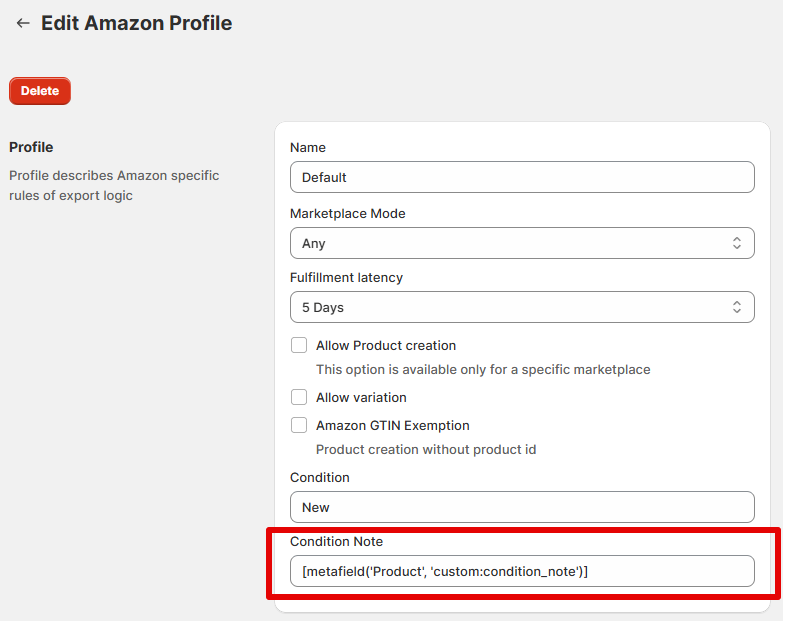
Description: Condition Notes for Amazon can be customized from Salestio.
Use Case: Seller has two different kinds of items on sale: refurbished phones and refurbished laptops. The two kinds of items have different standards and changes made, so the condition note should be specified separately to explain how the price is formed and what the customers should expect.
How it is implemented in Salestio: Each Selling List in Salestio can have its own Amazon Profile with their own settings. Go to Salestio > Profiles > Amazon Profiles to set the specific condition note for your Selling List. Create another Amazon Profile for the second Selling List and specify another condition note there.
Specific customer emails
Description: Customer emails on the imported orders can be customized to fit the store’s requirements.
Use Case: Marketplaces anonymize the customer addresses before they appear in Shopify, so they don’t look like real emails. The seller wants to bind all marketplace orders to a single Shopify customer account in Shopify, so the address has to be adjusted.
How it is implemented in Salestio: Customizations for customer emails can be assigned from Salestio > Settings after you select a specific marketplace account. Set the email option to “Selected email” to specify a custom address. All imported orders from the current marketplace account will use this address, and Shopify will assign them all to the same customer profile. Other options allow you to set a specific email domain, include the order ID in the address, or remove emails altogether.
Full article: Managing Email Notifications for Marketplace Imported Orders
Separate Shopify location assignment for FBA orders
Description: Salestio allows selecting a separate Shopify Location for different accounts and fulfillment channel types.
Use Case: The Seller keeps track of both FBA and FBM inventories through Shopify, and has two Locations configured in Shopify to correspond to each channel. Seller needs to ensure that fulfillment of FBM orders is done from the correct Location.
How it is implemented in Salestio: Go to Salestio > Settings and pick the target Amazon account. Adjust the default warehouse options for both kinds of orders here and select the desired Shopify Locations.
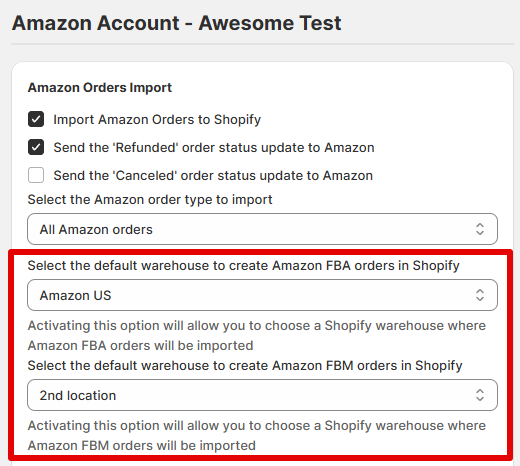
Image Metafield support
Description: eBay Description Templates support image-type Metafields from Shopify.
Use Case: Seller wants to share extra images with measurements when creating eBay listings. These images are stored in the metafields. They want them to be added to the eBay Description. So, the seller needs to pass images from the metafields through the Description Template.
How it is implemented in Salestio: Salestio sends the descriptions to eBay based on the saved Description Template in Salestio > Profiles > Description Templates. To add an image metafield, open the template and select the target Metafield in the variable picker. Salestio will extract the picture from the Shopify products when sending them to eBay.
Click here to browse free eBay Description Templates by the Salestio team.
Features available per request
Some of the features are less popular, so they do not appear in the UI for everyone to keep the app as simple as possible. Still, we are happy to enable any of the mentioned features for your store:
Force 5-digit format for ZIP codes
Description: This option will remove the extra 4 characters from the ZIP code for better compatibility with shipping integrations.
Use Case: Some shipping addresses for the USA customers include extensions to ZIP codes. Such ZIP codes with extensions appear on Amazon orders. However, the ZIP code format with extensions is not accepted by the selected carrier app. So, the seller needs to trim ZIP codes to a 5-digit format to get the orders fulfilled in Shopify.
Automatically enroll users in Shopify SMS/email marketing
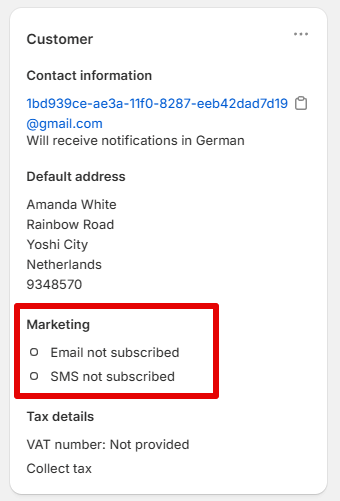
Description: Salestio can automatically enable marketing channels for customers from imported orders.
Use Case: The seller wants to deliver SMS and emails to customers with the fulfillment information once the orders are fulfilled. Shopify gives the opportunity to subscribe customers to SMS/email marketing. By default, this option is disabled for new customers after the order is imported to Shopify. The seller needed to enable this option to send notifications to customers.
Keep in mind that sending actual marketing newsletters to customers may be against the marketplace policies.
Transfer Seller Order ID to Amazon orders
Description: Salestio can send the shop order ID to the Seller Order ID field on Amazon.
Use Case: Amazon has an extra field on Seller Central orders called Seller Order ID. This is a custom order reference that sellers can assign to help track orders inside their own systems (like an ERP or accounting software). The seller needs to have this number automatically transferred from Shopify/BigCommerce to Amazon.
Disable sending order fulfillment data to marketplaces from Shopify.
Description: Salestio can stop sending tracking data and status updates to marketplaces after the order is fulfilled on Shopify.
Use Case: The seller uses their own system, which fulfills the orders directly on Amazon. They still want to have the orders imported to Shopify for better reporting and analytics. The system also sends the fulfillment details to Shopify. To avoid sending duplicated information from their system and from Shopify, they need to have sending the fulfillment data disabled.
Import orders to BigCommerce in “Awaiting Fulfillment” status instead of “Awaiting Shipment”.
Description: Salestio can create new BigCommerce orders in the “Awaiting Fulfillment” status after importing.
Use Case: The seller has the order processing flow established on BigCommerce through 3-rd party services. The service has the flow assigned to the Awaiting Fulfillment status instead of Awaiting Shopment, as it is set by default. So, they requested to set the Awaiting Fulfillment status once Salestio imports the orders from Amazon and eBay.
Salestio comes with a rich set of features out of the box, but we are happy to introduce new features to better fit your store. Reach out to the team at support@salest.io if you have any suggestions!