02 Jan'26





Most of the features in Salestio work without the need to adjust the settings. In the Settings tab, you can configure the app to better fit your workflow. In this article, we will explain the available options and how they can help you customize the Salestio app.
The Settings page in Salestio features tabs for the general app settings (changes here apply to all connected marketplaces) and account-specific settings. The available options for each account depend on its marketplace.
General Settings
Check the Salestio Settings tab for general settings:
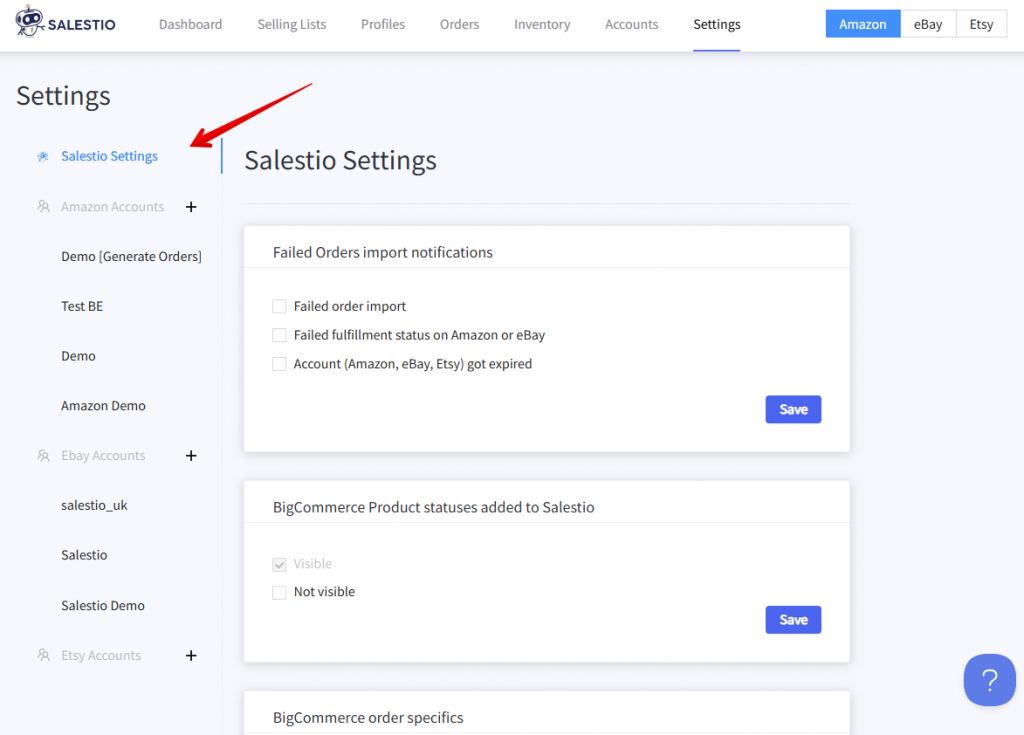
In the Failed Orders import notifications section, enable email notifications to stay updated when the app needs attention. We suggest enabling the “Failed order import option to receive notifications when an order cannot be created in BigCommerce. The rest of the options can notify you when other issues appear, like fulfillment errors or expired accounts.
Full article: Notifications in Salestio
BigCommerce Product statuses added to Salestio section lets you enable or disable “Not visible” BigCommerce products. By default, Salestio ignores all “Not visible” products from the BigCommerce store, and they will not be available to add to any Selling Lists. After including the invisible products, give the app a few hours to process the changes.
Some of the options adjust how the imported orders appear in BigCommerce:
- Convert orders to default shop currency option will use the built-in conversion rates to match the BigCommerce currency.
- Enable Hide Tax costs from the Order page to exclude taxes from importing. Imported orders will not show the tax line, and the tax amount will be deducted from the Total.
SKU mapping files can be uploaded in the last section. Mappings uploaded here will apply to all connected accounts. To add account-specific files, pick an account in the sidebar. SKU mappings allow manually setting item pairs for marketplace products that don’t have a matching SKU in BigCommerce.
To add a mapping, create a CSV file with two columns: BigCommerce SKU | Marketplace SKU. Salestio will match the products from marketplaces to the corresponding SKUs in the list. This mapping applies to order importing (Amazon, eBay, and Etsy integrations) and item sync (Amazon only).
Learn more about SKU mappings
Marketplace-specific Settings
To adjust settings for a specific account, pick it in the sidebar. The available selection of options depends on the marketplace. Every account has an individual tab, so you can set up each one differently. Add a marketplace account first for it to appear here.
Amazon
In the Amazon Orders Import section, enable or disable order importing for the selected account, along with more options.
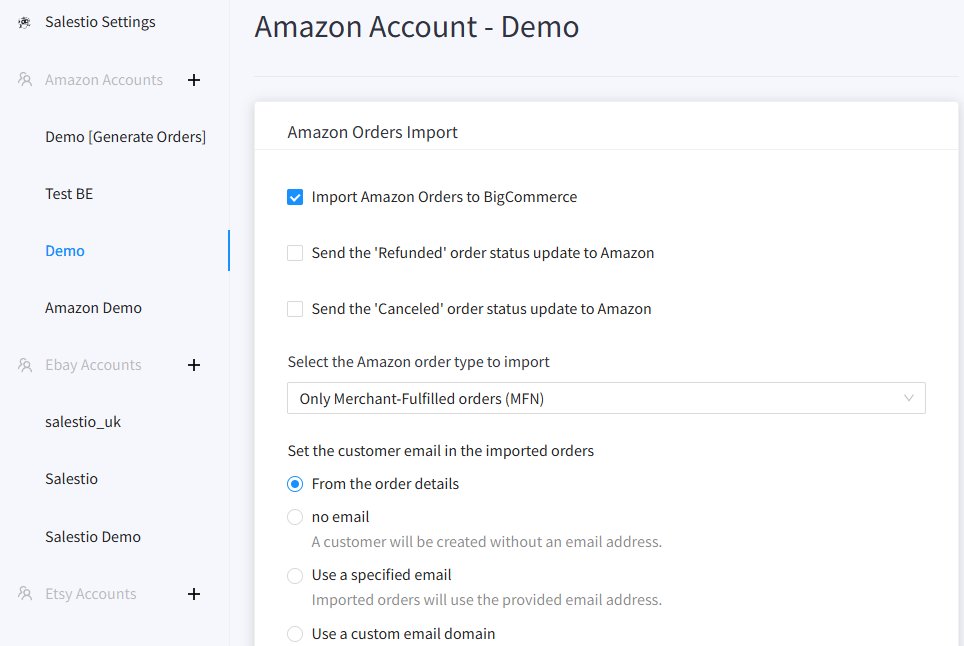
By default, “Refunded” or “Canceled” statuses are not sent to Amazon from BigCommerce. If you want to cancel orders directly from BigCommerce, enable the option here.
In Amazon order type to import, pick if Salestio should import FBA, FBM, or both kinds of orders.
Keep in mind that FBA orders are not managed by Salestio in any way and can be created in BigCommerce only for accounting purposes.
With the default settings, Salestio will only import FBM orders.
Below, adjust how customer email appears in the BigCommerce order. Salestio can replace it with a specified email, change the domain, or use the order number.
Managing Email Notifications for Marketplace Imported Orders
In Item Synchronization, select whether prices and quantities should be sent to the marketplace automatically. By default, Salestio will update both prices and quantities for items in Linked status.
In Tax Settings, you can hide the tax line. Imported orders will not show the tax line, and the tax amount will be deducted from the Total.
In the SKU mapping section, set the mapping file for the individual account (see above).
eBay
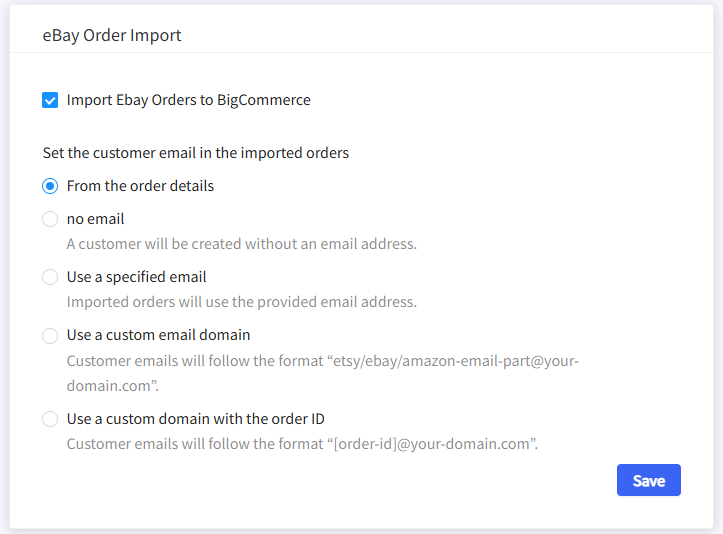
In eBay Order Import, disable or enable order importing. By default, it is enabled for every new account.
Below, change how customer emails should appear in imported orders: replaced with another email, with a different domain, or with order ID.
In Item Synchronization, select whether prices and quantities should be sent to the marketplace automatically. By default, Salestio will update both prices and quantities for items in Linked status.
For eBay accounts, you can adjust when to automatically stop listings. Enable the scenarios that you need:
- A “Stop listing” or “Stop & Remove” action started for an item or a Selling List.
Leaving this option off will result in listings staying active on eBay after the mentioned actions. Items will remain up for sale on eBay, but Salestio will not sync them. - An item is automatically removed from a Selling List. This can happen in Category Mode Selling Lists when an item is removed from a BigCommerce category. Another case is when the item switches status in the store so it becomes invisible to Salestio (“Not visible” in BigCommerce).
Similar to the first option, leaving this off will keep the eBay listings active. - Quantity reaches 0 in the store. Salestio stops any sold-out eBay listings by default, so the store would not oversell. By default, any eBay seller account cannot set the quantity to 0, so the only option is to stop the listing.
Disabling this option makes Salestio compatible with the Out-of-stock control mode (which should be enabled directly from the eBay account). With this option, Salestio updates sold-out listings with 0 quantity, and eBay keeps them up (not available for sale).
Related: Stop and manage out-of-stock eBay listings through Salestio
In Tax Settings, you can hide the tax line. Imported orders will not show the tax line, and the tax amount will be deducted from the Total.
In the SKU mapping section, set the mapping file for the individual account (see above).
Etsy
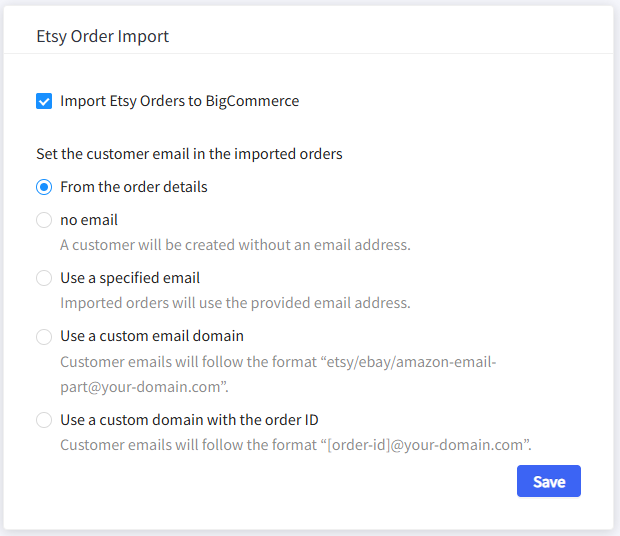
In the Etsy Order Import section, enable or disable order importing (enabled by default) or adjust how the emails look.
In Item Synchronization, select whether prices and quantities should be sent to the marketplace automatically. By default, Salestio will update both prices and quantities for items in Linked status. Due to the limitations on the Etsy side, both options should be enabled or disabled at the same time.
In Tax Settings, you can hide the tax line. Imported orders will not show the tax line, and the tax amount will be deducted from the Total.
In the SKU mapping section, set the mapping file for the individual account (see above).
Check the recent BigCommerce guide to keep learning about Salestio:
Key Salestio features in BigCommerce
Salestio makes managing multiple stores easier. If you have a running BigCommerce store, the app helps to expand to Amazon, eBay, and Etsy. See how it works for your store with a free 30-day trial: BigCommerce Apps & Integrations.