17 Jul'26





We are happy to introduce the Walmart integration in our Salestio app. New features are available on all Salestio platforms: Shopify, BigCommerce, Shopware, Ecwid, and WooCommerce. Sellers can already set up order sync and enjoy centralized fulfillment from their e-commerce website.
In this article, we will go over the features available in open beta and help you get started.
Connect a seller account
To start setting up the integration, connect your Walmart account to Salestio first.
Locate the API credentials from Walmart
First, let’s locate your account details:
- Log in to Your Seller Center Account
Access your Seller Center account using your usual credentials. Make sure to log in to the Walmart Seller Center instead of the regular Walmart account. - Navigate to API Credentials
In the Admin Panel, go to Settings > API > Consumer IDs & Private Keys. Here you can find your generated Consumer ID and Private Key. - Copy Your API Credentials
Copy the Consumer ID and the Private Key.
The Private Key is shared across all connected applications. Generating another key will disable the previous Private Key. It might potentially affect the connection to other apps.
Add the account in Salestio
Using the saved credentials, you can connect the account from Salestio > Accounts > Add Account:
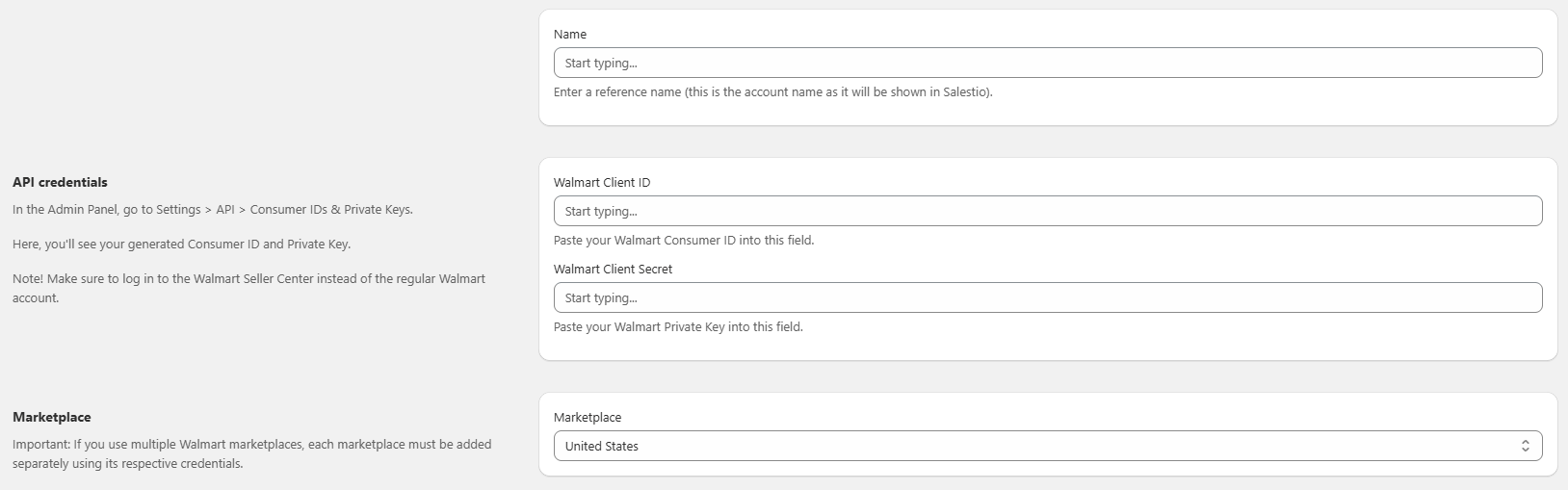
- Name: come up with any name for your account (only used for displaying it within Salestio)
- Walmart Client ID: use the Consumer ID copied from your Walmart account
- Walmart Client Secret: use the Private Key from your API credentials
Lastly, pick the target Marketplace for this account. Note that each marketplace is added as a separate account. For instance, if you want to sell in the US and Canada, select the United States and save this account, then add another one in Salestio for Walmart Canada.
Find the orders in Salestio
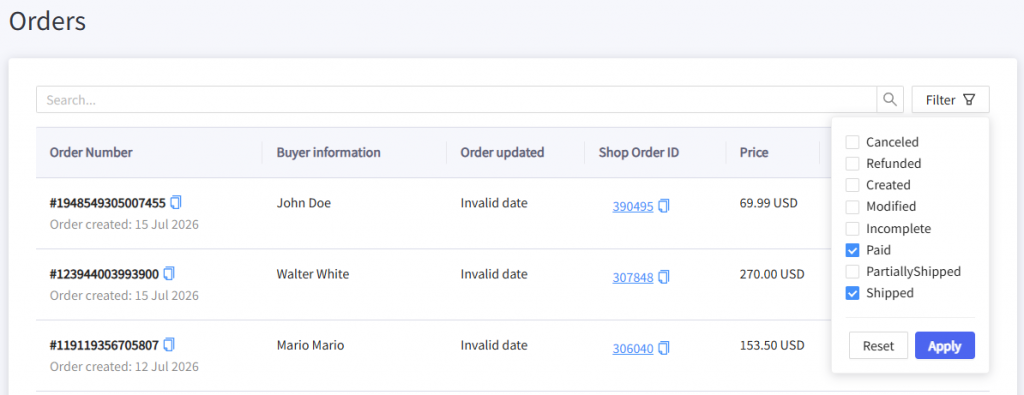
First, the orders are imported to Salestio. Then, they are created in the store. Salestio downloads marketplace orders shortly after they are paid. To find the orders, click on the Orders tab.
On this page, you can use the filters to find orders by status or use the search bar to look up a specific SKU or order ID:
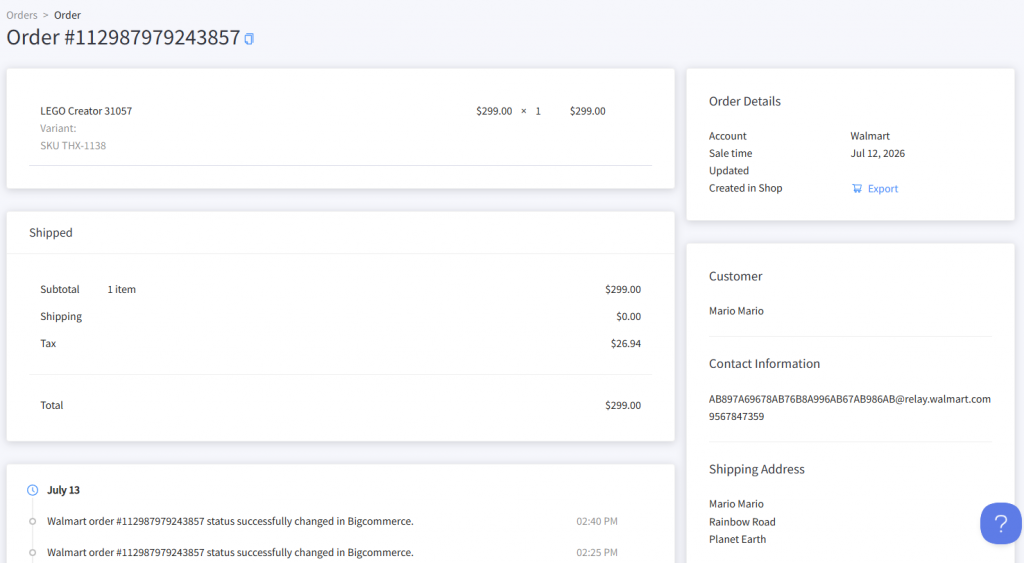
Select the order to see its details and timeline. Click the Export button in the Order Details section to manually create the order in the store. This is useful when automatic order import is disabled or when resolving issues.
Automatic order importing
Salestio will create the imported orders in your store automatically, and they will mirror your marketplace store. To create the order in your e-commerce store, the app uses the item SKU to find a match between platforms and link the correct items.
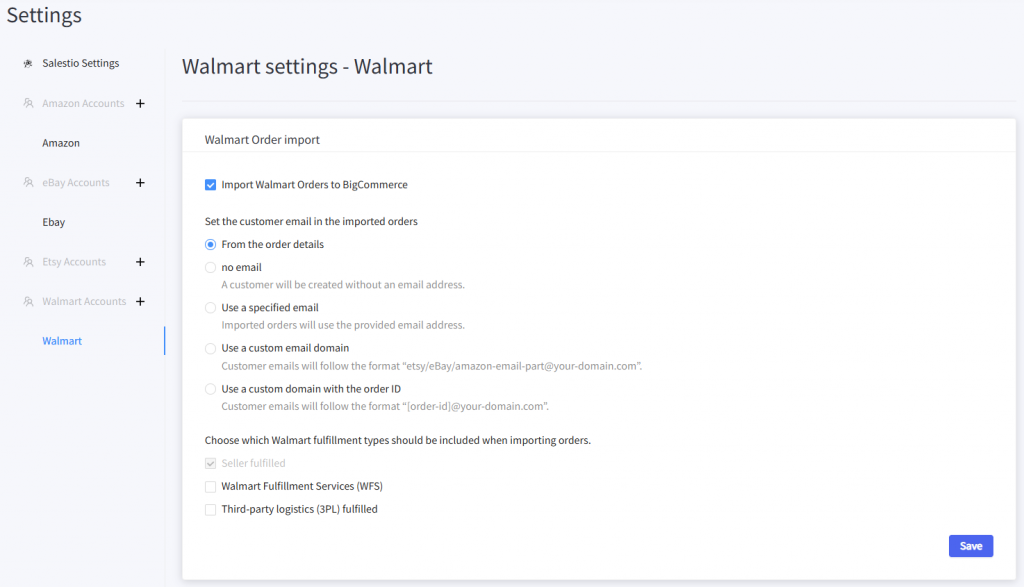
By default, Salestio imports only Seller-fulfilled orders. You can adjust this in Salestio > Settings > Your Walmart Account. Here you can disable automatic importing or include other fulfillment groups (WFS and 3PL orders.)
Fulfilling orders
After an order is created in your e-commerce store, you can fulfill it in any way that suits you:
- Add tracking and change status manually, as a regular order from the storefront.
- Use a third-party app for fulfillment.
When an order is fulfilled in the store, Salestio will automatically capture the fulfillment details and send them back to Walmart. The details are sent to the marketplace when the order status changes. Make sure to specify the carrier and tracking number for successful fulfillment.
Troubleshooting
If your Walmart orders don’t appear in the e-commerce store or other issues appear, try the following steps to troubleshoot:
- Find the order in Salestio > Orders tab.
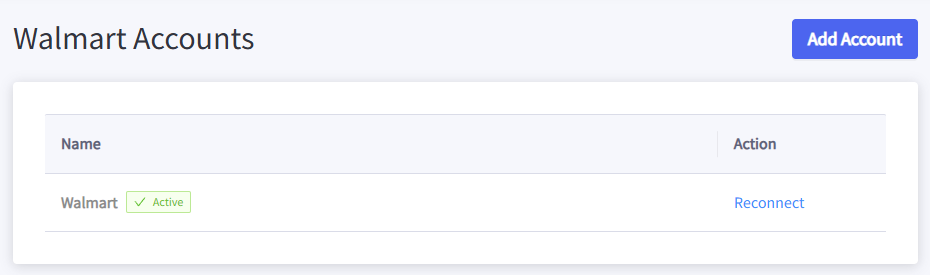
If the order is missing, check if the Walmart account is Active in Salestio > Accounts tab. If you notice an issue here, click ‘Reconnect’ and verify your API credentials before saving the account again.
- Open Salestio order.
- Scroll down to the timeline to look for possible error messages.
Error during export order #111-1111111-1111111 in Shopify. Line_items Unable to reserve inventory.The above message indicates insufficient stock in the store. In this case, increase the stock and try creating the order again (Export button on the order view page.)
Missing products in Shopify: SKU: example-product-2This error can appear when the Walmart item does not exist in the store or the SKUs don’t match between Walmart and your storefront. To fix this, adjust the SKU in your shop to match the ordered item and try creating the order again.
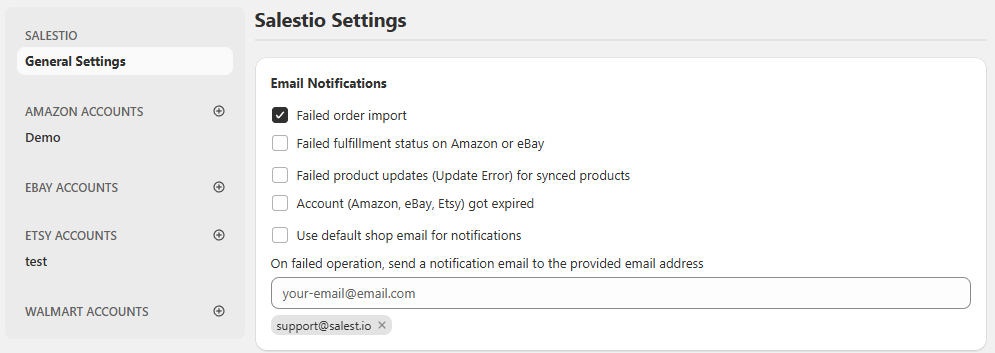
To always stay on top of your marketplace situation, consider enabling notifications from the Salestio > Settings page. Here you can pick which categories of email messages to receive and take relevant actions right away.
Full article: Notifications in Salestio
Salestio helps to centralize order management in your e-commerce store and improve efficiency. With the simple setup steps outlined above, you’ll be able to enhance your workflow and keep your business running smoothly. Check out the supported Salestio platforms.