07 Aug'26





If you are looking for additional platforms to sell your items, eBay is a great choice. Today we will explore how to expand your Ecwid store to eBay using Salestio. In this guide, we will provide steps to get your Ecwid inventory listed on the marketplace and set up sync between the two platforms. You can find Salestio on Ecwid Apps.
Connect the eBay account
The first thing to do after installing the app is to connect the seller account that will be hosting the listings. To open the eBay integration, select it in the top right corner. Go to the Accounts tab and click “Add Account”.
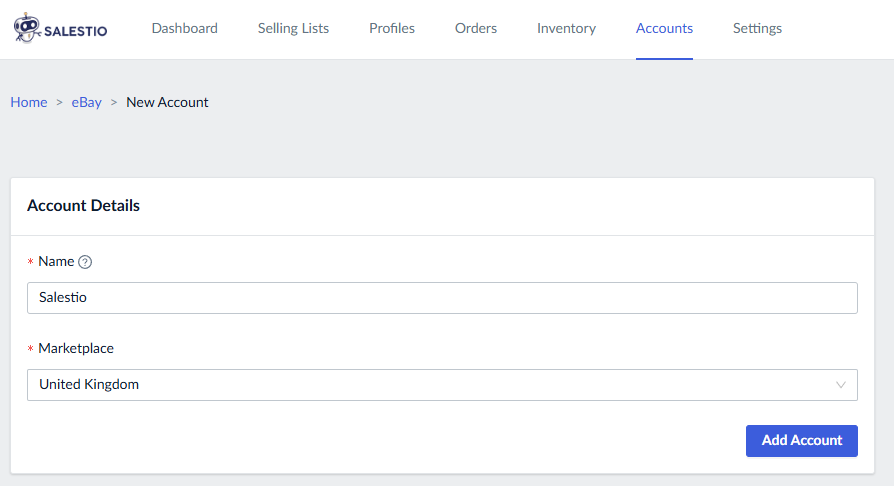
Pick a name and the default marketplace for your account. After saving this information, grant access to Salestio in the new tab that appears.
In the process, we will set up the key configuration profiles. Click the links below to jump ahead:
- Global Profile with price and quantity details
- Creation Profile with the listing information
- eBay Profile with marketplace-related settings
- Description Template for adjusting how the eBay description looks
- Selling List containing the products that we want to publish
Keep reading to find out more about each step of the setup.
Adjust the Global Profile
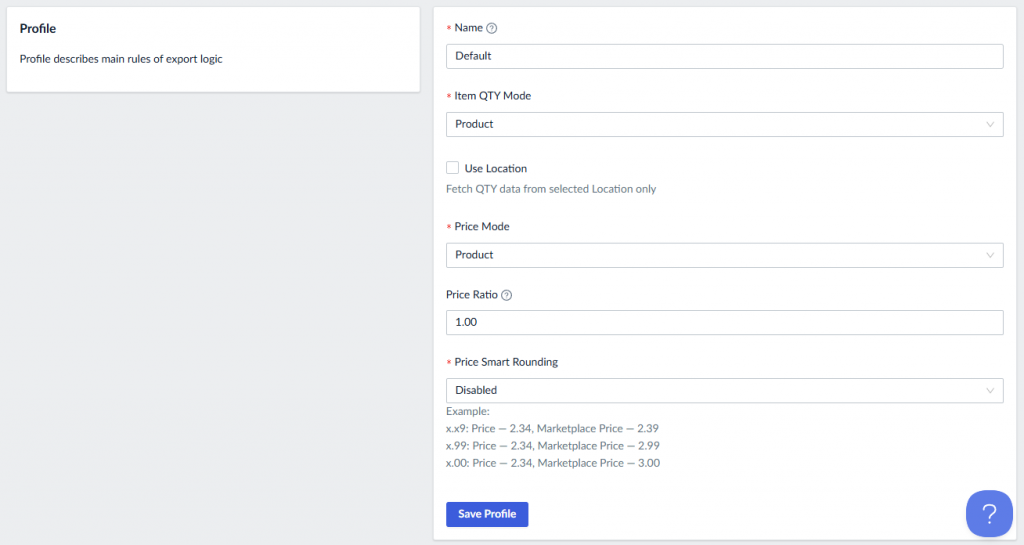
Any edits to the Global Profile are optional, as Salestio automatically creates a Default profile for you. This profile will use the exact price and quantity values as they are in your Ecwid store (a $5 product with 100 stock in Ecwid will appear the same on eBay.)
If you want to make any adjustments to this, edit your Global Profile or create a new one in Salestio > Profiles tab.
See the articles below for advanced quantity/price management tips:
How to Manage Listing Quantities with Salestio
Custom Pricing Rules for eBay and Amazon Listings
Add a Creation Profile
Creation Profiles let you map the Ecwid categories to eBay categories and add the related product information (colors, materials, etc.) Add a new Creation Profile from Salestio > Profiles tab. Key things to add here:
- Name of the profile: for reference within the app, anything goes.
- Marketplace: the target eBay marketplace of your profile. Each eBay marketplace has slight differences in category structure and requirements.
- At least one mapping: the relationship between the Ecwid categories and eBay categories.
To set up a mapping, pick the Ecwid category (or product type) and the corresponding eBay category:
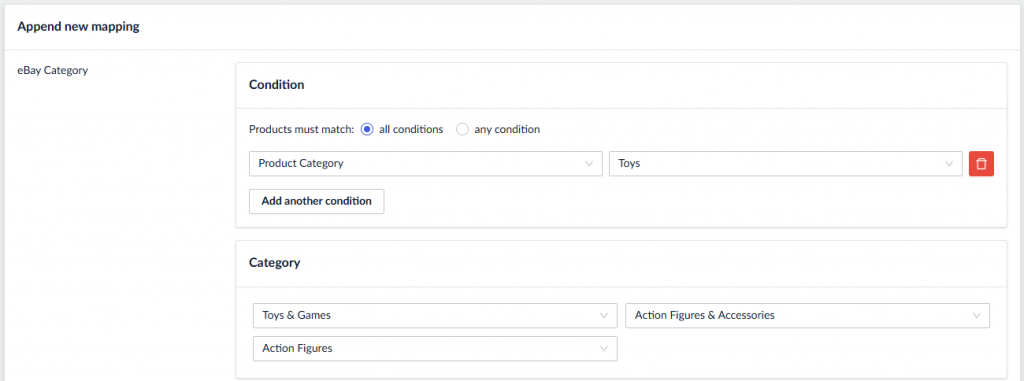
The fields for your selected eBay category will appear below. These are the Item Specifics from the eBay listing page. Some fields are required and some are optional, depending on the selected category. In our case, the only required fields are Condition and Type. Look out for the highlighted fields to know what is required.
Click Add new mapping at the bottom to save your mapping line. You can add multiple mappings into the same Creation Profile. For example, pants and T-shirts separately. Save the Creation Profile after all of your desired categories are covered.
Add an eBay Profile
eBay Profiles hold the settings related to the marketplace. Add one from Salestio > Profiles tab.
Here you can select the marketplace, listing type (auction or fixed price), duration (1, 3, 5, 7, 10, GTC), image settings, ‘shipped from’ location, and product dimensions that allow calculating shipping.
Related: Listing eBay Auctions through Salestio
Remember to select the Creation Profile after enabling product creation. The list of available Creation Profiles will be shown after the marketplace is selected.
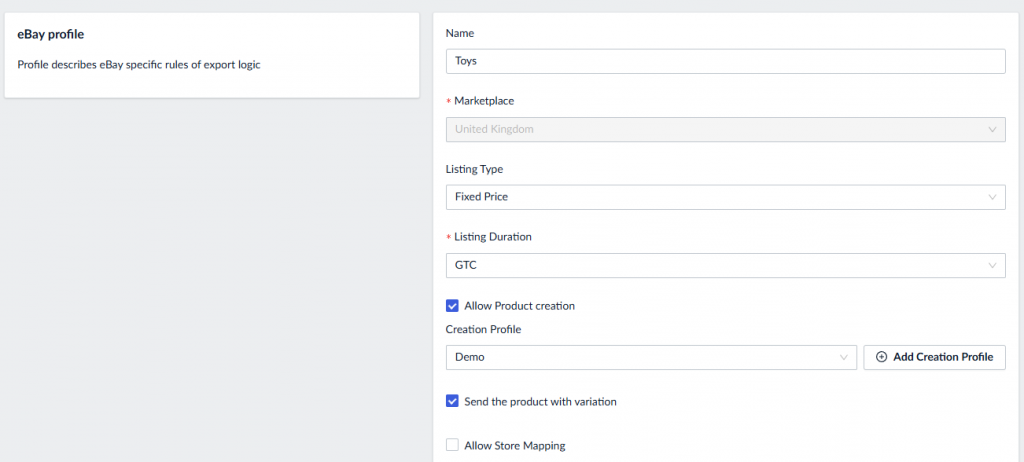
Additionally, you can enable Store Mappings here. Users of the eBay Store program can configure custom categories for their eBay storefront. If you are using the custom categories, learn more below to set this up in Salestio:
Ebay Stores, connect to Store Categories in Salestio
Edit the Description Template
Salestio comes with a Default Description Template, so making one yourself is optional. The Default template uses your Ecwid product description as-is. Adjust this in Salestio > Profiles > Description Templates.
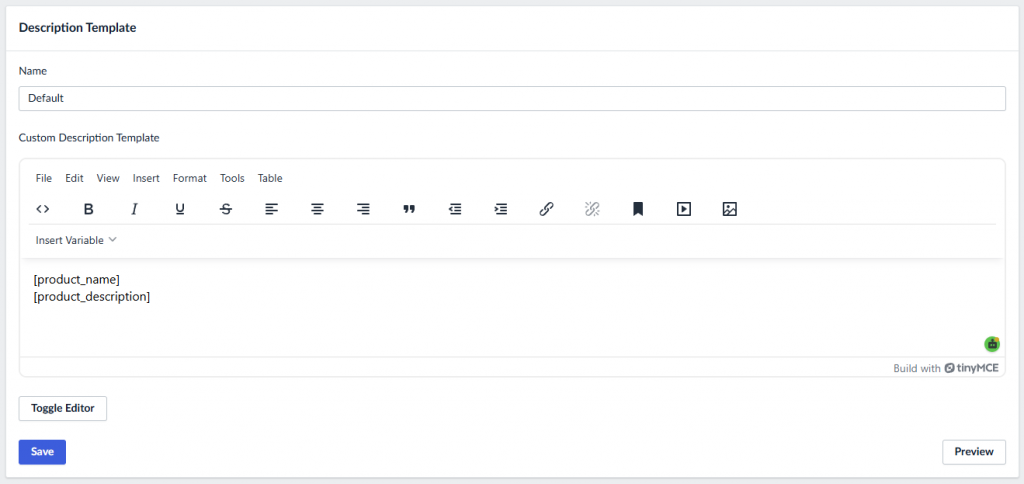
Add blocks from “Insert Variable”, type custom text, or click Toggle Editor to edit CSS directly. Check out the library of eBay Description Templates on the Salestio website, and feel free to adjust them to your style:
Free eBay Description Templates
Prepare to send the products
With all the puzzle pieces ready, it’s time to put them together in a Selling List and publish the products.
Add a Selling List
Selling List is the primary place for managing your marketplace connections, and we will be adding our products here. To create a new Selling List, go to Salestio > Selling Lists tab > Add Selling List.
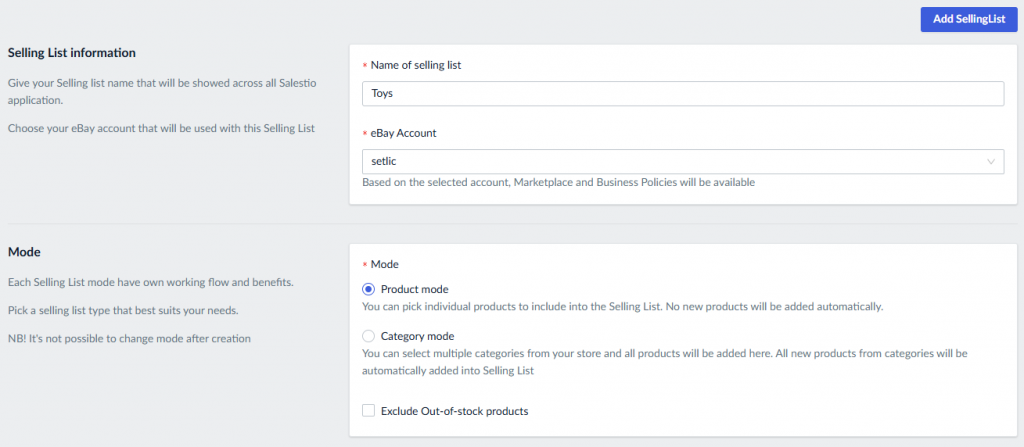
In Mode selection, pick your preferred option:
- Product mode: add new items to the Selling List manually.
- Category mode: pick the Ecwid categories. Salestio will add and remove products from this Selling List automatically as the categories are updated.
Select the target eBay website in the Marketplace field. Keep in mind that this marketplace has to match our eBay Profile from earlier.
If you want to sell on multiple marketplaces, it’s okay to keep a single Selling List. Enabling international shipping on eBay will ensure that the product is visible outside of your primary marketplace.
More eBay tips for international sellers: International Business with eBay Marketplace
Add the profiles from earlier steps:
- Global Profile
- Description Template
- eBay Profile
Finally, select the Business Policies at the bottom. Salestio loads the policies directly from your eBay account, so make sure to have a set.
Learn more: Using eBay Business Policies with Salestio
Add products to the Selling List
In Category mode, the Selling List is populated automatically based on the categories selected in the settings. Give the app a few minutes to fetch the products.
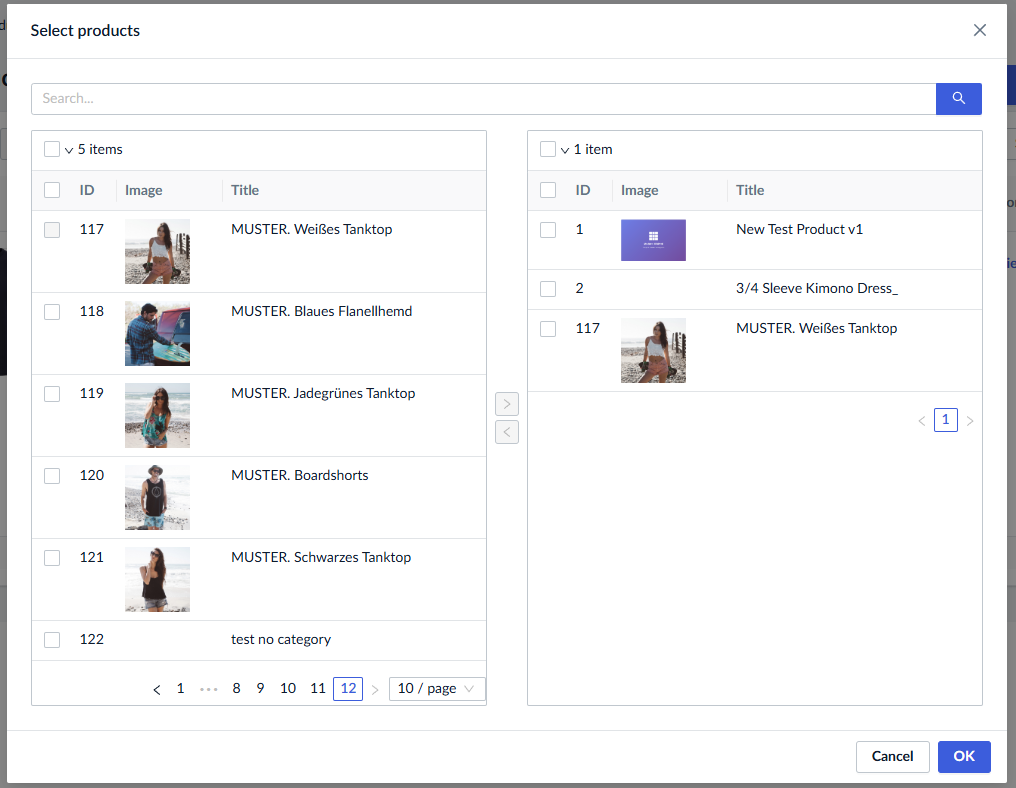
In Product mode, use the buttons at the top to pick individual products or entire Ecwid categories to add to the list.
Send the products to eBay
All products appear in the Not Linked status by default. To send the items, select them in the list and click Send to eBay at the top:
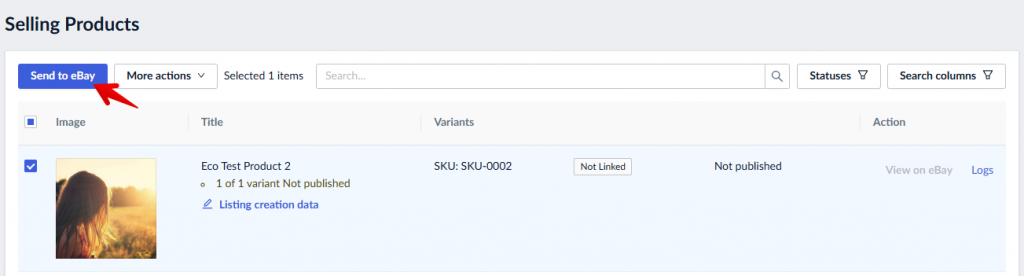
Give the app a few minutes to process the items. Successfully published products will change the status to Linked. You can check out the resulting listing by clicking the “View on eBay” link.
Troubleshooting
To identify the error, look for the items with a yellow Error status in the Selling List. Salestio keeps a log of recent events with all items, so you can check it and find out what the error is, or click View details to see the latest error:

Error during submitting Selling Product with the title [Your Product Title] to Ebay. Ebay category not found for product, please adjust Creation ProfileThis error means that the corresponding mapping or Creation Profile is not found. Follow the steps below to make sure that the profiles are configured correctly:
- Note the Product Type and Ecwid category on the product in question. Check the mapping in the Creation Profile and make sure that the Conditions section corresponds to the attributes of this Ecwid product. Remember to save the mapping and the Creation Profile after making changes.
- Check the eBay Profile. Make sure that product creation is enabled and the correct Creation Profile is selected. Save the profile after making changes.
- Go to Selling List settings and check if the correct eBay Profile is selected there.
- Send the product to eBay again.
The quantity must be a valid number greater than 0The default settings for every eBay account allow listing products only with positive quantity. You may get this message when trying to list an item with zero stock. To resolve this error, add some stock for this item on the corresponding Ecwid product page and try sending it again.
If you would like to list items with 0 qty, consider changing the settings on your eBay account to use Out-of-stock control (My eBay > Selling > “Account” tab > Selling preferences > enable the Listings stay active when you’re out of stock option).
Learn more about the effects of this option and how to use it with Salestio: Quantity updates to 0 on eBay: possible issues and solutions from Salestio
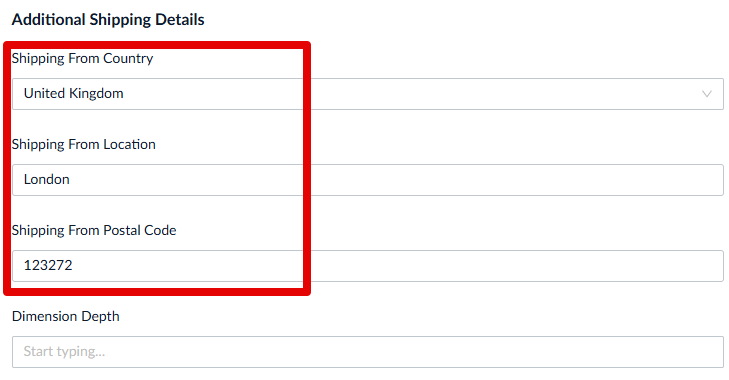
Error during submitting a product to eBay. Please add the Item LocationTo resolve this, check the eBay Profile settings and add the missing details in the “Additional Shipping Details” section:
List on eBay: Common errors and how to fix them
Salestio streamlines the process of managing an eBay store by offering automatic updates and tools for bulk management. More items can be added to existing Selling Lists with no extra hassle. To test it with your store, start a free 14-day trial. Get Salestio from Ecwid Apps.