29 May'26





One of the standout features available on eBay is the option to host auctions. Sellers can pick a starting price, and buyers place bids. When the time limit ends, the item is sold to the highest bidder.
Salestio offers multiple tools for publishing and managing your eBay auctions. This article focuses on everything auction-related in Salestio.
Auction-specific fields in Salestio
There are two ways to publish an eBay listing through Salestio; more on that in the following sections. First, let’s see the available settings in both modes:
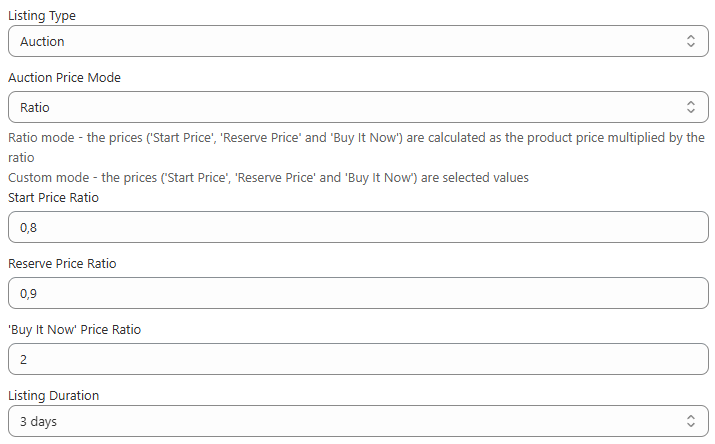
- Listing Type – this should be set to Auction to let the buyers place bids.
- Auction Price Mode – pick between the two options.
Custom mode lets you add a specific price directly in the fields below.
Ratio derives the eBay price based on the Shopify price and the multipliers below. - Start Price – the initial auction price before any buyers place bids.
- Reserve Price – the minimal bid for the auction to be sold.
- ‘Buy It Now’ Price – set this price to let buyers immediately purchase the item. Keep the field empty to let the auction finish.
- Listing Duration – set the time limit for your auction.
How to send the products
Salestio has two ways of publishing eBay listings: through a Selling List or the Selling Products view. See the advantages and setup steps for each of them below.
Through a Selling List
Selling List mode is available for all platforms supported by Salestio: Shopify, BigCommerce, WooCommerce, Shopware, and Ecwid.
Salestio offers the option to set up multiple Selling Lists. The advantage of using Selling Lists is the ability to organize the items into different groups. This way, sellers can keep different product categories separated for easier bulk actions.
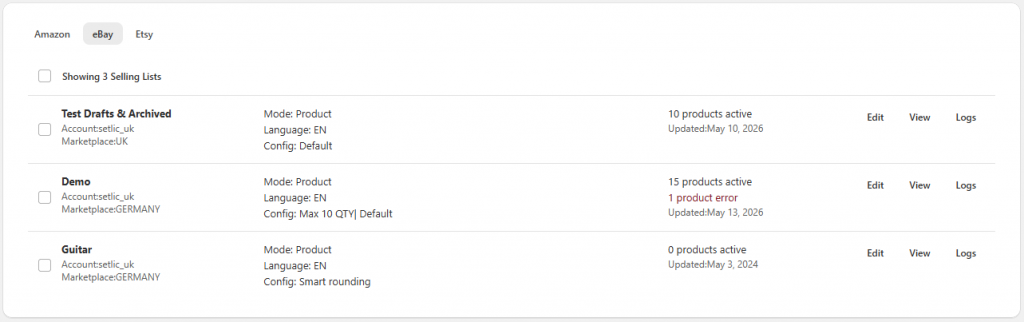
Key steps to configure a Selling List for auctions:
- Add a Creation Profile from Salestio > Profiles > Creation Profiles.
Here, set up the the target eBay categories and item specifics. - Adjust the eBay Profile. For the Selling List mode, all Auction-related settings are set in this profile.
Besides the auction settings, enable product creation and set the shipping details (Country, Location, Postal Code).
You can skip configuring an eBay Profile and add the settings directly to the Selling List (select “Don’t use saved template” in Selling List settings). - Add a Selling List from the Selling Lists tab. When configuring the Selling List, make sure to select the eBay Profile from the previous steps and set the Business Policies.
- Add the desired products to the Selling List. If you selected Collection mode on the last step, just wait a couple minutes for Salestio to fetch the product list.
Check out the full guide for the Salestio setup: Exporting Shopify Products to eBay Marketplace with Salestio
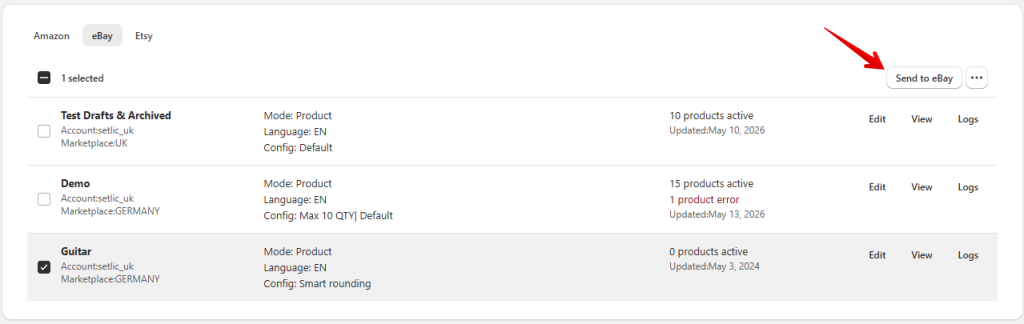
After the products are added to the Selling List, select them and run the Send to eBay action. Check the eBay account for results after the status turns to Linked.
Through the Selling Products view
Selling Products mode is currently available for Shopify users.
Selling Products view offers the option to individually manage the settings for each product in your inventory instead of dealing with extra profiles. This mode can be beneficial for users seeking simpler ways to configure the settings.
To start working with the Selling Products mode, click the link at the top of the Selling Lists page.
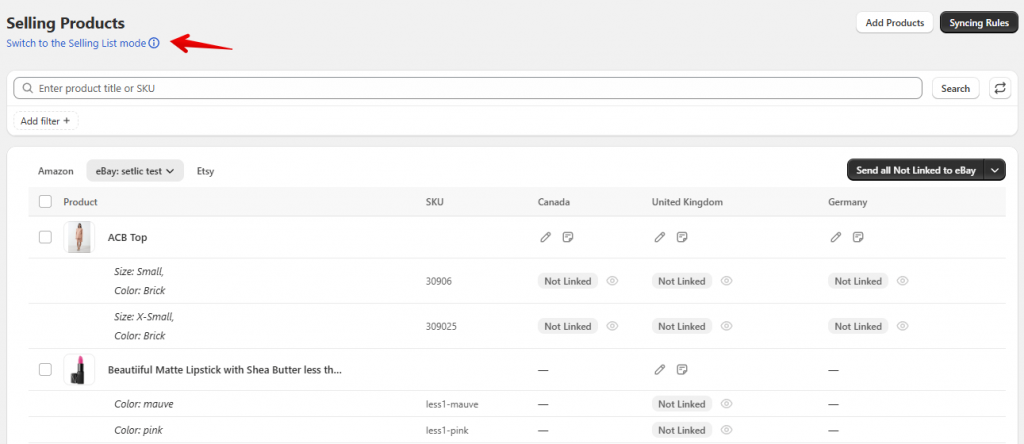
Set up the products for publishing:
- Use the Add Products button at the top to add your item to the product list.
- Click the pencil icon on the product to start editing Listing Data.
As an alternative option, set Auction options and other details from Syncing Rules > eBay. Syncing Rules allow setting up details for entire product groups. - In this section, enable product creation and fill out the key fields: Business Policies, set listing type to Auction and add price settings, pick the eBay category, item specifics, and specify shipping details.
- After saving the configuration, select the item and run the Send to eBay action.
See the full guide for Selling Products mode users, complete with details for all related features and settings: Export Shopify catalog to eBay
Renewing auctions
Any unsold eBay auctions will remain in Salestio with a Finished status. To put the listing up for sale again, select it in the and run the Relist action:
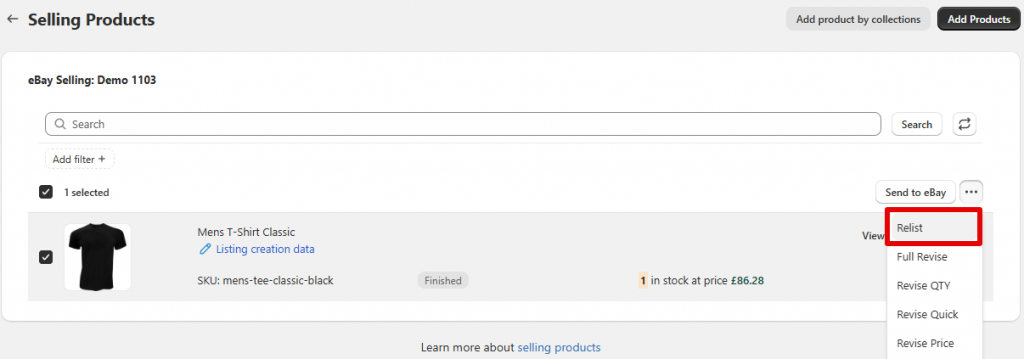
For new and occasional sellers, eBay may allow automatic auction relisting by default. You can opt out by editing the listing directly from your eBay account. Learn more on the eBay help page: Relisting items
Sync prices and stock, fulfill eBay orders, and connect to other marketplaces like Amazon and Etsy, all in one place. Find Salestio on the Shopify App Store and get a Free 14-day trial.