24 Apr'26





Salestio offers ways to automate listing Shopify items on eBay. Based on the Shopify inventory, the app can create and sync the eBay listings to the shop.
In this article, we will walk you through sending Shopify items to eBay using the Selling Products view, syncing the items, and addressing potential issues.
- Connect an eBay seller account
- Add products to Salestio
- Set up the Listing Data
- Edit the Sync Rules and enable autolisting
- Send products and review results
- Bulk actions with the product list
Connect an eBay seller account
To perform any operations on eBay, you should connect your account to Salestio first. This can be done during the onboarding stage. In case you skipped the onboarding step, add the account separately in Salestio > Accounts tab > Add account. Select the eBay Marketplace and save the settings.
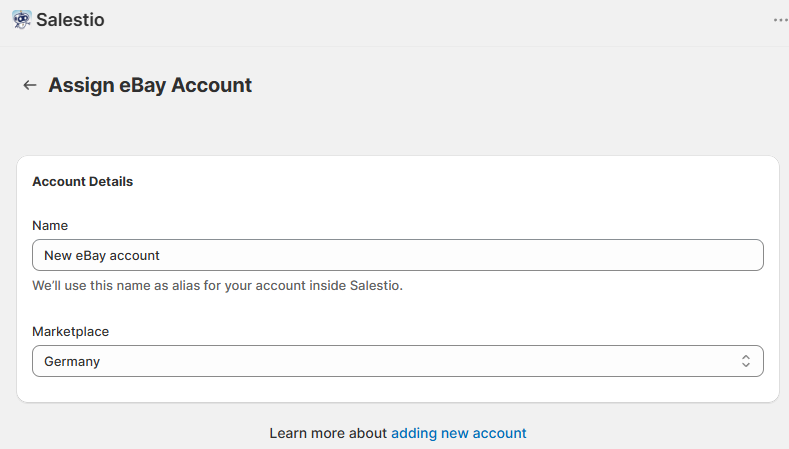
In the next step, you will be redirected to your eBay account to confirm Salestio permissions. After confirming the permissions, the seller account is ready to go. You can confirm its status by checking the badge in the Accounts tab.
Add products to Salestio
Next, we should select the products to put under Salestio’s management in the Selling Lists tab. If you have multiple eBay accounts, they will be available in the tab dropdown here. Select the target account and click “Add Products” at the top.
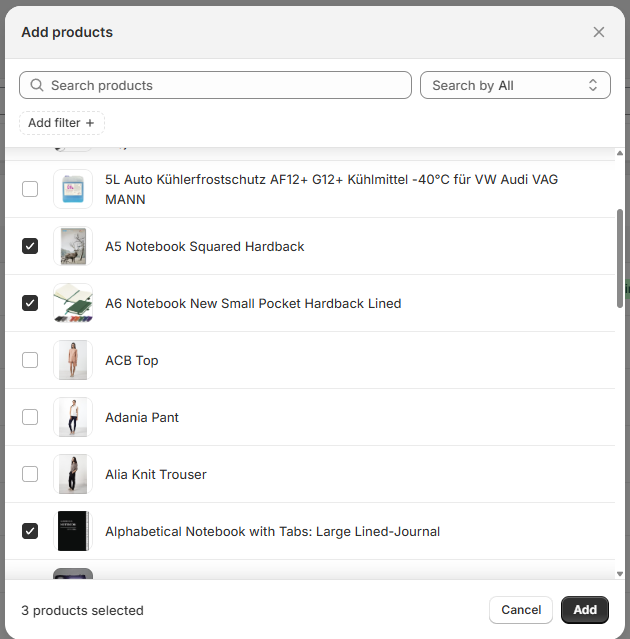
Select the target eBay marketplaces for the product. If you are selling the same items on multiple marketplaces, there are two ways to go about it:
- Pick only one marketplace in Salestio. To push the items to the other marketplaces, make sure to enable international shipping in your eBay account settings. See the help article from eBay below to set this up:
eBay Help: Selling Internationally - Pick multiple marketplaces. This way, Salestio will send the information directly to the different eBay marketplaces. The upside of this approach is the option to tune each marketplace separately and set individual rules for pricing or a dedicated local warehouse.
In the next step, select the Shopify items to add to your Salestio product pool. Don’t worry about selecting every single one for now. You can add more products at any time. New items will appear in the list with a Not Linked status:
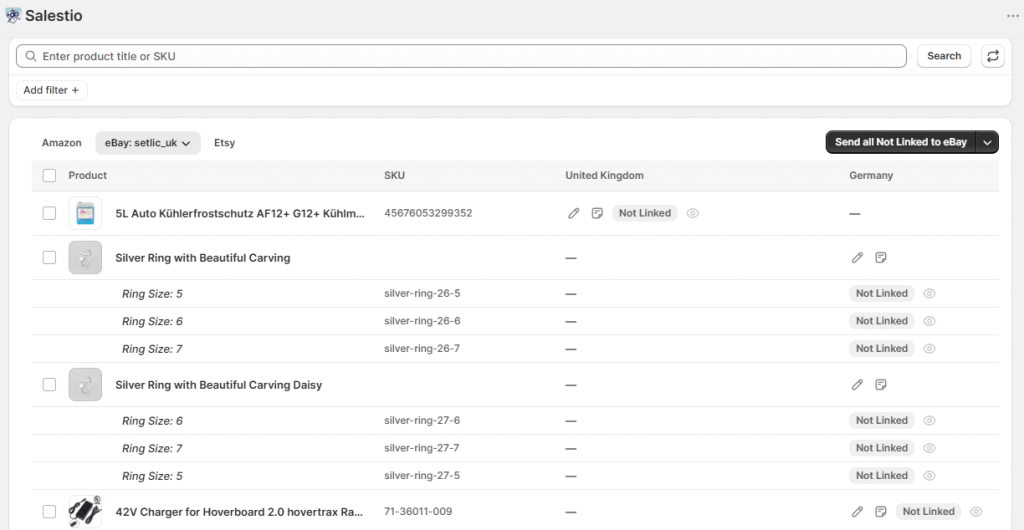
In the next steps, we should configure the contents of the future listings. Salestio has two ways of adding product details to the items:
- Listing Data can be added to a single product. Settings from here can be converted to a Syncing Rule later.
- Syncing Rules can save some time when configuring large product collections. Salestio can apply settings from a matching Syncing Rule automatically, which is handy when sending products at scale.
Keep reading to find out more about both methods.
Set up the Listing Data
To set up the listing information for an individual product, click the pencil icon under the target marketplace. This page has a few key sections for adding information to the listings.
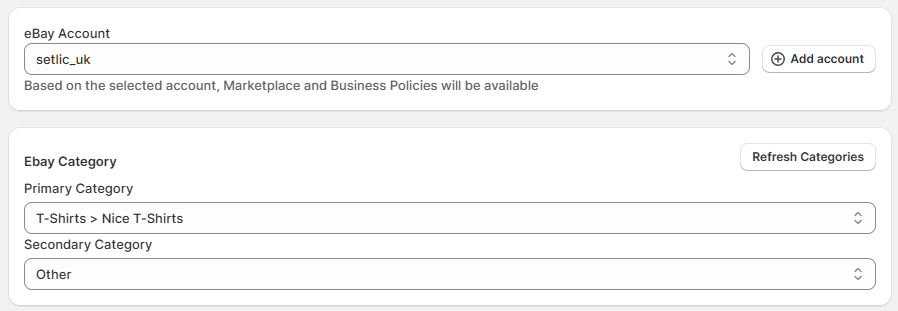
In Listing Data, you can add product creation details (eBay category, title, item specifics) and save this Listing data as a preset for other products.
Another option here is “Use Inventory Api”, which is useful only for specific cases. Skip this setting unless you are linking Salestio with a old listings created by the eBay app.
Click Allow Product creation to edit. Note the key parts to add here:
- Select the Business Policies to apply to the listing. Business Policies are configured and managed directly from your eBay account. If you don’t see any here, set them up on eBay first.
Using eBay Business Policies with Salestio - Swap between Fixed Price and Auction listing type.
- eBay Category that the product will be listed in.
- Product Specifics are all the related fields for the selected eBay category.
- Shipping Details to indicate where your product is located.
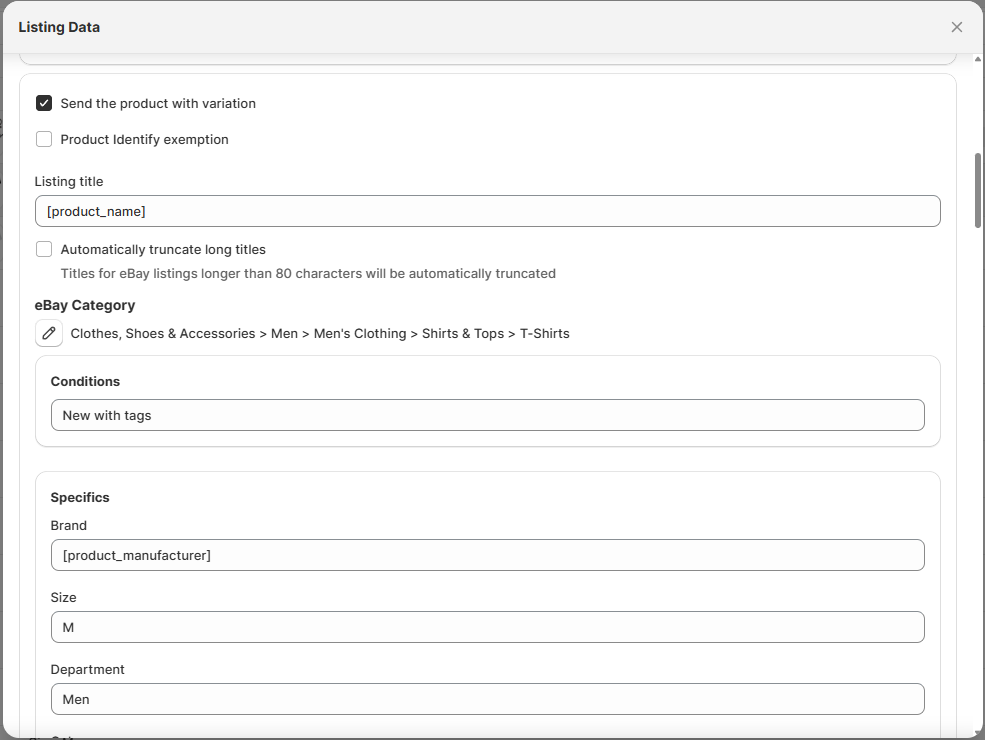
After saving the Listing Data for one product, you can send it right away or convert it into a Syncing Rule (“Save Listing Data for future listings” option). When this is enabled, all the settings above will be converted into an eBay Syncing Rule, which you can edit later (more on this in the next section). You can save the preset for all listings or only specific kinds (based on a matching Shopify product type, collection, or category).
Edit the Sync Rules and enable autolisting
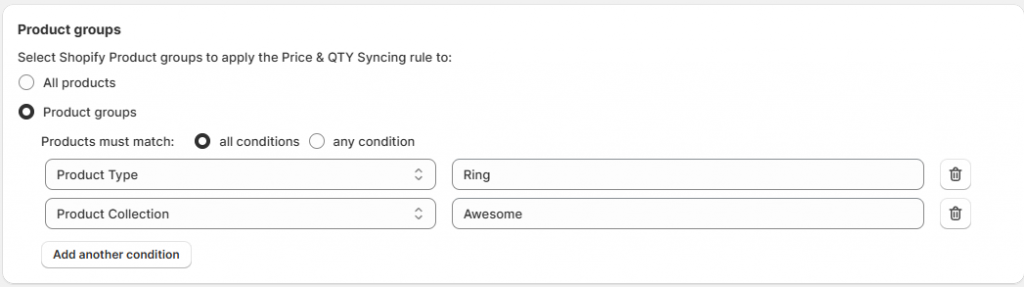
Syncing Rules are global presets for product listings. Salestio applies the matching rule based on the Shopify Collection, Category, or Product Type condition.
Click Syncing Rules at the top of the page to check the listing settings. Each rule has a match condition in the Product groups section. Salestio will automatically apply the saved rules based on this match:
Salestio applies the following priority for the Syncing rules:
- Listing Data added to the individual product (if any)
- Syncing Rule with a filter match
- Syncing Rule configured for all products
There are a few different rules relevant to eBay products:
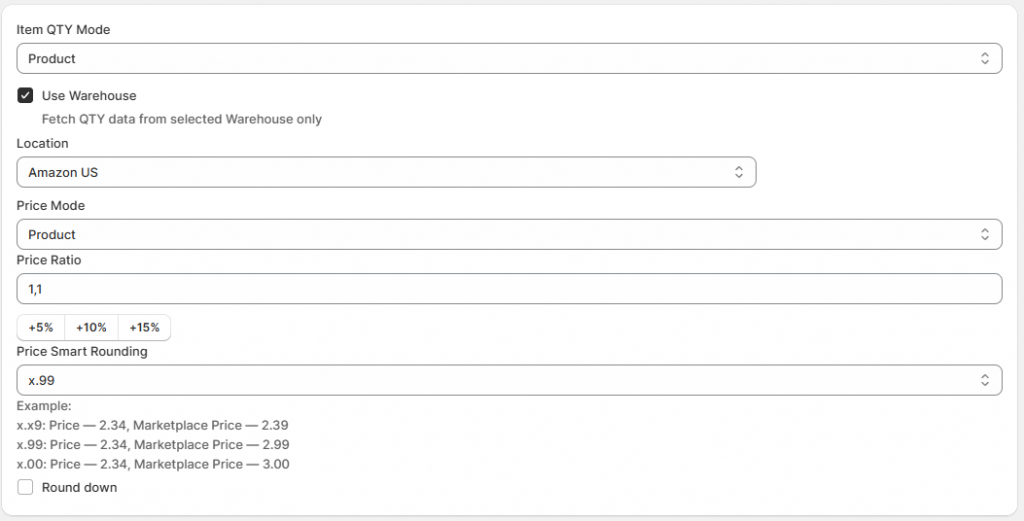
Price & QTY Syncing Rule
Salestio comes with a default Price & QTY rule for all products. The default preset sends the exact prices and quantities as they appear on the Shopify product page.
Set alternative modes for product syncing, pick a specific Shopify warehouse, or enable price rounding. Learn more about available options for customizing prices and quantities in the respective blog articles. Saved Price & QTY rules can be applied to any account or marketplace.
eBay Syncing Rule
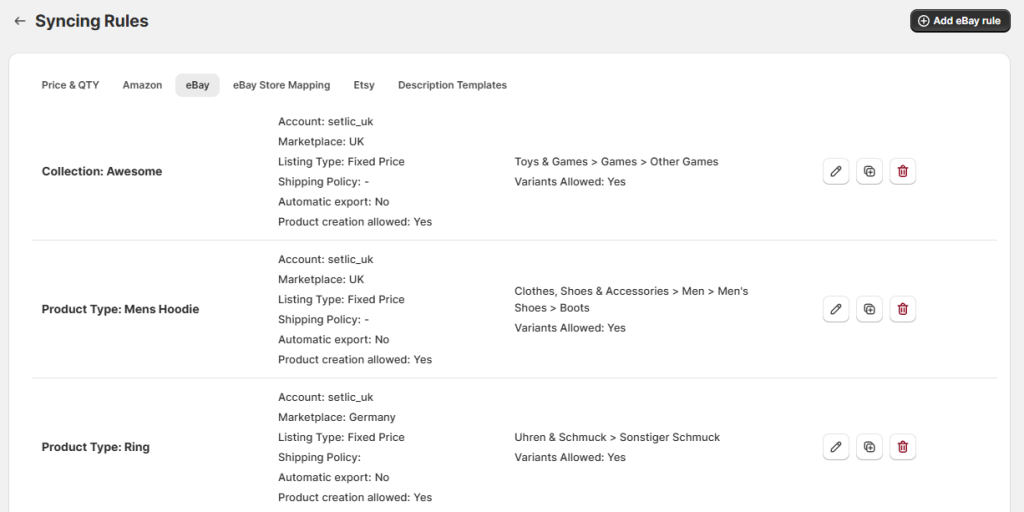
If you saved any Listing Data presets earlier, they will show up in this tab. Here, you can edit or add more Listing Data templates for your eBay items. Each template is saved for a specific account and marketplace. If you are selling on multiple marketplaces, make sure to add a Syncing Rule for each one or set up individual Listing Data for the rest of the products without a template.
Automatic listing can be enabled in this profile. When enabled, Salestio will automatically send any matching products to eBay.
In the eBay Syncing Rule, set the product creation details, such as Business Policies, location, and listing specifics. All the same details from Listing Data.
eBay Store Mapping
Members of the eBay Store program can connect their Shopify products to a corresponding eBay Store category. Note that this configuration applies only to the custom categories created through the eBay Store. For setting up the native eBay category, use the eBay Syncing Rule.
Related: Ebay Stores, connect to Store Categories in Salestio
Description Templates
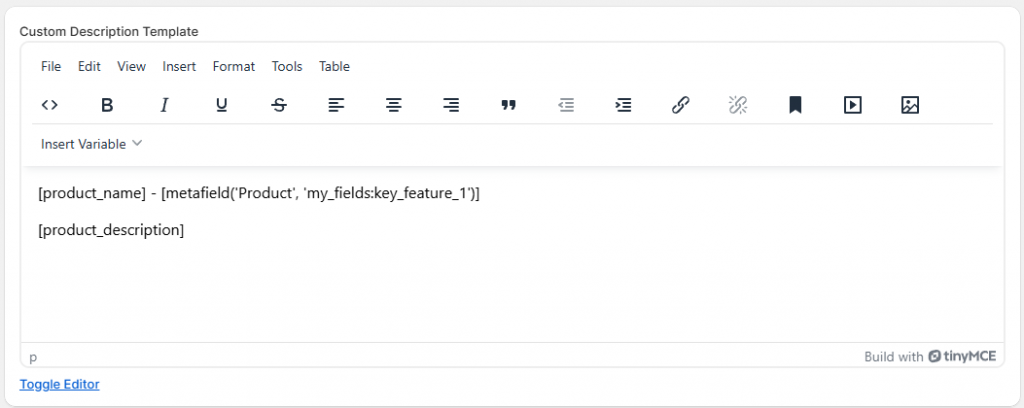
In Description Templates, set up a preset to compose a description for the marketplace listings. Use the editor to add custom text or product information from Shopify, including Metafields. Description Templates are applied on Send to eBay or Full Revise actions from the product list (with product creation enabled).
Our website features multiple description presets to match the style of your store. Check them out below!
Free eBay Description Templates
Send products and review results
After all the Syncing Rules and Listing Data are configured, send the items to the marketplace. There are two ways to publish the products:
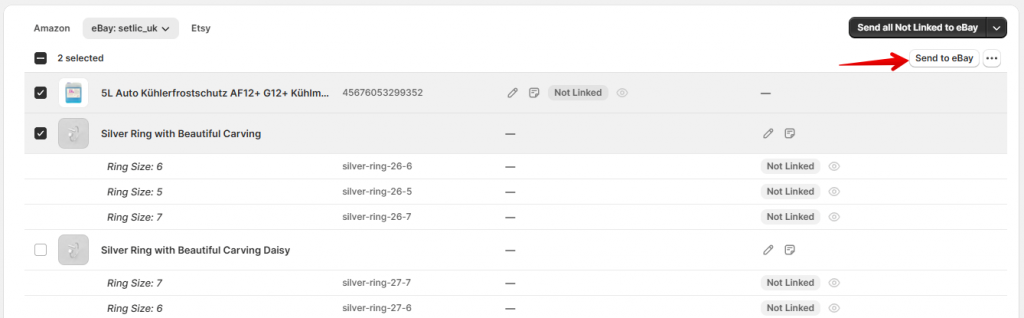
- Send the product one by one: select the items in the list and click the “Send to eBay” button at the top of the list.
- Send in bulk: click “Send all Not Linked to eBay” to publish all possible items in the Not Linked status.
Check back in a few minutes to see the results. Salestio will keep syncing the “Linked” items as the Shopify products update.
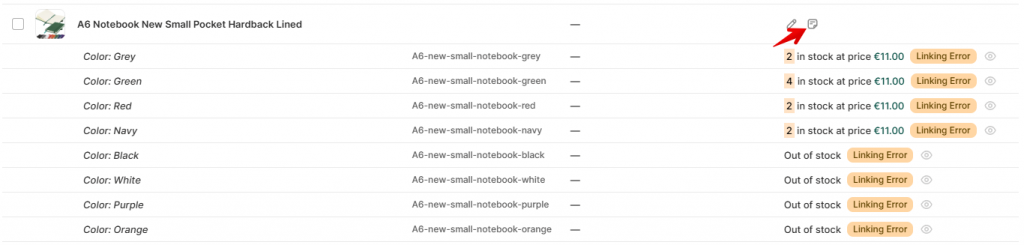
Some items might show up with a Linking Error status. Check the logs to find out why:
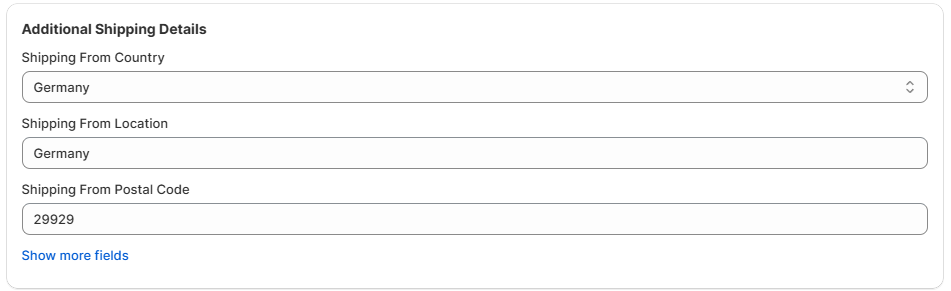
Item Location is always required. You may get the following error without specifying the needed details:
Error during submitting a product to eBay. Please add the Item LocationTo resolve this, update your Listing Data or Syncing Rule with location details:
See the help article below to find the exact steps for different kinds of errors:
List on eBay: Common errors and how to fix them
Bulk actions with the product list
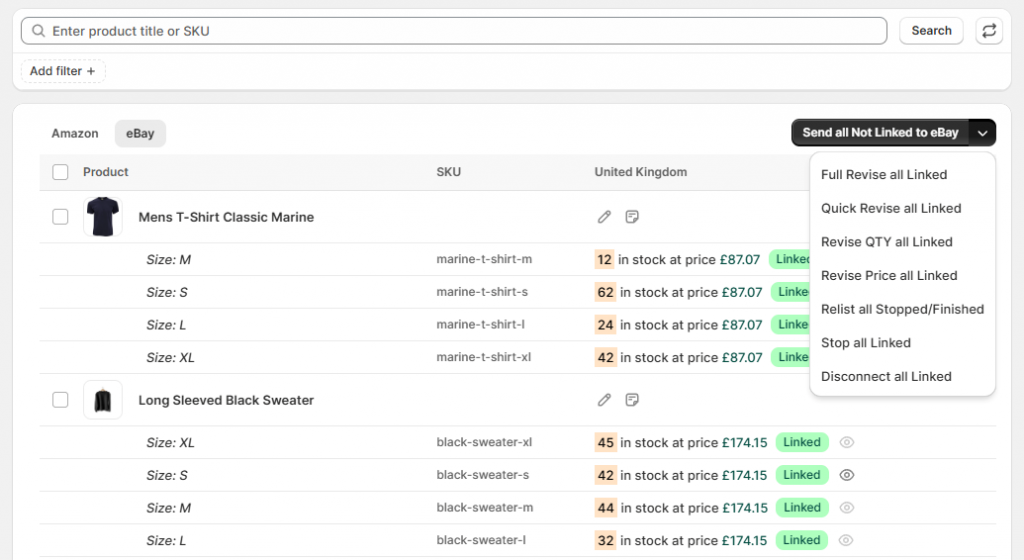
Salestio automatically updates the Linked products in your list based on the configured Price & QTY Syncing Rule. If you want to update the products manually, check the bulk actions at the top of the page. You might want to do a manual update after making adjustments to your Price & QTY Rule to apply them right away.
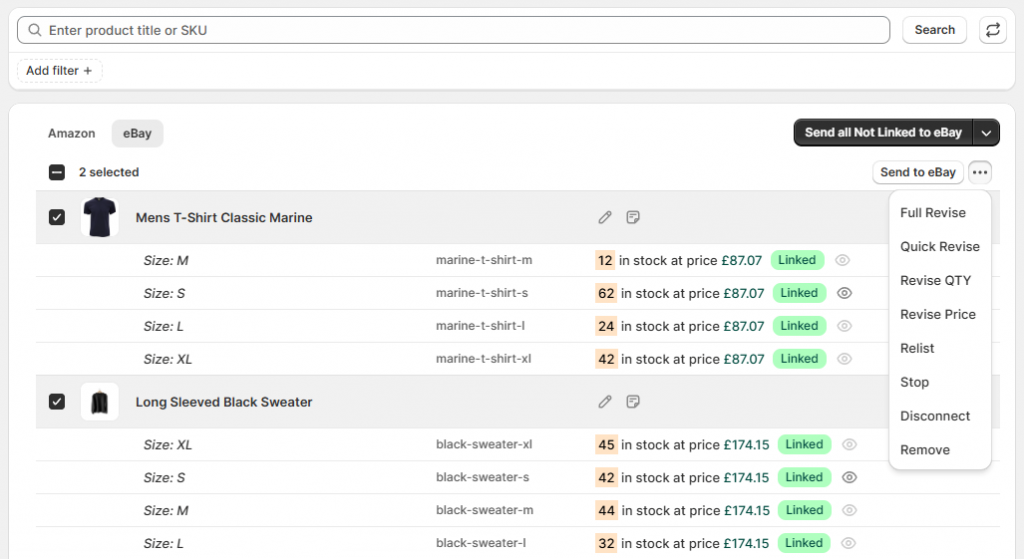
Alternatively, you can select multiple items in the list using the checkboxes. Click the three dots at the top to access bulk actions only for the selected products:
Check the alternative way to send and manage the products through Selling Lists, which allows sorting the items into different groups. See the full guide here: Exporting Shopify Products to eBay Marketplace with Salestio
Sync prices and stock, fulfill eBay orders, and connect to other marketplaces like Amazon and Etsy, all in one place. Find Salestio on the Shopify App Store and get a Free 14-day trial.