02 Oct'26





Today we would like to give you a detailed guide on how to export BigCommerce products to the eBay marketplace. To do this we will use our BigCommerce app : Salestio – Amazon, Ebay, & Etsy Integration
- Connect your eBay account
- (Optional) Set up the Global Profile
- Creation Profile
- Set up the eBay Profile
- Description Template
- Selling List
- Troubleshooting
Connect your eBay account
Start by adding your eBay account to Salestio. To do so, navigate to the Accounts tab and click the ‘Add eBay account’ button. You will be redirected to the ‘Add account’ page. Pick a name and the default marketplace, then save your selection.
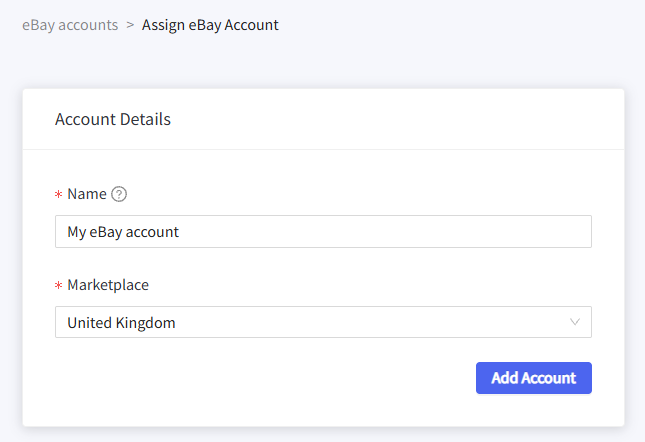
Confirm app permissions in the new tab that opens, and that’s it. You can confirm that the connection is successful by a green Active badge in the Accounts tab.
(Optional) Set up the Global Profile
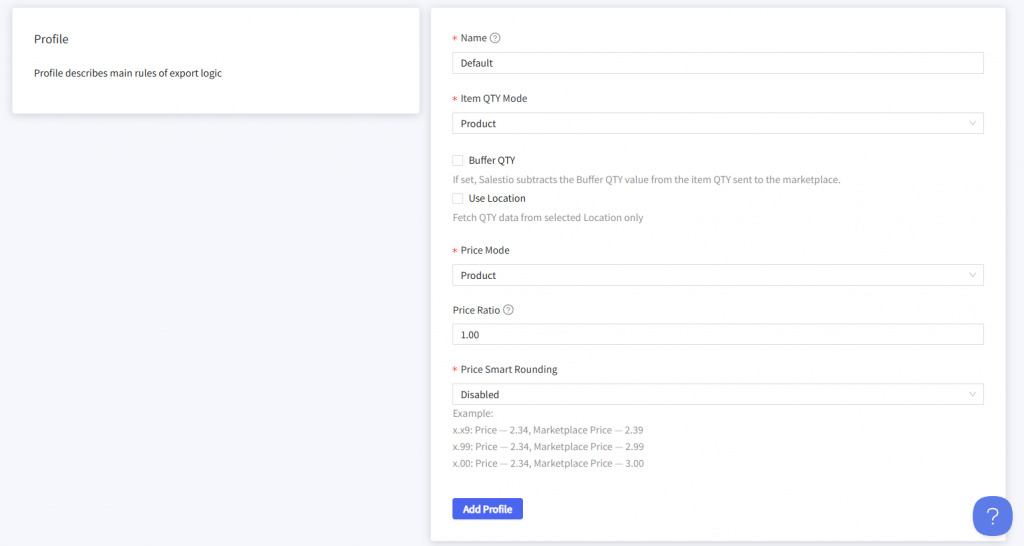
This is an optional step, because salestio comes with a default Global Profile setup. Here you can adjust the rules for syncing quantity or price for your future listings. Learn more about fine-tuning these presets in the corresponding articles for quantity rules and pricing rules.
Creation Profile
Creation Profile is a key component for publishing new eBay listings. This section allows you to create and extend eBay listing information with extra details and place the product into the correct category on the eBay marketplace. Add one from Salestio > Profiles > Creation Profiles.
You may want to skip the Creation Profile and add item specifics to each product individually. Check more details in the Selling List section later.
After giving a name to your Creation Profile and selecting a marketplace, you should set a mapping. A mapping is a way to place BigCommerce products in the selected eBay category and provide additional attributes to the product. You can combine different BigCommerce categories or product types to make a specific mapping for your target eBay category.

Salestio will present the list of item specifics after the eBay category is selected. These are the attributes that give your buyers more understanding of your products. Some fields are required and some are optional depending on the product type. Fill out the specifics and click Add Mapping at the bottom of the page.
Salestio supports Custom fields! When adding item specifics, feel free to use Custom fields stored in your BigCommerce product pages.
Use BigCommerce Custom Fields to create eBay products via Salestio

You can add multiple mappings if the store features different kinds of products. After adding all of the desired mappings, save the Creation Profile for later.
Set up the eBay Profile
Your eBay Profile holds the marketplace-related settings. Fill in the required fields:
- Profile name
- Marketplace
- Enable product creation and select the Creation Profile from earlier
- Location data: Country, Location, Postal Code

Prepare for listing auctions
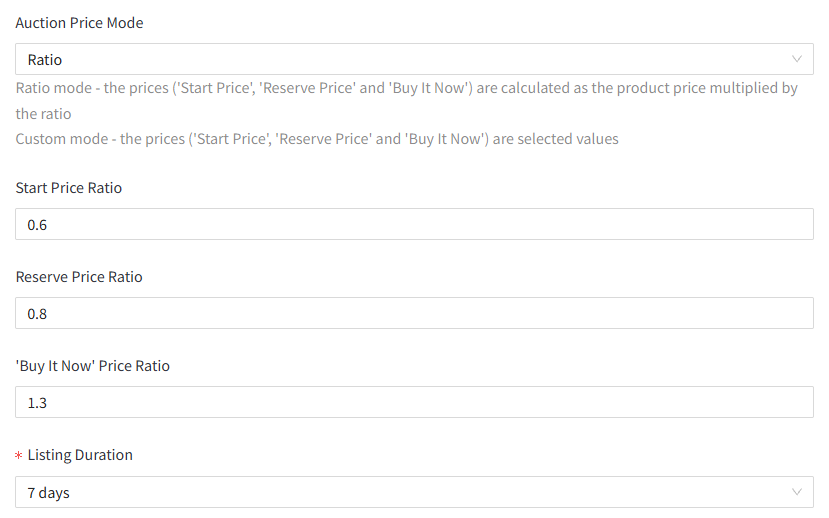
If you want to publish the listings as auctions, change the Listing Type setting. Fill in how Salestio should add the pricing using the Auction Price Mode setting:
- Custom mode lets you add a specific price directly in the fields below.
- Ratio derives the eBay price based on the BigCommerce price and the multipliers below.
Full guide: Listing eBay Auctions through Salestio
Description Template
Salestio comes with a Default template that uses your original BigCommerce description as is. By making your own edits, you can extend the product page with more details or pictures or even include your own CSS styling. Edit your templates from Salestio > Profiles > Description Templates.
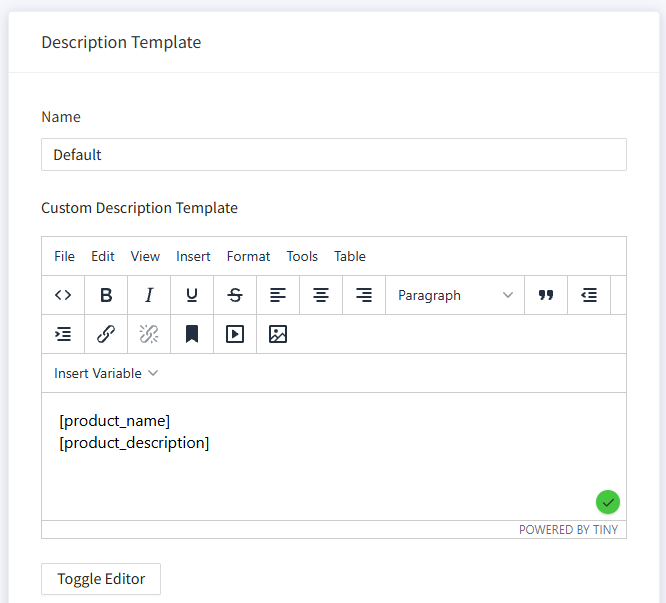
Feel free to browse the free collection of eBay Description Templates on our website. You can use the templates as is or add your own edits.
Selling List
Selling Lists hold your BigCommerce products before they can be sent to eBay. Add one from Salestio > Selling Lists tab.
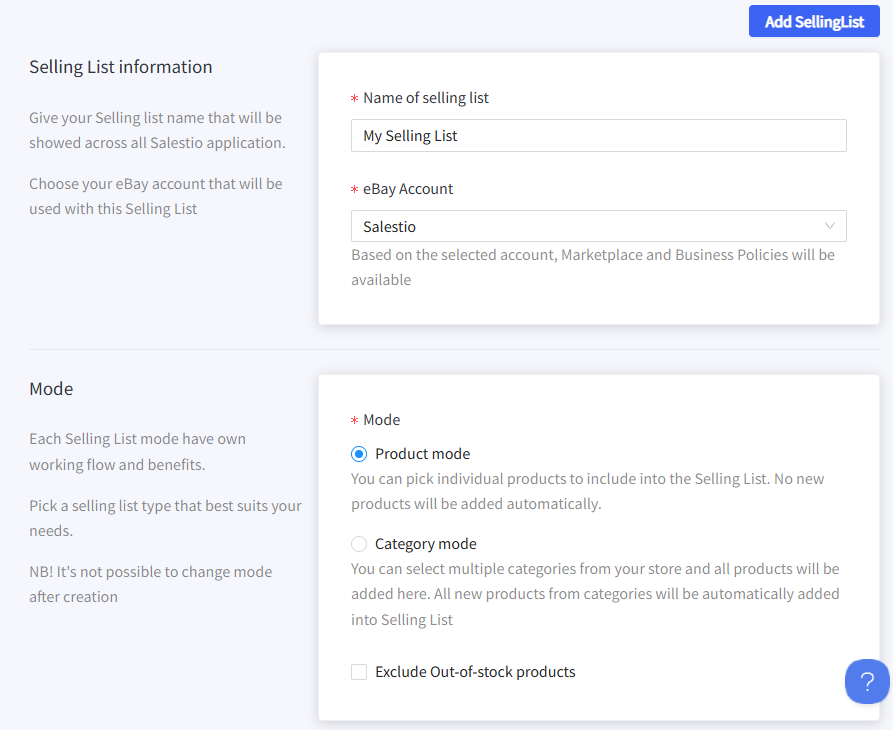
When creating a Selling List, pick a name and marketplace, then add the profiles configured earlier:
- eBay Account
- Global Profile
- Description Template
- eBay Profile
One of the key settings is the mode. Pick the mode that fits your case the best:
- In Product mode, you can add each item manually one by one or in bulk.
- In Category mode, Salestio will add new items automatically based on the contents of selected BigCommerce categories. Remember to assign the categories below when picking this mode.
Lastly, add a set of Business Policies that your products will use. Business Policies can be configured from your eBay account, and Salestio presents this list when creating a Selling List.
Learn more: Using eBay Business Policies with Salestio
Add products to the Selling List
In Category mode, just give the app a few minutes to scan your store and populate the list. Keep in mind that a category list should be selected in Selling List settings. You can edit this list at any time.
If you are using Product mode, the top part of the Selling List will feature buttons to add new products (in bulk or one by one.) Add your items using the product or category picker.

Add listing data
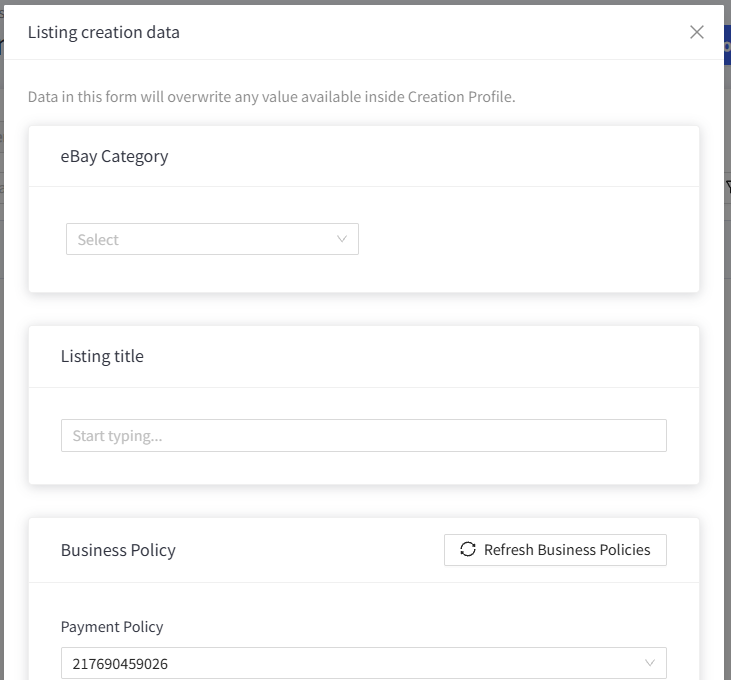
If you skipped adding the Creation Profile or want to add a unique configuration to a few items, click Listing creation data on the item that you want to change.
Adding creation data here will replace your Creation Profile setup. Here you can add the eBay category, specifics, adjust the title, and assign a unique set of Business Policies:
Export the products
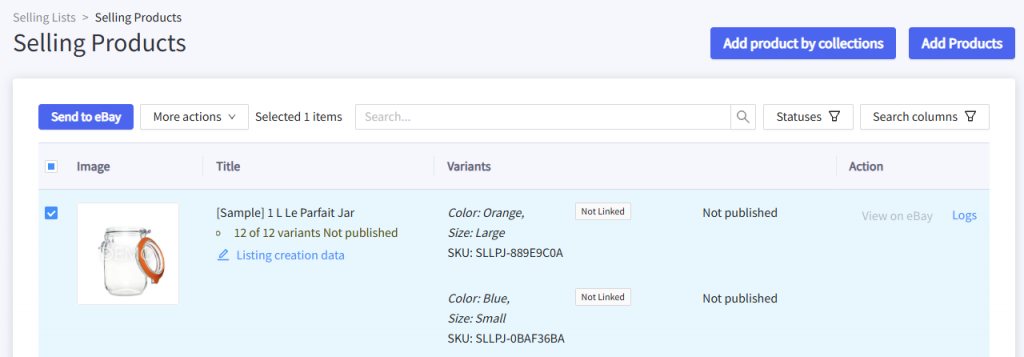
To send the product to eBay, you should select the product in the Selling list and click the ‘Send to eBay’ button. The status will change to ‘Pending Linking’.
Troubleshooting
When encountering a Linking Error status on some of your items, try checking the log messages to quickly find out what the issue is. We will list some of the most common messages and solutions below. After the error is resolved, select the product and click Send to eBay again.

List on eBay: Common errors and how to fix them
In some cases, when the Creation profile is misconfigured, you may receive the error below:
Error during submitting Selling Product with the title [Your Product Title] to Ebay. Ebay category not found for product, please adjust Creation ProfileThis error means that the corresponding mapping or Creation Profile is not found. Follow the steps below to make sure that the profiles are configured correctly:
- Note the Bigcommerce category on the product in question. Check the mapping in the Creation Profile and make sure that the Conditions section corresponds to the attributes of this BigCommerce product.
For example, the mapping can be set to match all conditions or any condition. Make sure to select “any condition” to match products even if they are not in every selected category.
If the product is added to a subcategory in BigCommerce, it will not be matched against its parent category. Add the full subcategory to the condition when applicable.
Remember to save the mapping and the Creation Profile after making changes.

- Check the eBay Profile. Make sure that product creation is enabled and the correct Creation Profile is selected. Save the profile after making changes.

- Go to Selling List settings and check if the correct eBay Profile is selected there.
- Send the product to eBay again.
Item Location is always required. You may get the following error without specifying the needed details:
Error during submitting a product to eBay. Please add the Item LocationTo resolve this, check the eBay Profile or Selling List settings and add the missing details in the “Additional Shipping Details” section:

Salestio streamlines the process of managing an eBay store. Check out the app on BigCommerce Apps & Integrations and start a free 14-day trial.