15 May'26




Salestio offers plenty of tools for listing products on Amazon. In this article, we will explore the specifics of creating brand-new Amazon listings when working with the Selling Products view. We will outline the key steps for adding product creation information and how to address potential issues.
- Add the item to your product list
- Add product details
- Enable Product Creation
- Send products to Amazon
- Troubleshooting
This guide assumes a connected Seller Central account and focuses on product creation. For a general guide with all customization features, check out the article below:
Export Shopify catalog to Amazon
Add the item to your product list
Go to the Selling Lists tab in Salestio to add your products. Select your Amazon account in the top bar and click “Add Products” at the top.
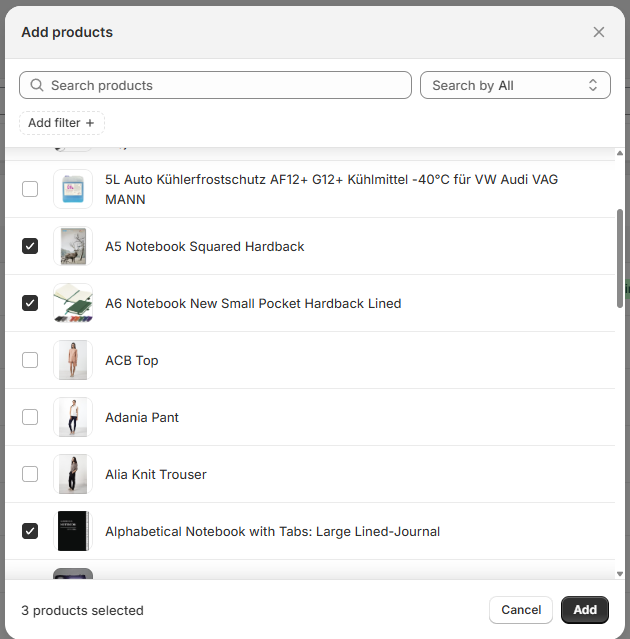
Select the Shopify items to add to your Salestio product pool. No need to add everything at once, as you can include more products later at any point. New items will appear in the list with a Not Linked status.
Add product details
Each product can use one of the two profiles that hold the Amazon-specific information for the product:
- Listing Data, which is an individual preset for each product.
- Syncing Rules that hold the same information as Listing Data, but can be applied to multiple items based on a condition match.
Key details that can be added here:
- General product info like condition and condition note.
- Amazon settings such as fulfillment latency and shipping template.
- Product Creation settings (category, variations, product specifics).
Configure Listing Data
To access this page, click the pen icon on your product. Add all the product details here and save at the bottom.
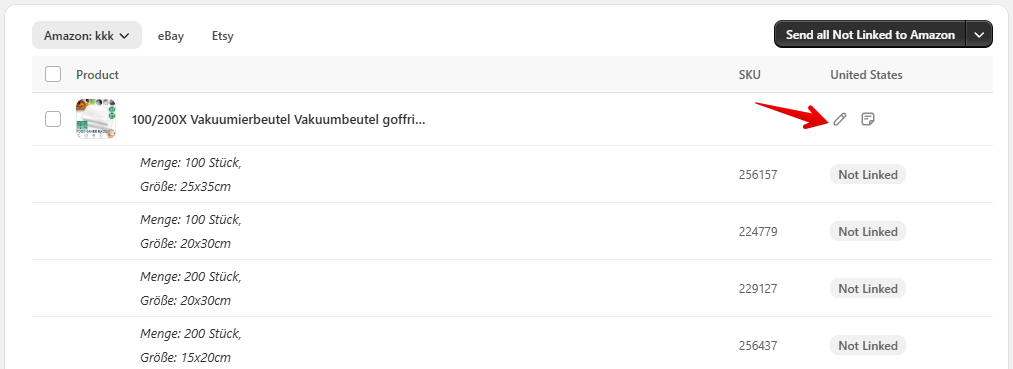
You can convert any Listing Data preset into a Syncing Rule. Click Save Listing Data for future listings and set up which Shopify product groups should use this preset.
Set up Syncing Rules
Access all of your rules by clicking Syncing Rules at the top. Here you can:
- Edit the Syncing Rules already saved from any Listing Data presets earlier.
- Add and edit new Syncing Rules.
Using Syncing Rules gives the option to enable autolisting for matched products.
Your Syncing Rules will automatically apply to products that match the configured condition:

Salestio applies the presets using the priority list below:
- Listing Data added to the individual product
- Syncing Rule with a “Product groups” match
- Syncing Rule for “All products”
Enable Product Creation
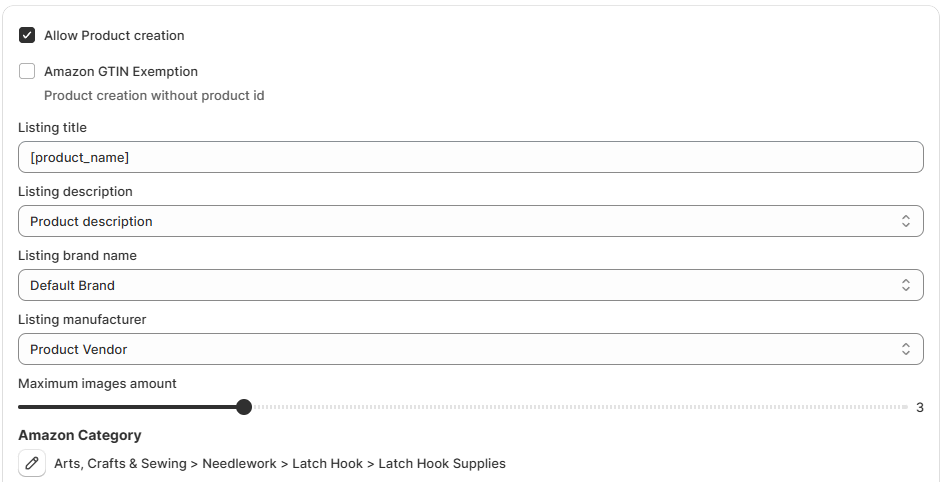
Product Creation can be enabled when setting up Listing Data or Syncing Rules. This section holds the required information for creating new ASINs on the marketplace.
Sort out the barcodes
Normally, Amazon requires barcodes for creating listings (EAN/UPC). Make sure to have one specified on the Shopify product page. In case you have a GTIN exemption for your Seller Central account, you can skip adding barcodes and enable the Amazon GTIN Exemption option in product creation data.
Set up the category and item specifics
Pick the target marketplace category and product type in the fields below. The available list of product specifics will depend on your selected product type.
After the Amazon product type is selected, the corresponding product specifics fields will appear below. Usually, there is no need to fill out every field, but the required fields depend on the selected product type. Additionally, at least one Bullet Point is always required. For example, “Apparel” has the following required fields:
Model Number, Model Name, Manufacturer, Offering Condition Type, Lifestyle, Style, Target Gender, AgeKeep in mind that the required fields can be different depending on the current Amazon marketplace.
Configure the variations
Shopify variations are based on a list of options. For example, you could add Color and Size as options. Salestio can use these options in the mapping to configure the Amazon variations. Each option can have several attributes; for instance,
Size: XS, S, L, M.
Color: Black, White, Red
For every combination of Size and Color, Shopify will create a corresponding SKU in the store, which is called a variant.
To include variations in Amazon listings, enable the “Does this product have variations?” setting. Depending on the variants in the store, select the Variation Theme Name that applies. We will use “COLOR/SIZE” as our example. Note that the variable fields have to be configured with a variation option from the store. For the “COLOR/SIZE” theme, we have to configure both “Color” and “Size” specifics. The format looks like this:
[product_attribute_value('StoreVariationOption')]You can use autocomplete and select this value from the dropdown in each field.
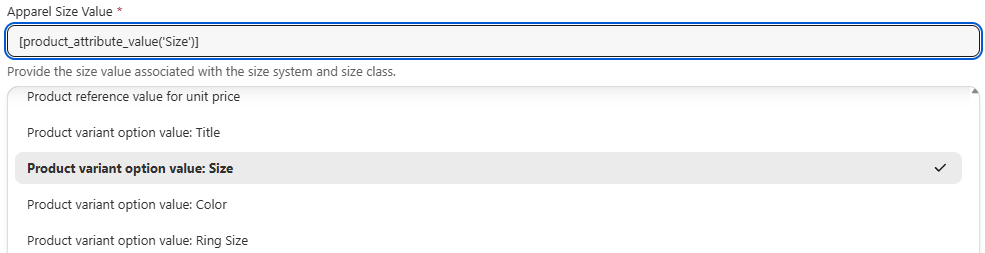
Add a variation mapping
For some product fields, Amazon expects a specific format. For example, “XS” is not accepted as a size value for hoodies, and sellers should use “x_s” instead. You can check the possible options in the dropdown for any specific. Select any value to see how it appears in the field. This would be the required format:

Because sellers are unlikely to use “x_s” or “jaspo_2x_s” as variation names in their store, Salestio allows mapping variation names in the store to the format required by Amazon. To set this up, click the “Variation Mapping” button at the top of the specifics section. Add mapping lines for each store variation attribute:

With Amazon category and product type, Variation Mapping, and the list of specifics, our product creation data is complete.
Remember the option to save this profile as a Syncing Rule to reuse it with other listings.
Send products to Amazon
After all the Syncing Rules and Listing Data are configured, send the items to the marketplace. There are two ways to publish the products:
- Send product one by one: select the items in the list and click the “Send to Amazon” button at the top of the list
- Send in bulk: click “Send all Not Linked to Amazon” to publish all possible items in the Not Linked status
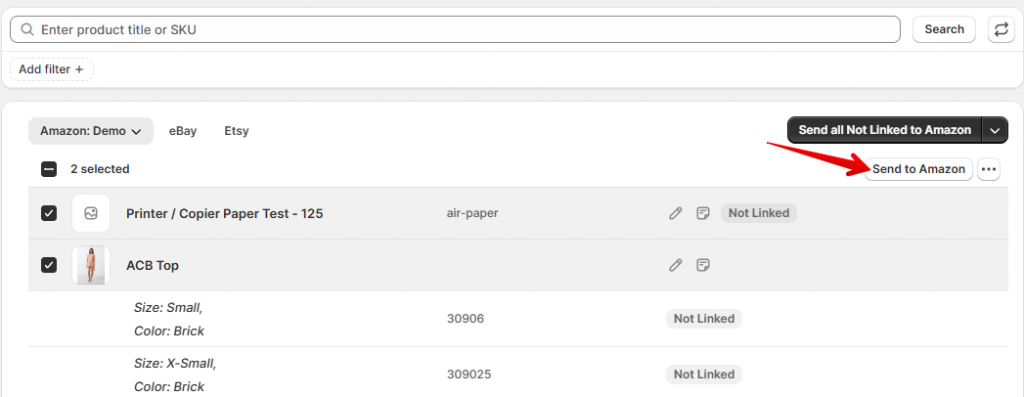
Check back in a few minutes to see the results. Salestio will keep syncing the “Linked” items as the Shopify products update.
Troubleshooting
Some items might show up with a Linking Error status. Check the logs to find out why:
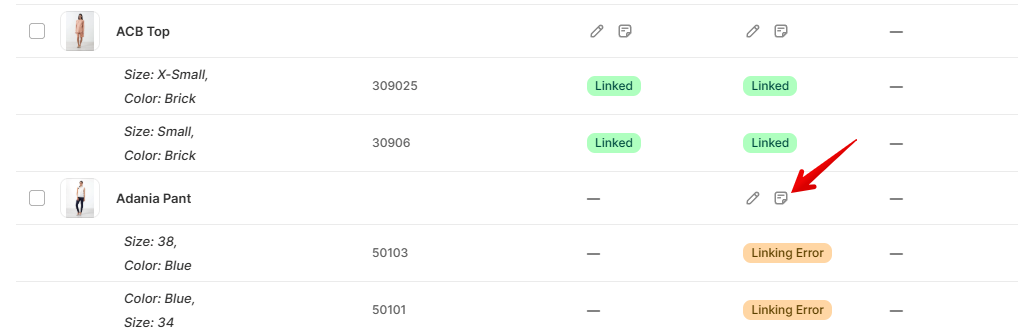
Errors in creation data
A few different errors might appear if the creation data is misconfigured:
item_dimensions: The field 'height' for the attribute 'item_dimensions' does not have enough values. The required minimum is '1' value(s).(99022)number_of_items: 'number_of_items' is required but not supplied.(90220)included_components: The attributes are invalid.(90000900)The above errors relate to the ‘Item Height,’ ‘Number of Items,’ and ‘Included Components’ fields, respectively, but a similar issue might appear with any other field.
To resolve errors like these, go back to your Listing Data (or the Syncing Rule if you are using one) and edit the item specifics. Check what field is missing in the error message and update your profile accordingly.
Send the item again after updating the settings and check the results.
Restricted brand or category
Some brands and categories require approval from Amazon. If you try to list a product from a restricted brand, you might get one of the below errors:
Error: The seller is not allowed to list products under the restricted brandError: Seller is not authorized to list products in this product line or category.You can request approval directly from Seller Central. Follow the suggested steps to list products like this:
- Go to Seller Central and create one listing from the affected category or brand directly from there.
- Amazon can ask for additional information or documents. Provide the requested details.
- Wait until you get the approval and the product is listed. This may take a while.
- After the product is listed, return to Salestio and send the items again.
If you are trying to list in multiple restricted categories/brands, this process needs to be repeated for each of them.
Salestio streamlines the process of creating Amazon listings, especially when sending items in bulk. If you need further assistance, feel free to reach out at support@salest.io or look for the help widget inside the app. The app offers a 14-day Free Trial: check it out on the Shopify App Store.