03 Jul'26




Salestio covers multiple scenarios to list products on Amazon, whether they exist in the marketplace catalog or not. Today, we focus on creating brand-new Amazon listings based on your Shopware inventory.
This article focuses on products that do not have an ASIN: they are not in the marketplace catalog, and Amazon doesn’t know anything about them. If your products are already on Amazon, check out the simplified guide for publishing products.
Before setting everything up, make sure to connect your Amazon account with Salestio first. Go to Salestio > Accounts tab > Add account to select your Amazon marketplaces and log in.
- Adding a Creation Profile
- Finalize product creation settings
- Add a Description Template (optional)
- Set up the Selling List and send
- Troubleshooting
In this guide, we will use a Shopware product with two variants as an example: an abrasive wheel in two grit sizes. This item is not yet on Amazon, does not have a barcode, and is currently in the “Utility” category in Shopware.

Adding a Creation Profile
A Creation Profile is necessary to send products that do not yet exist in the Amazon catalog. Here, you can map your Shopware categories with Amazon categories, configure variations, and list item specifics like materials, country of origin, or measurements.
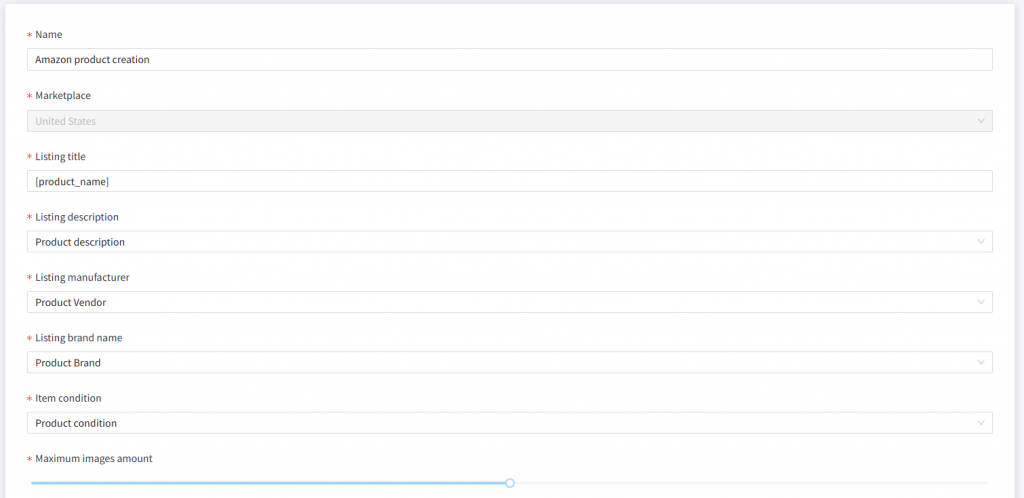
To start setting up, go to Salestio > Profiles > Creation Profiles and click “Add Creation Profile.” Pick a recognizable profile name and your target Amazon marketplace first.
Additionally, you can adjust product titles and other basic information, such as manufacturer or brand name. For example, instead of the Shopware product name, set a custom field or add text.
Image limit is also set in this section. By default, Salestio is limiting the Amazon images to one.
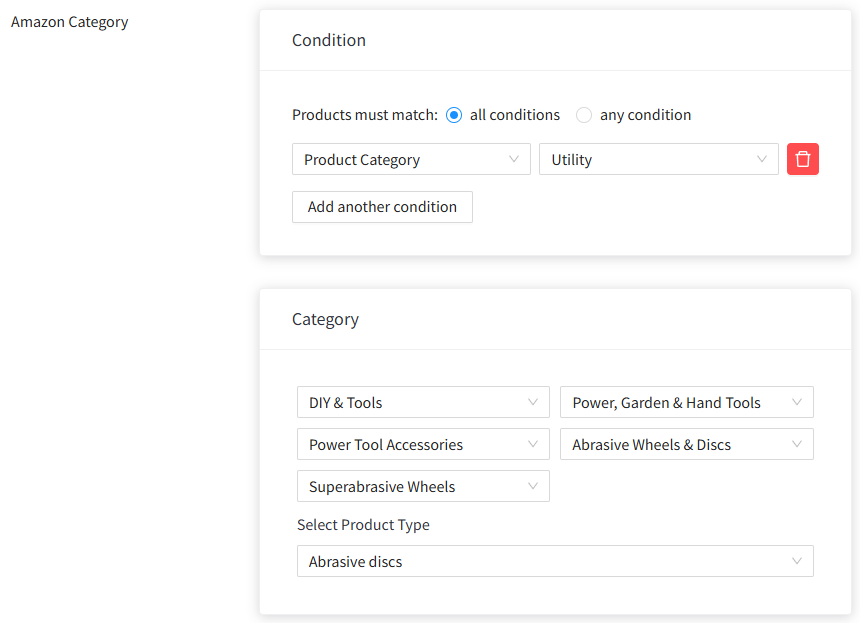
Each Creation Profile requires at least one mapping. Here you can link Shopware product categories with Amazon categories and add the specifics. Pick the Shopware category in the Condition section and its Amazon counterpart in the Category section below.
In our example, we are listing abrasive wheels, so the setup looks like this:
Add variations to the mapping
If your products feature variations, make sure to enable the corresponding option in the mapping and select your variation theme (size, color, etc.)
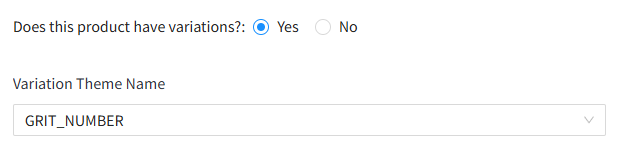
Fill in the corresponding specific field according to your selected variation. Select the Shopware variation that corresponds to this field. The variation property for our product is called “Size”:
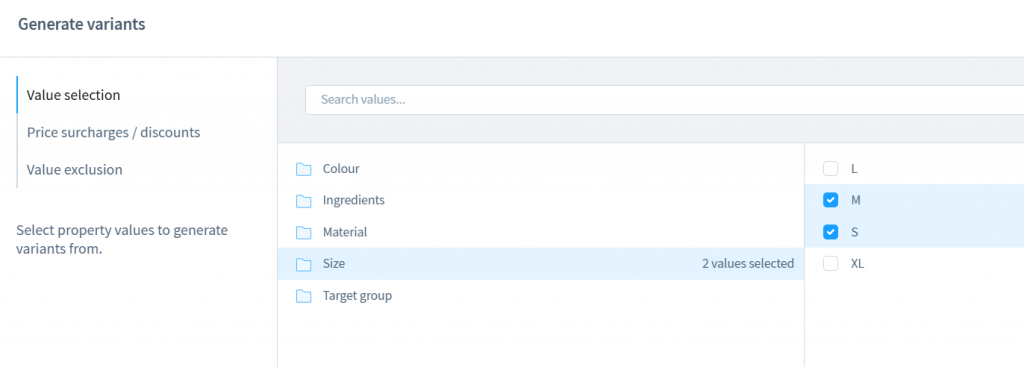
If you have multiple themes selected, then all the corresponding specifics have to be filled in with the Shopware attribute. For example, both the Size and Color fields should contain Shopware attributes when “COLOR/SIZE” is selected as the variation theme.
In our case the grit number is stored in the “Size” variation in Shopware, so it looks like this:

Add product details
After the Amazon product type is selected, the corresponding product-specific fields will appear below. Usually, there is no need to fill out every field, but the required fields depend on the selected product type, Amazon marketplace, and category. To know the exact list of required fields for a specific category, try listing an item directly on Amazon. Salestio will highlight most of the missing fields when saving the mapping, based on category details provided by Amazon.
Some fields are required for every category: at least one bullet point, Offering condition, MPN, Country of Origin, and Dangeroud Goods Regulations. If the configuration is missing any fields, it will be highlighted among the log messages after publishing. In that case, you can return to this page and extend the mapping with more fields to try sending the items again.
After setting the categories, specifics, and variations, click Add Mapping at the bottom of the page. If you have multiple product groups that require different settings, repeat the above process to add multiple mappings and save the Creation Profile.
Finalize product creation settings
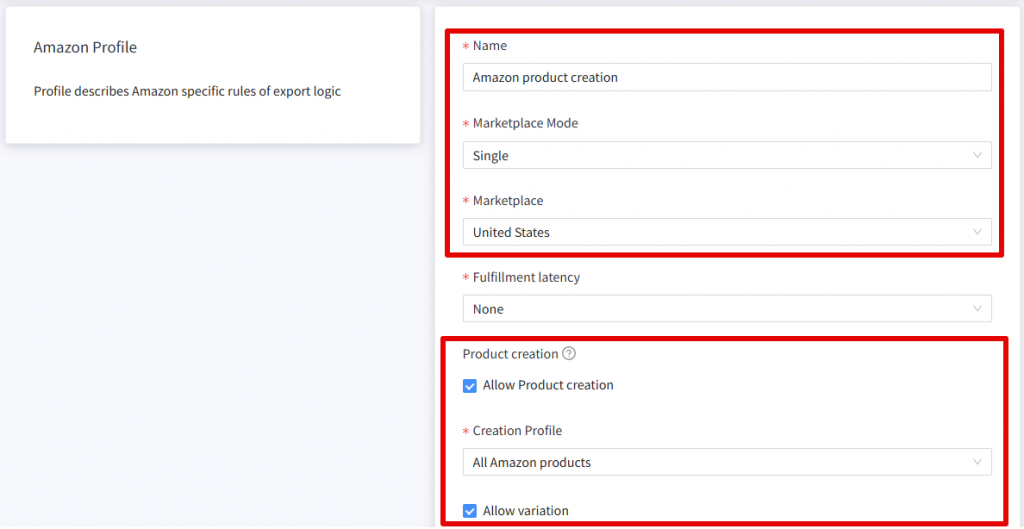
When the Creation Profile is complete, it has to be selected inside of the Amazon Profile. Go to Salestio > Profiles > Amazon Profiles and select your current one (or add another.) Make sure to use a profile with Single in the Marketplace Mode and set your target marketplace.
In this profile, tick the Allow Product creation checkbox, select the Creation Profile from the drop-down, and enable the Allow variation option as needed.
Use the GTIN Exemption
Our product does not have a barcode, so we need to enable one extra setting in the Amazon Profile: Amazon GTIN Exemption. If your products have a barcode, skip this step.
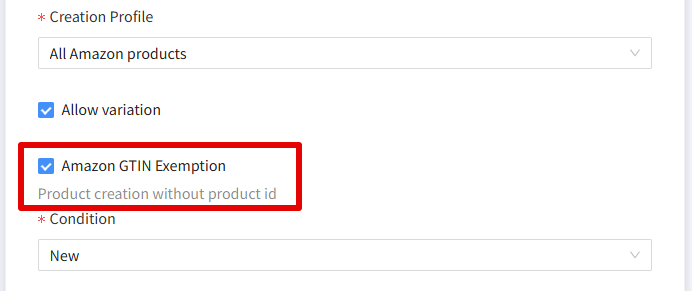
Normally, Amazon requires each product to use a barcode, such as UPC or EAN. Some types of items can ignore this requirement, provided that Amazon approves the action. You can check the Amazon help article for a detailed explanation of the requirements and the steps to obtain the GTIN Exemption.
The short version is to try publishing a product for the same category directly through Seller Central to get the reply from Amazon. After the item is accepted, continue publishing the rest of the products through Salestio (remember to enable the GTIN Exemption in the Amazon Profile.)
Add a Description Template (optional)
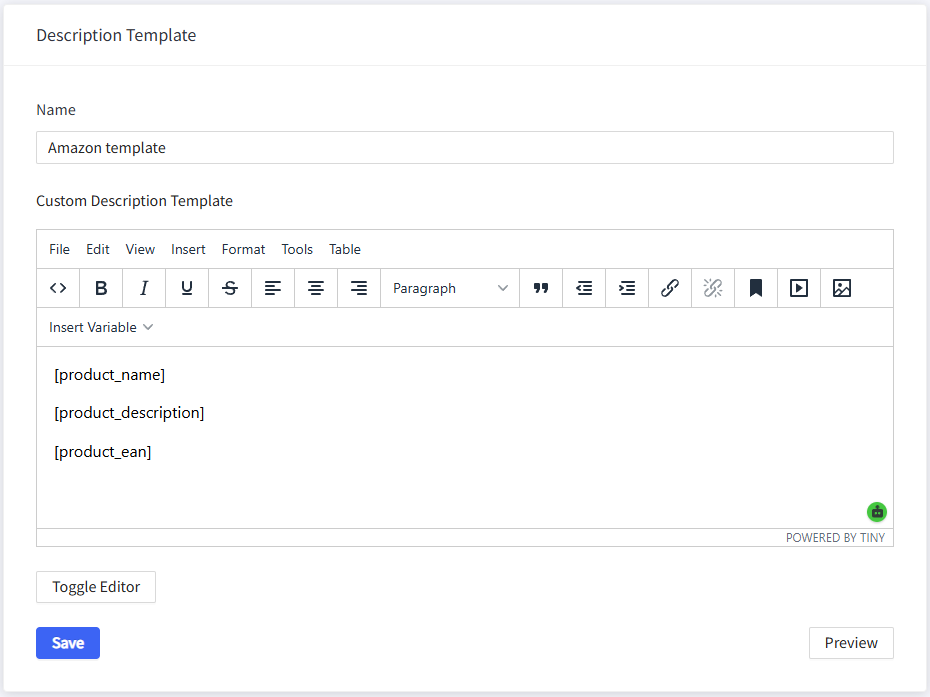
Description Templates decide how your Amazon product descriptions will look. Add one in Salestio > Profiles > Description Templates.
This is an optional step. Without a Description Template, Salestio will send the Shopware description when publishing, as is configured in the Creation Profile.
Explore the editor to add more details, such as custom text, additional product information from Shopware, or custom fields.
Set up the Selling List and send
Selling Lists are where the products can be organized before being sent to the marketplace. All of the connected items will remain here to keep syncing with Amazon.
To add a Selling List, navigate to Salestio > Amazon > Selling Lists tab and click Add Selling List. Select the same Amazon marketplace as set in the Creation Profile and Amazon Profile.
On this page, add the profiles from earlier: Amazon Profile and Description Template.
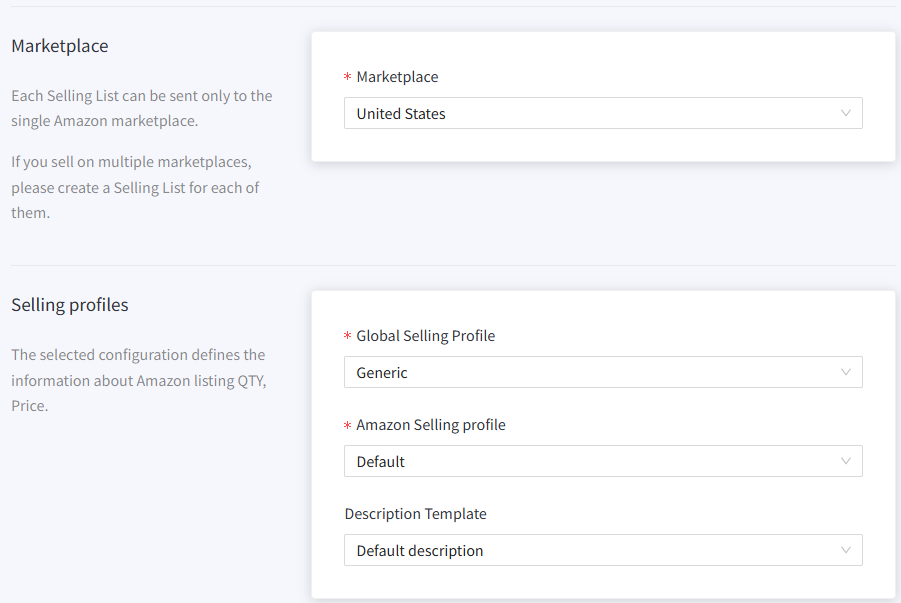
If you selected Category mode, give the app a few minutes to fetch the products. In Product mode, add some items manually.
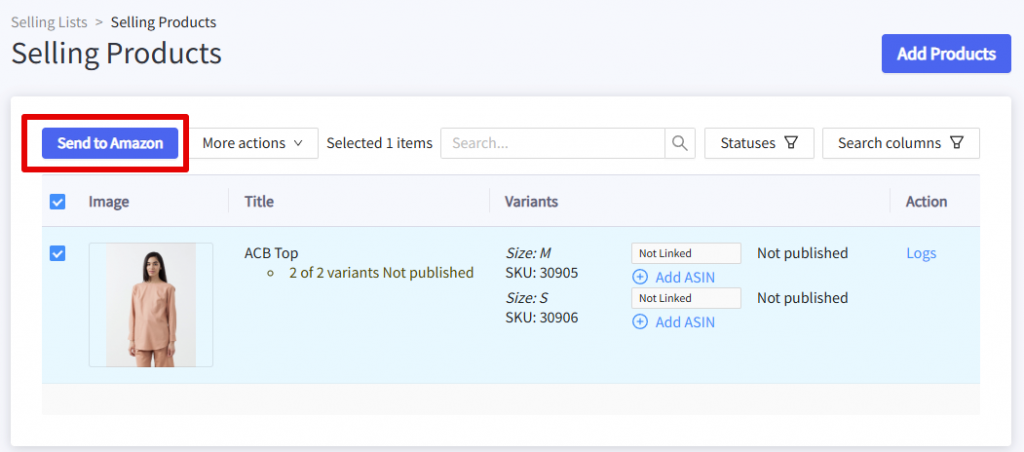
To publish the items, select them in the Selling List and run the Send to Amazon action. A successfully published item will return with a Linked status.
Troubleshooting
In case some products return with an error status, check the log messages to find out more:

merchant_suggested_asin: 'Merchant Suggested ASIN' is required but not suppliedThis message appears when trying to send products that don’t exist on Amazon.
If you already went through the steps in this guide to set up the app for listing, please confirm your setup in Salestio to resolve this error:
- Creation Profile exists
- Product creation is enabled in the Amazon Profile
- Correct Amazon Profile is assigned in Selling List settings
Try sending the item again after adjusting the profiles in Salestio.
Please, check mapping in Creation ProfileThis message appears when the Creation Profile is assigned but is missing a mapping for the specific product that you are trying to send. First, note the Shopware category of this item. Go to Salestio > Profiles > Creation Profiles to check your mappings. The Condition section for one of the mappings should contain the noted Shopware category. Add an extra mapping or edit the existing one if you want to include more categories.
externally_assigned_product_identifier: 'External Product ID' is required but not suppliedA Product ID warning appears when product is missing a barcode. To resolve this, add a EAN or UPC to whe Shopware product page and try sending the item again. For products without a barcode, enable the GTIN Exemption (see the section above.)
number_of_items: 'number_of_items' is required but not supplied.(90220)Messages about fields being missing or invalid indicate that the Creation Profile has to be adjusted. Note the field name from the error message and check the mapping in the Creation Profile. Assign a value or a Shopware property to this field and try sending the item again.
The field Size contains invalid value "Extra Large"For some variation fields, such as Size, Amazon requires a specific format. For example, you should use ‘x_s’ instead of ‘Extra Small’. To make your Shopware variation format compatible with Amazon, add a variation mapping in the Creation Profile mapping. See the help article for detailed steps on the variation mapping.
After addressing the issue from the log messages, try sending the item one more time using the Send to Amazon action. A successful operation will result in a Linked status:

Full article
List on Amazon: Common errors and how to fix them
Syncing your e-commerce store with Amazon through Salestio makes it easier to create Amazon listings in bulk. By following the above steps, you can ensure that the listings are organized and synced across the platforms. Get Salestio for your e-commerce platform of choice and start a Free 14-day Trial.