28 Aug'26





Salestio offers flexible tools for customizing product information, whether your store has a large or small product selection. Understanding the available options can help you significantly cut down on the setup time.
If you are using the Selling Products view, the app offers two ways of assigning product details: Listing Data or Syncing Rules. Let’s review the differences of these methods and learn how to choose the best one for your setup.
To learn more about working with Selling Products view, check out one of the recent Salestio videos.
What’s the difference?
Both Listing Data and Syncing Rules accomplish the same goal: adding marketplace settings and product details to your future listing.
- Listing Data: Individual profile that you can set for any specific product to fine-tune how the marketplace item should look. This is the fully custom approach to each product.
- Syncing Rule: A general profile that is automatically applied to products matching a condition. Syncing Rules can be quickly applied to large sets of items that have common settings.
Let’s review a quick example of an eBay listing with each method to better understand how they work:
How-to: Listing Data
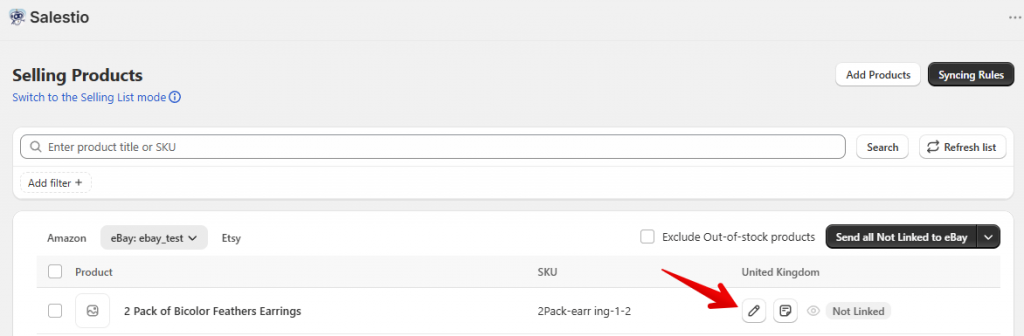
The Listing Data form can be accessed via the Pen icon on each of your products:
When publishing a product, enable the Allow Product creation checkbox to reveal the marketplace-related fields.
Add the key settings to your product creation settings: a set of Business Policies, eBay category, item specifics, and shipping information.
The required fields are different for each marketplace. Make sure to add all the necessary information depending on your case.
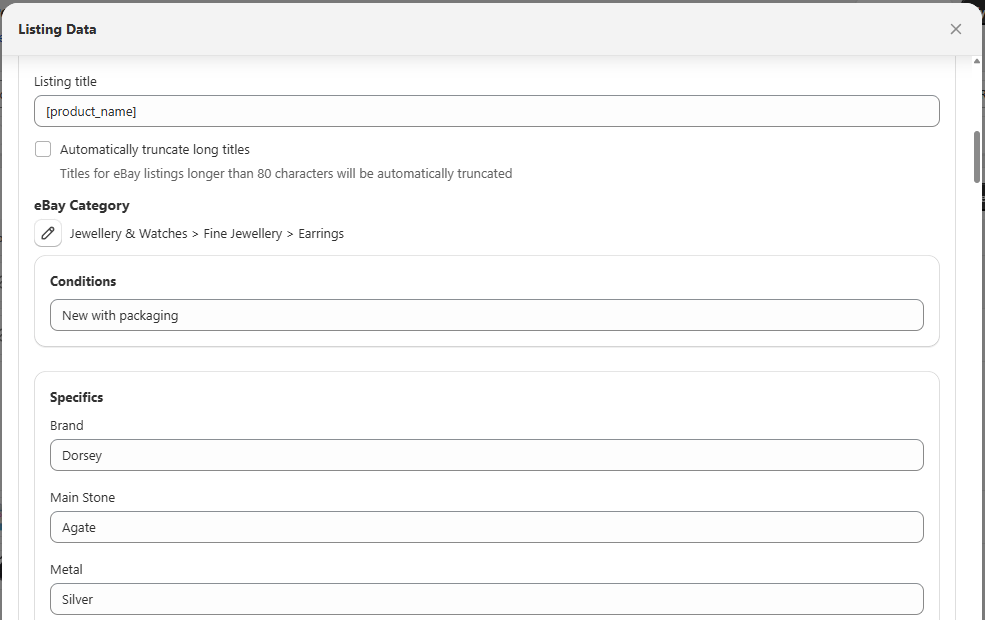
After adding all of the details, save your Listing Data. The product is ready for publishing!
Because of the fine control, this method is best suited for unique items:
- Products that can’t be covered by a blanket rule
- Handcrafted or limited edition products
- A Syncing Rule exists, but you want to overwrite some fields for specific products
How-to: Syncing Rules
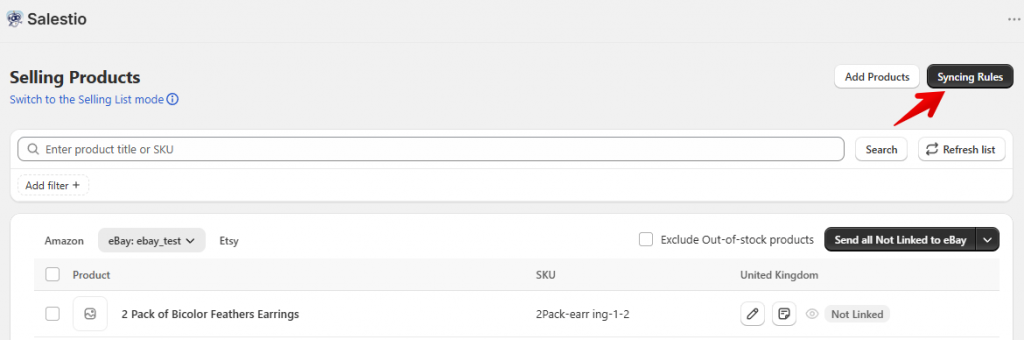
To access the list of your Syncing Rules and add a new one, click Syncing Rules at the top:
A Syncing Rule contains the same fields as Listing Data, where you can add the specifics, category, and other product details. Additionally, you should set up what kind of products should use this rule: set a condition (“All products” or Collection / Product Type match), eBay account, and marketplace.
You can layer multiple conditions to match the exact product groups that you need. For example:
- Collection: All Bags
- Collection: Summer AND Product Type: T-shirts
- Collection: Pokemon Cards 2025 OR Collection: Pokemon Cards 2026
Here is an example setup for our earrings:
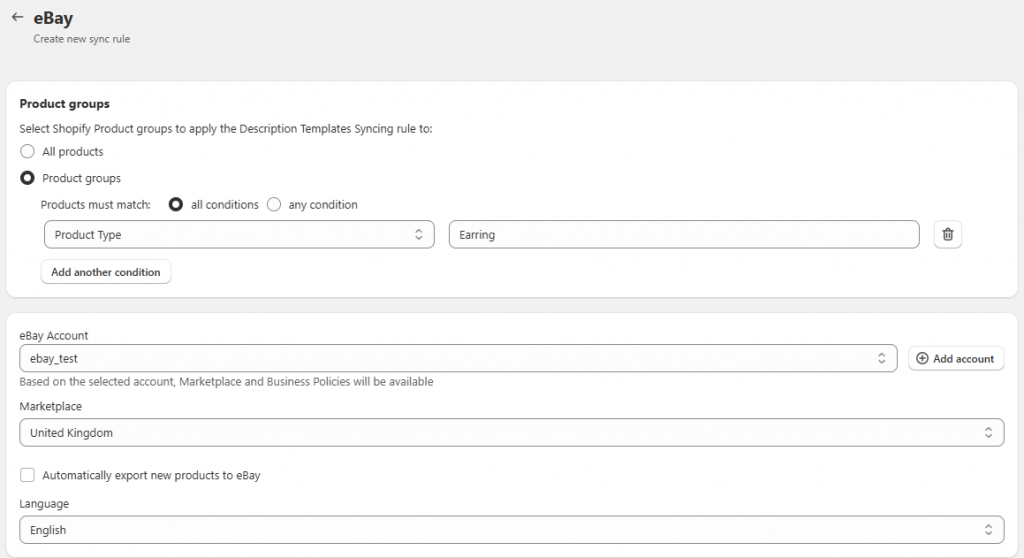
After the Syncing Rule is saved, it is automatically applied to all products matching the set condition.
Alternatively, you can save one of the existing Listing Data presets as a Syncing Rule. Open your target preset in the product list and enable the option: Save Listing Data for future listings
Setting up product details this way cuts down on the configuration time, especially:
- For large batches of products
- For standard items, such as replacement parts, various shirt designs, or collectable figures
Make them work together
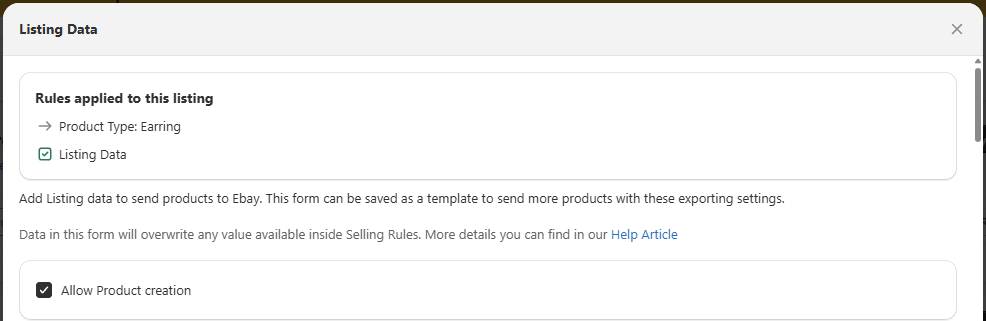
Both Listing Data and Syncing Rules can be active at the same time. Below is the priority when you have multiple profiles configured:
- Listing Data
- Syncing Rule with a Collection / Product Type match
- Syncing Rule for “All products”
How to check which profile is applied
If any profiles are overriding each other, it is indicated on the Listing Data page:
Best practices
- Focus on setting up Syncing Rules first to cover the bulk of products, then add Listing Data to exceptions.
- Use the Shopify categories wisely: Accurate use of Collections, Product Types and Categories in Shopify helps with the process of making Syncing Rules and makes navigating the store easier.
- Test on small batches first: Try your setup for publishing a couple of products and see the results. If you are happy with the listings, send the rest of the products.
- Utilize Shopify variables: Metafields allow adding a single Syncing Rule to cover different kinds of items. Learn more about Shopify Metafields in Salestio
Salestio streamlines the process of creating marketplace listings, especially when sending items in bulk. The app offers a 14-day Free Trial: check out Salestio on the Shopify App Store.