01 May'26




Big news from Salestio! We are happy to introduce our Salestio app for Ecwid. Salestio serves as a means to connect your Ecwid store to Amazon, eBay, and Etsy. In this article, we will go over the main features that help keep your marketplace listings in sync with the Ecwid store.
- Send the Ecwid catalog to marketplaces
- Connect to existing marketplace listings
- Import Amazon, eBay, and Etsy orders to Ecwid
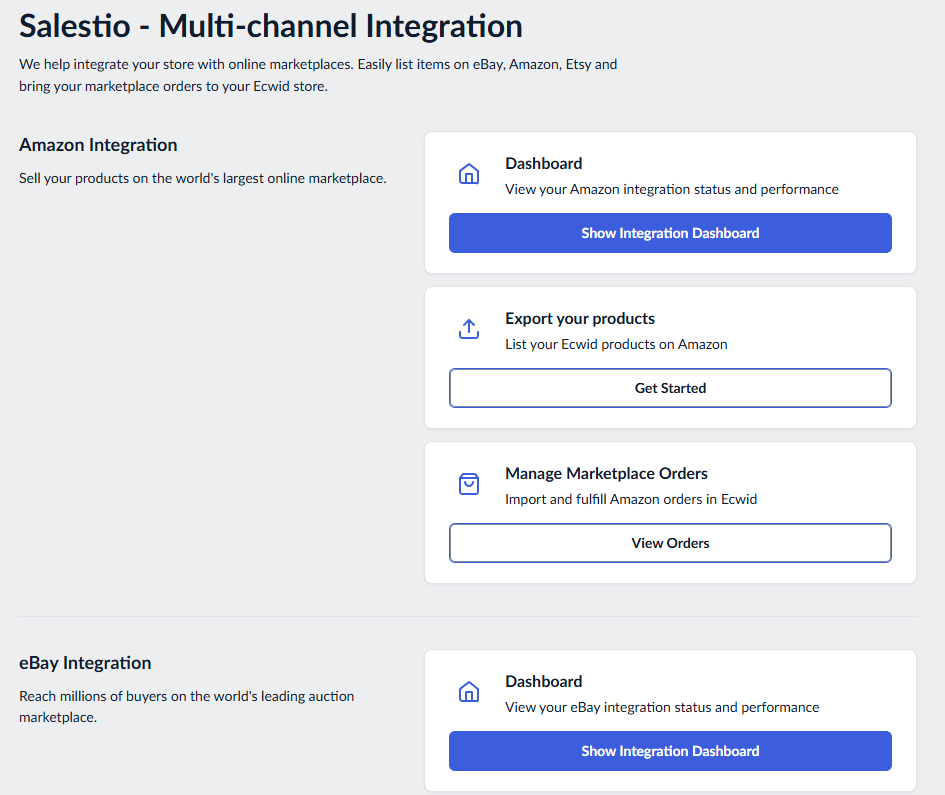
The home page of Salestio will take you to the desired marketplace integration. Pick which platform you want to set up here: Amazon, eBay, and Etsy.
Send the Ecwid catalog to marketplaces
Salestio can send the items from your Ecwid store to marketplaces of your choice. The listings can be published with the same variations, pictures, and product information, just like they are currently in the store. Below are the general steps to publish the items:
Connect a seller account
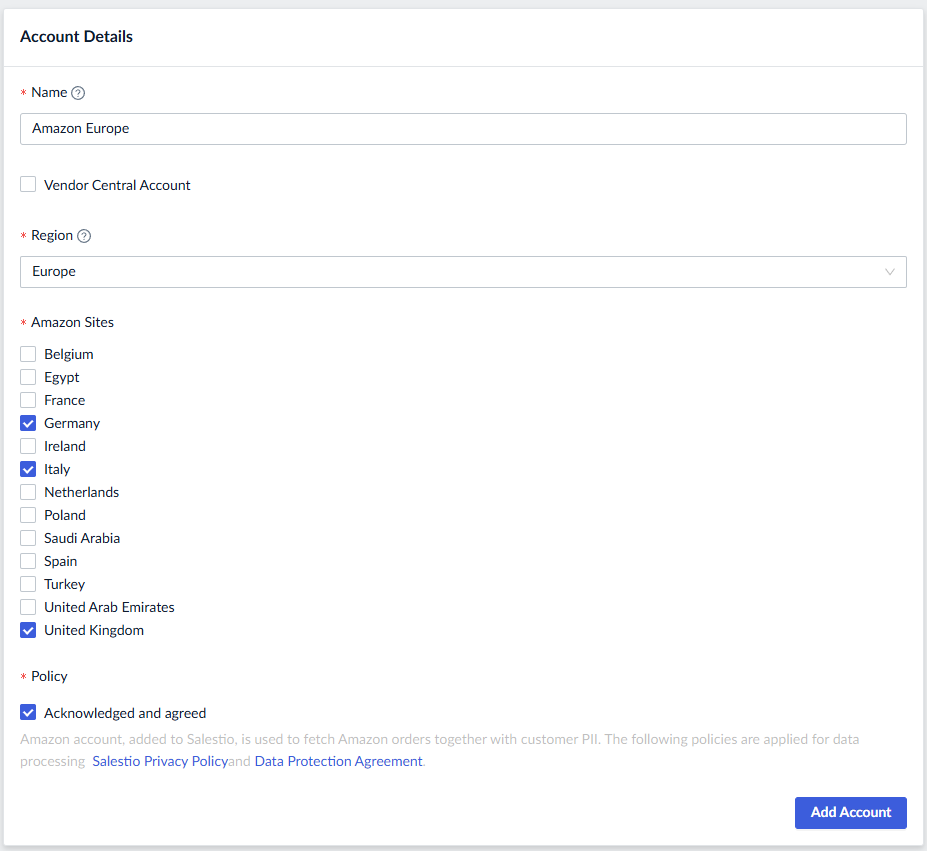
Adding the seller account is the first step of any connection process. Go to the Accounts tab and click ‘Add Account’ to fill in the details and log in to the marketplace.
Configure a Creation Profile
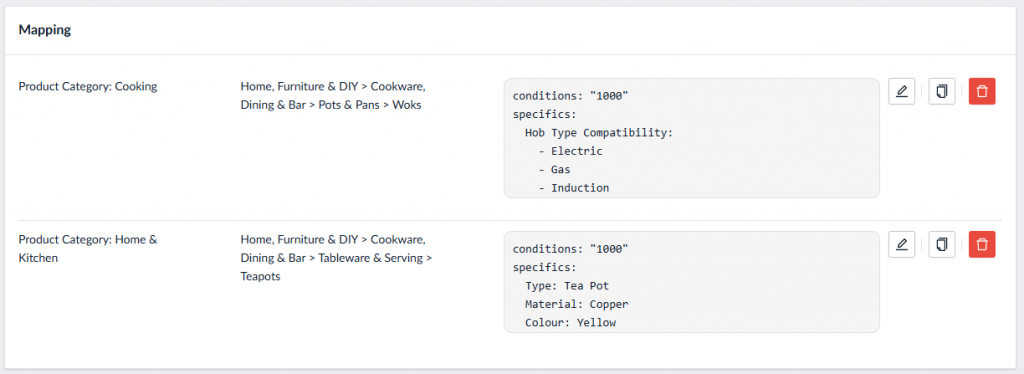
Here, you can specify which Amazon, eBay, or Etsy category should be used to publish the items, along with the product specifics like materials, style, department, and more. This is an optional step if you are sending products to Amazon (for items that are already in the Amazon catalog).
Creation Profiles are always required for publishing on Etsy and eBay.
Add a Global Profile
In the Global Profile, you can configure price and stock syncing rules. Salestio features a default profile from the start, which is used to send prices and stock levels exactly as they are in Ecwid. You can use the default profile or configure an additional one to customize the listings.
Global Profiles can use different modes for syncing. For example, you can limit the marketplace quantity using the Buffer QTY mode or set a fixed quantity in Custom mode. For price, you can set a simple ratio to increase or decrease the original price in the listing or use complex rules set in a Price template. Check additional articles for tips on price and stock sync.
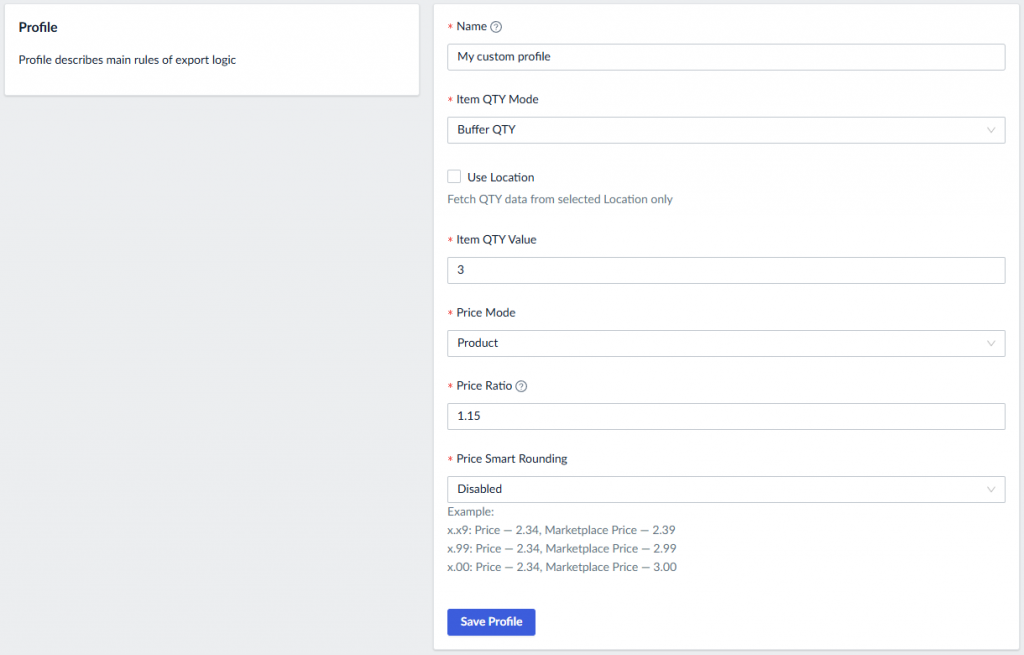
You can reuse the same Global Profile across multiple Selling Lists and marketplace integrations.
Add Amazon/eBay Profile
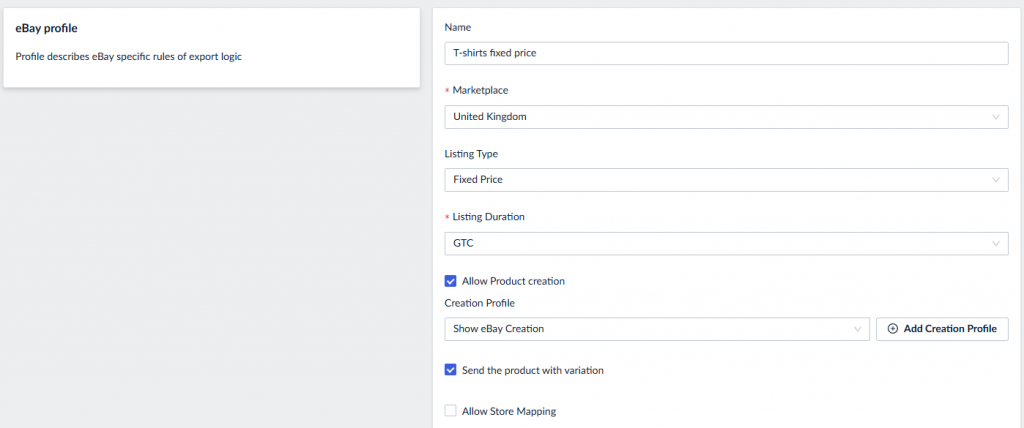
Amazon/eBay Profiles hold the settings specific to the marketplace. Here you can enable the Creation Profile from earlier steps, add shipping details, or item condition.
For eBay, you can specify fixed price or auction settings here.
If you have a GTIN exemption for your Seller Central account, enable the option in this profile.
Add a Description template
Salestio creates a default Description template, which composes the marketplace product description as it is in the Ecwid store. Instead, you can add another template to customize how the descriptions should look. Here, you can add more details to it, use CSS formatting (only supported by eBay), or completely replace it with custom text or data from Ecwid product fields. You can customize the product description in Salestio > Profiles > Description template.
Check out the free library of eBay Description Templates from the Salestio team.
Create a Selling List
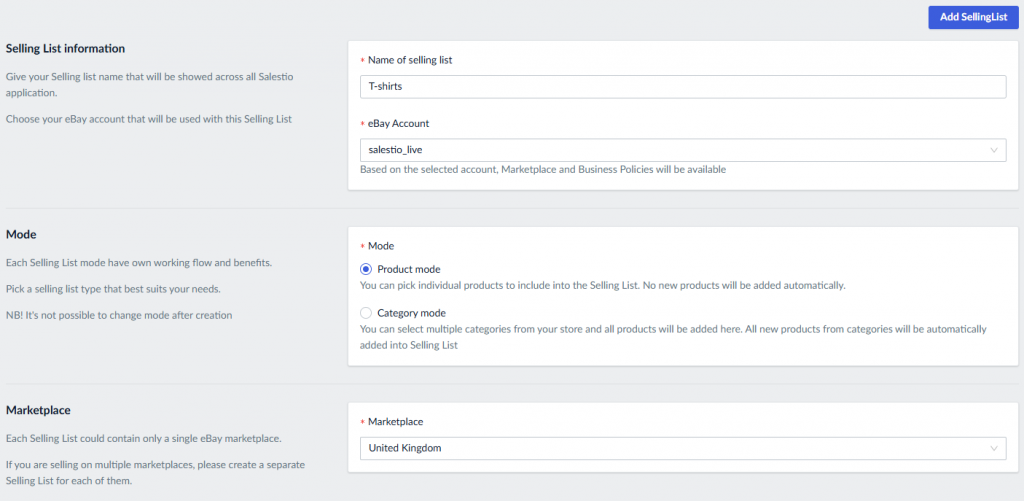
Selling Lists are the groups of products that you want to sync from Ecwid to Amazon, eBay, and Etsy.
To create a Selling List, go to Salestio > Selling Lists > Add Selling List.
This list holds the selling items, and you can check their status or manage them here. If you added some custom Global Profiles, Amazon/eBay Profiles, or Description templates, make sure to select them here during configuration.
Send products and check the results
Use the action buttons at the top to add products to the Selling List by selecting individual items or categories (Product mode). In Category mode, items are added automatically, and the manual options are disabled.
Select the products and click the ‘Send’ action.
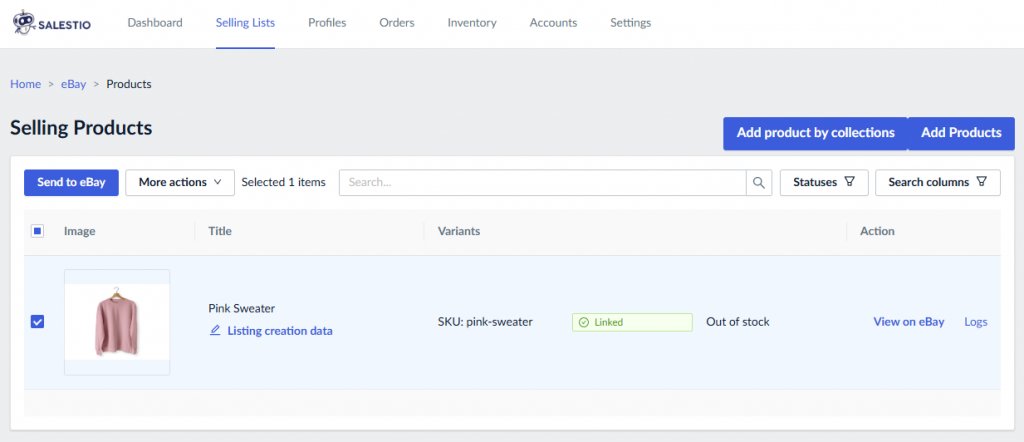
The process of publishing the item can take a few minutes, depending on the marketplace. After this is done, the status of the item will change to Linked. If you see an error status, check the item logs to find out what happened:
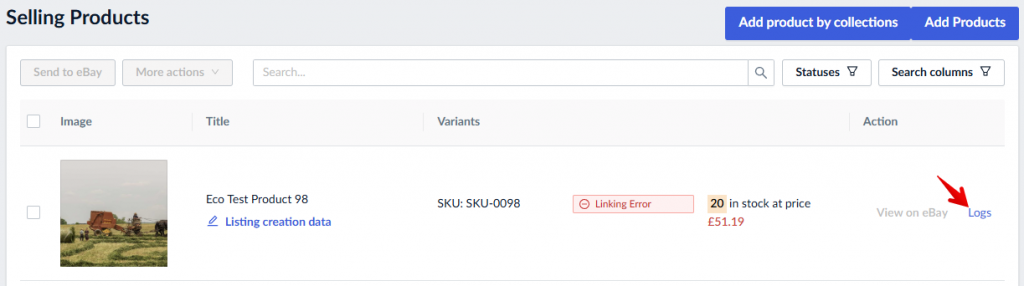
Try to resolve the error and send the item again. Check the solutions for common errors in dedicated articles for Amazon, eBay, and Etsy.
Connect to existing marketplace listings
If you have been actively selling on some of the marketplaces and now want to connect Ecwid products to your other inventories, Salestio has an easy way to do so.
Connect the inventories
The product list from the connected marketplaces is downloaded to the Inventory tab in Salestio. Here you can find the products that have been listed earlier. To get the latest product list, click ‘Download inventories‘ and select your marketplace account.
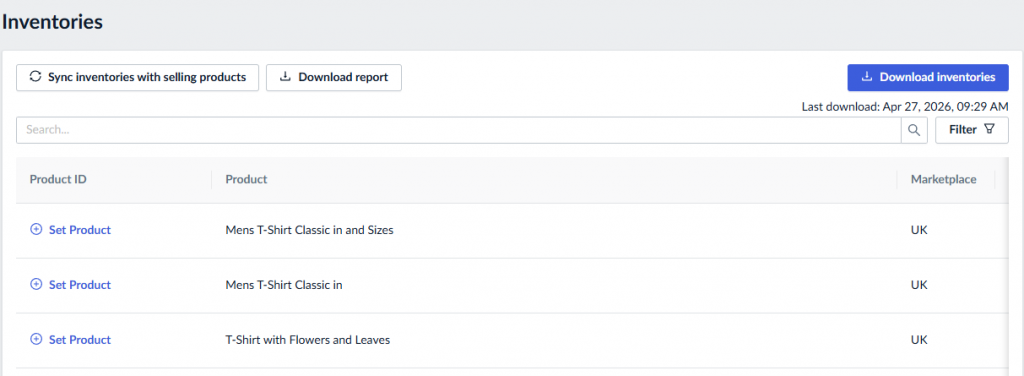
To connect the items, click ‘Sync inventories with selling products’. This will have multiple effects:
- If the items are not added to any Selling Lists, the app will add them to an automatic one called ‘Migrated for *account_name*’. If you added some of the items to a Selling List previously, they will remain in the same place.
- All matching items will be changed to the Linked status. The sync happens based on the SKU match between the Ecwid and the marketplace items.
If your SKUs do not match, set up an SKU mapping. - All connected items will have their quantity updated on the marketplace.
Update the products
After the products are connected, you can run update actions manually (“Update Price & QTY” for Etsy or Amazon, “Revise Quick” for eBay). Note that quantity is automatically updated during the linking process.
Salestio will keep scanning the Ecwid store for changes and sync quantity and price to the marketplace automatically after they change on Ecwid.
Import Amazon, eBay, and Etsy orders to Ecwid
Salestio allows managing orders from multiple platforms in a single Ecwid store. After you connect a seller account, new orders will start appearing automatically. You can also find all of them in the Orders tab inside the app.
See the full guide focusing on order synchronization.
The guide features BigCommerce examples, but the steps are the same for Ecwid.
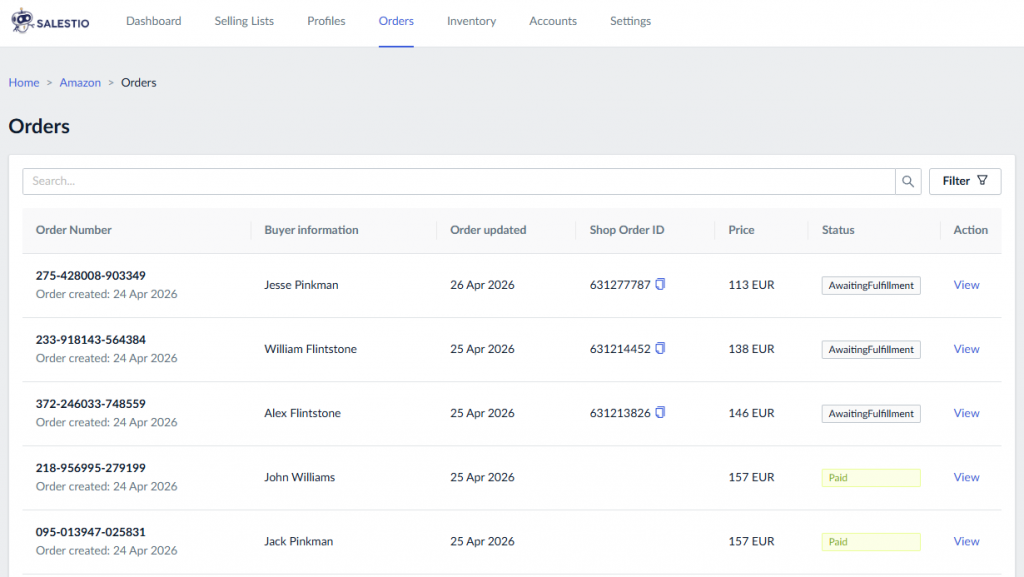
Order import
Salestio will create the imported orders in Ecwid, which mirror your marketplace store. To create an Ecwid order, the app uses the item SKU to find a match between platforms and link the correct items. Set up an SKU mapping for items that have different SKUs.
Updating fulfillment for orders
Salestio synchronizes the fulfillment information for the imported orders automatically. You can handle the imported marketplace orders as regular ones and fulfill them in Ecwid manually or use a third-party fulfillment app.
The sync works both ways:
- Adding fulfillment to the Ecwid order will transfer the shipping info and tracking number to the marketplace.
- Fulfilling the order directly from the seller account will update the Ecwid status.
Salestio offers a wide set of features to help sellers keep track of multiple storefronts in a single Ecwid backend. Start a Free 14-day trial of Salestio by getting the app from the Ecwid App Market.