30 Oct'26

eBay sellers can try out the new way of publishing listings. This method works in tandem with the recently introduced Selling Products mode.
The Listing Wizard streamlines product listing to save you some time on the setup:
- Groups the listing process from start to finish in 4 steps
- Automatically adds listing data from the categories, collections, and metafields available in your Shopify store
- Configures all the necessary profiles
Today, we will go over the main features and a quick step-by-step to help you get started.
Access the Listing Wizard
The Listing Wizard can be opened in multiple ways:
- From the Salestio Dashboard > Start listing products
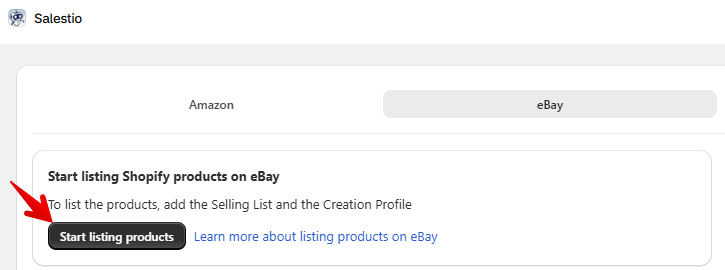
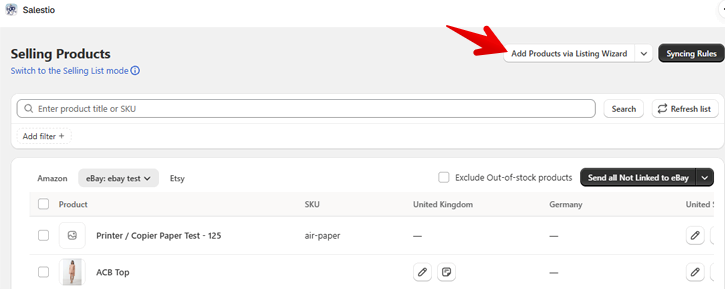
- From the Selling Products tab > Add Products via Listing Wizard
- From the Selling Lists tab > Start listing products
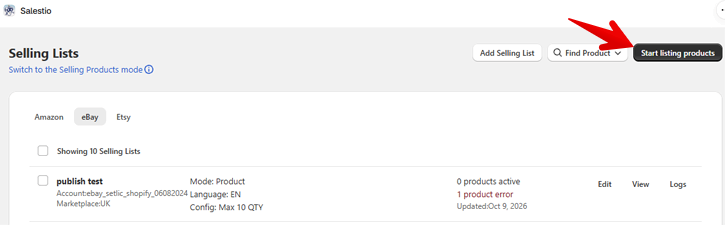
Regardless of how you open it, the Listing Wizard will offer the same features.
Configure the products
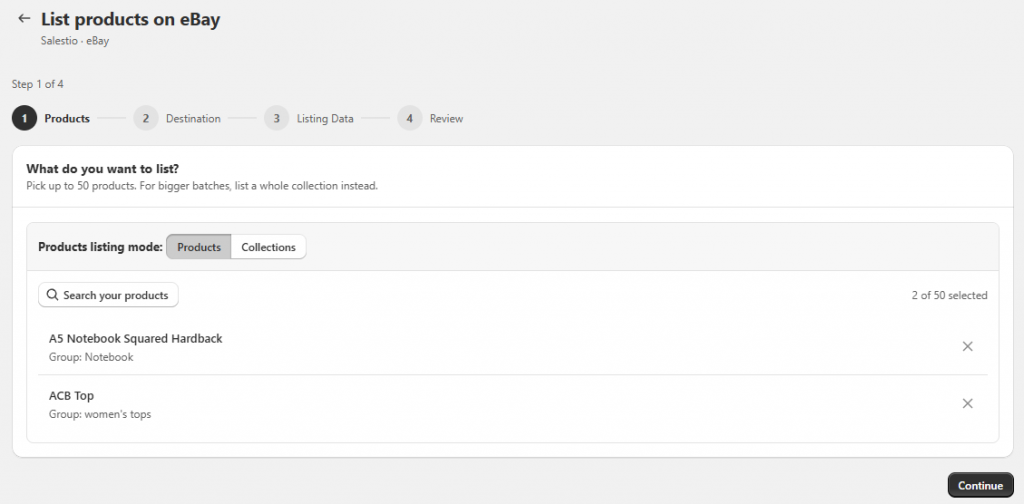
The Listing Wizard groups all the product settings into 4 steps:
- Select the products
- Set the eBay account
- Add product specifics to Listing Data
- Adjust the marketplace settings like price and auction rules
At each step, Salestio will try to automatically populate all the product fields based on your Shopify product page. When setting up, you need to approve the autofilled details or adjust them manually. Look out for the sections marked with Needs approval.
Pick the products and eBay account
At the first couple of steps, pick which items you want to list. You can select up to 50 individual products or pick a Shopify Collection to publish larger batches. You can select your eBay account at the second step.
To keep the setup process simple, we suggest picking out no more than 2 or 3 kinds of products. This way, you will have less settings to review and approve at the same time.
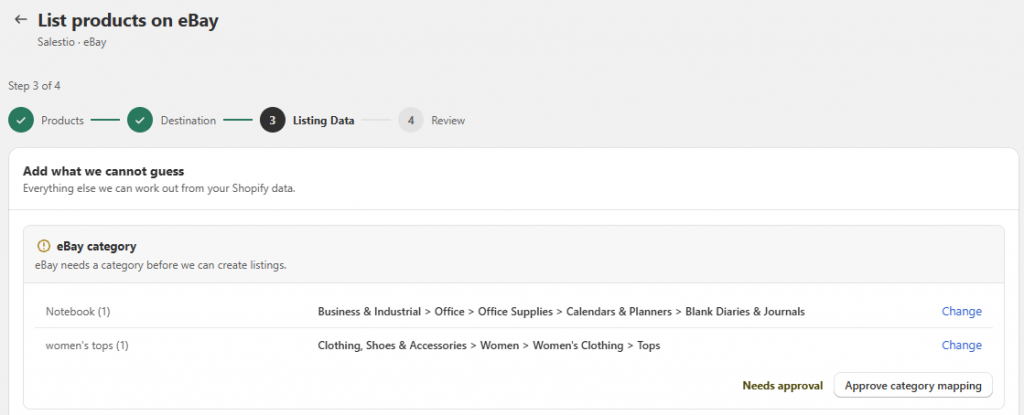
Approve Listing Data
The Listing Wizard will try to auto-fill the eBay fields based on the Shopify product page data.
For eBay categories, Salestio relies on the Shopify Category and Product Type. Item Specifics are automatically added from metafields and other product details on the Shopify page.
On this step, you can approve the auto-assigned values or click Change and add them manually:
- eBay marketplace category
- Custom categories from eBay Store
- Item specifics
- Business Policies
- Shipping details: Country, Location, Postal Code
Adjust the eBay settings and publish
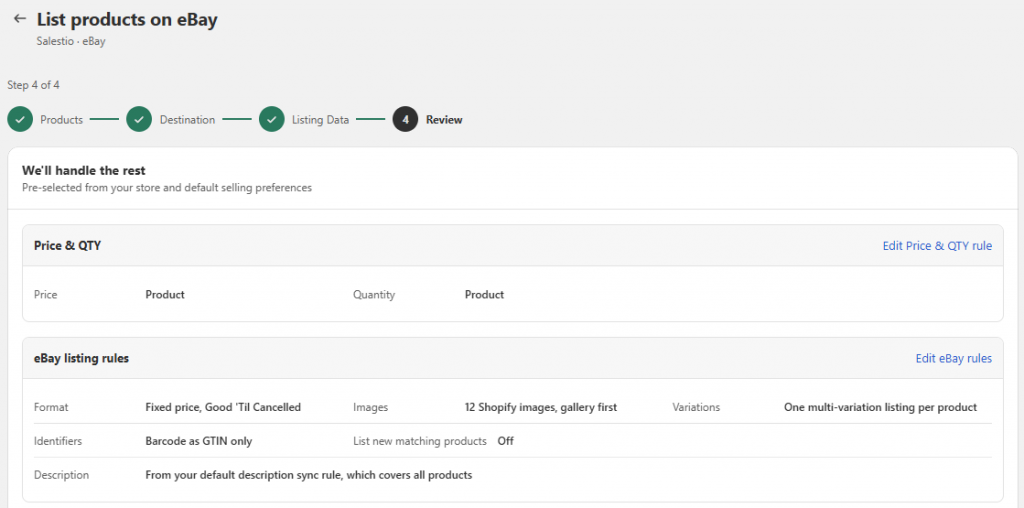
At the last step, you can adjust the eBay-related settings:
- Adjust price and quantity
- Change to auction mode
- Adjust the description template
- Add other details (image limit, barcodes, VAT)
By default, Salestio publishes the eBay listings as close to the Shopify state as possible (same price, quantity, and descriptions.) When all is set, publish the items at this last step by clicking Publish X products to eBay.
After finishing with the Listing Wizard, Salestio will automatically start publishing the selected products to eBay according to your settings. For large batches, the process can take some extra time so that only some products will be visible initially.
Review the results
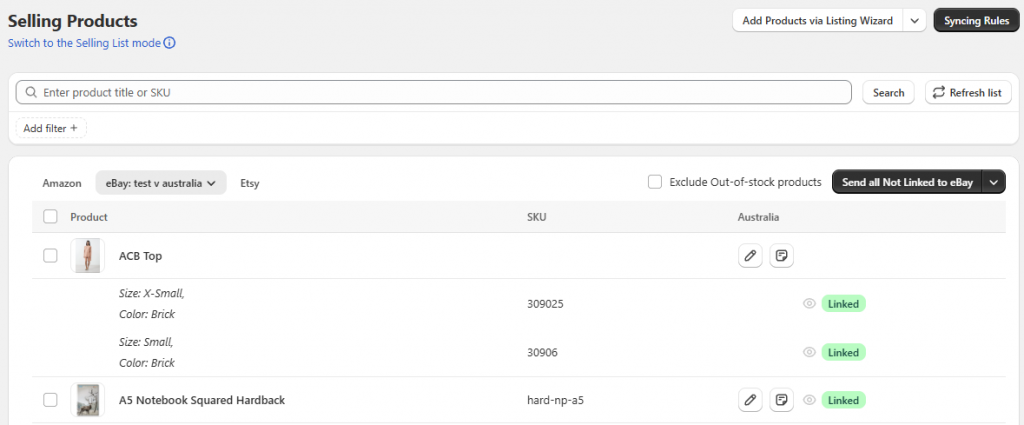
Items published through the Listing Wizard appear in your Selling Products.
If you haven’t switched to Selling Products mode yet, enable it from Salestio > Settings tab > Selling mode.
Go to the Selling Products tab to see the results of listing the items. Success is indicated by the Linked status. You can also check your eBay inventory directly. When price or quantity updates in Shopify, any Linked items will also be automatically updated on eBay.
Troubleshooting
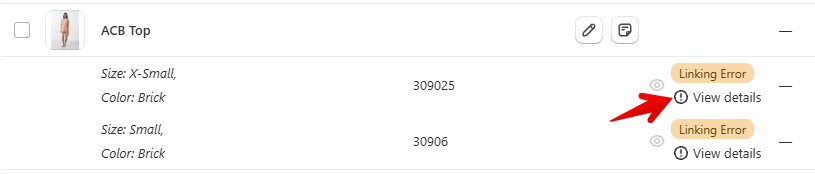
In case some details are missing or any other issues prevented the items from publishing, the resulting status will be Linking Error. To find out what happened, click View details:
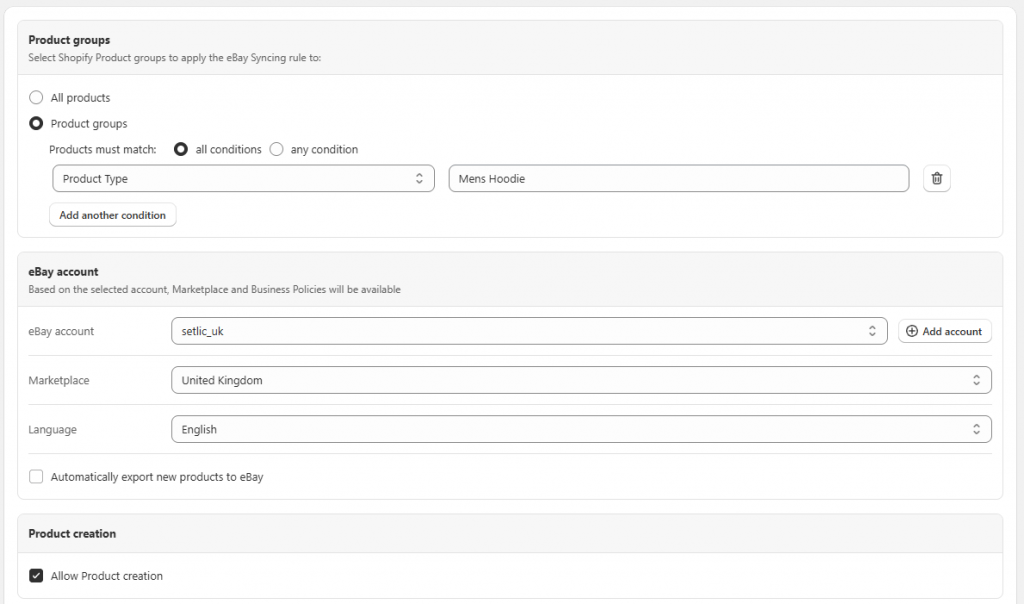
Adjust Syncing Rules manually
In some situations, you may need to change your product settings:
- Note the product type, collection, and category of the Shopify product.
- From the Selling Products tab, go to Syncing Rules.
- Click the pen icon to open the Syncing Rule that matches this product.
- Adjust the product fields as needed (category, item specifics, Location, etc.)
Common errors
The quantity must be a valid number greater than 0The above error appears for products that are out of stock in Shopify. To resolve this error, add some stock for this item on the corresponding Shopify product page and try sending it again.
If you would like to list items with 0 qty, consider changing the settings on your eBay account to use Out-of-stock control (My eBay > Selling > “Account” tab > Selling preferences > enable the Listings stay active when you’re out of stock option).
Learn more about the effects of this option and how to use it with Salestio: Quantity updates to 0 on eBay: possible issues and solutions from Salestio
"example" is not a valid value for Size. Select a value from the available options.This error appears when sending non-standardized size variations for apparel products. For example, “Big” is not an acceptable size, and you might want to use “Large” or “Extra Large” instead.
To resolve this, edit your Syncing Rule to include a Variation Mapping (in the Item Specifics section). After adjusting the mapping, send the item again.
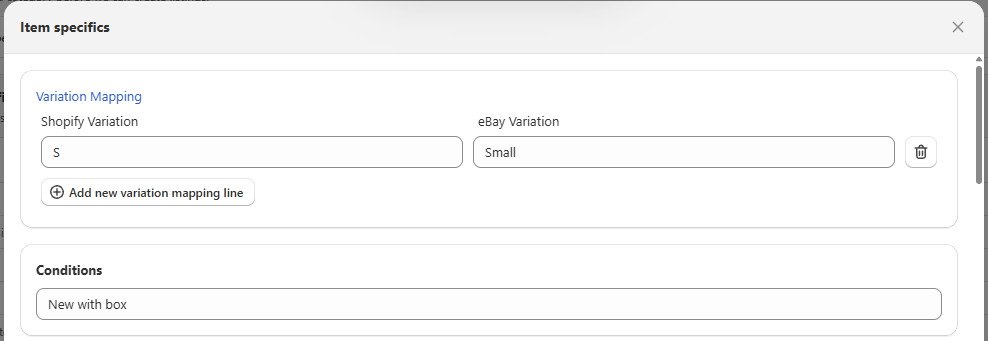
eBay Size Standardization: how to configure sizes in Salestio
Salestio streamlines the process of managing an eBay store by offering automatic updates and tools for bulk publishing. More items can be added to existing product lists with no extra hassle. Check out Salestio on the Shopify App Store.