12 Jun'26




Salestio Product Import provides useful tools for migrating products from eBay or Etsy into Shopify. Whether you’re an experienced user or just starting with the app, you might have some questions. This FAQ covers answers to the most common ones and provides helpful links when possible.
Importing products
The app offers two different ways to import marketplace items:
- Using the listing URL
- Directly from inventory of a connected account
How do I import items using a link?
New items can be imported right after the app is installed. To get started, find an active eBay or Etsy listing and copy its URL.
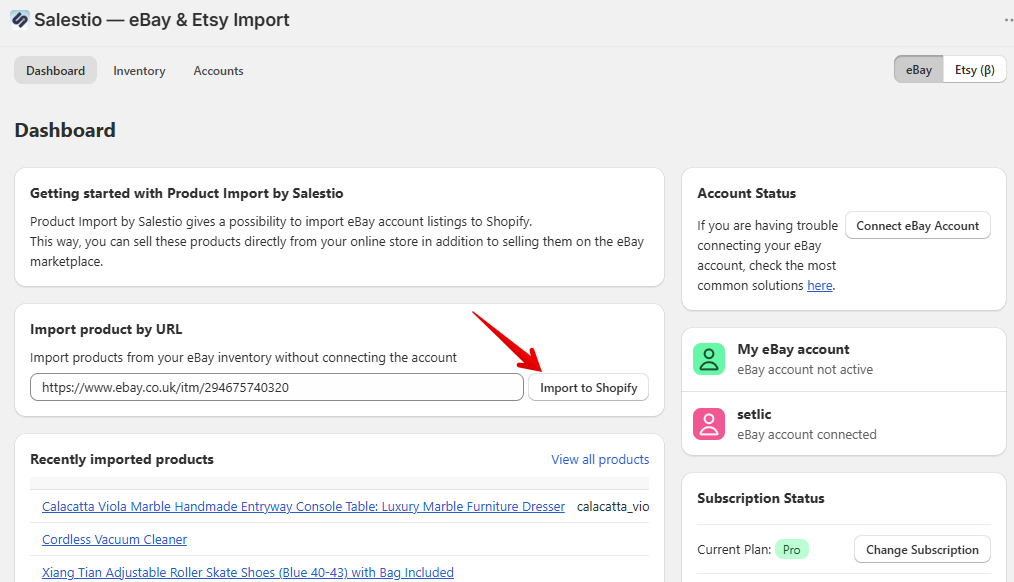
Go to Salestio Product Import and make sure that your target marketplace (eBay or Etsy) is selected at the top. Paste your link in the ‘Import product by URL’ section and click ‘Import to Shopify’:
How can I check what products were imported?
Imported items will appear in the ‘Recently imported products‘ section on the app Dashboard. Click ‘View all products’ to see the full list.
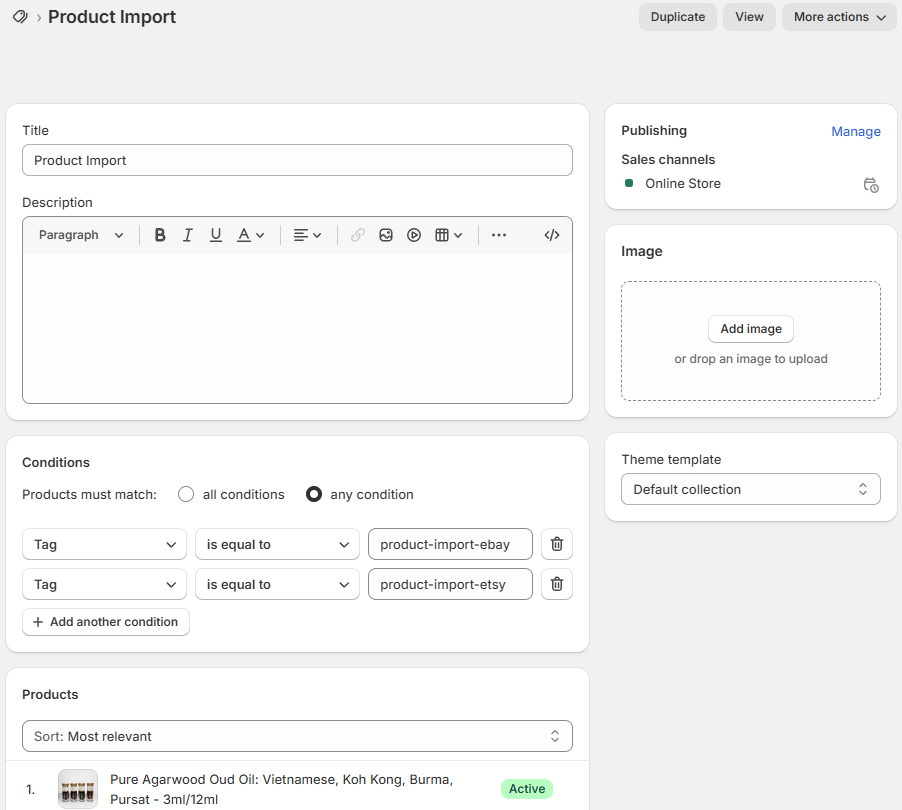
Additionally, all imported products are marked with one of the tags to make them easier to find among the Shopify inventory:
- product-import-ebay
- product-import-etsy
You can utilize the tags to create a Smart Collection. This way, any newly imported items will be sorted automatically by Shopify.
Do I need a subscription?
Product Import comes with 5 free Import Credits for every store (1 credit = 1 product). To import more products, select a credit pack (‘Buy import credits’ on the app Dashboard). No subscriptions required.
Subscribing to a plan unlocks the option to sync quantities from marketplaces to Shopify. Import Credits are purchased separately.
Do I need to connect my account?
While importing by URL is available without a marketplace account, we suggest linking one to take advantage of additional features:
- Fetching inventory list from the account
- Bulk item import from marketplace inventory
- Quantity sync from marketplace to Shopify
To add your account, click ‘Connect eBay/Etsy Account’ on the Dashboard and give it a name (anything works). After saving, you will be redirected to a login/confirmation page for the corresponding marketplace. Make sure to accept permissions here to activate the connection.
How do I import items in bulk?
Follow the process below to mass-import items:
- Make sure that your account is connected in the app.
- Go to the Inventory tab and download your eBay/Etsy inventory list. Click ‘Download inventories’ to get started.
- In a few minutes, the Product Import app will present your marketplace inventory on this page. Select which items you want to add to your Shopify store using checkboxes.
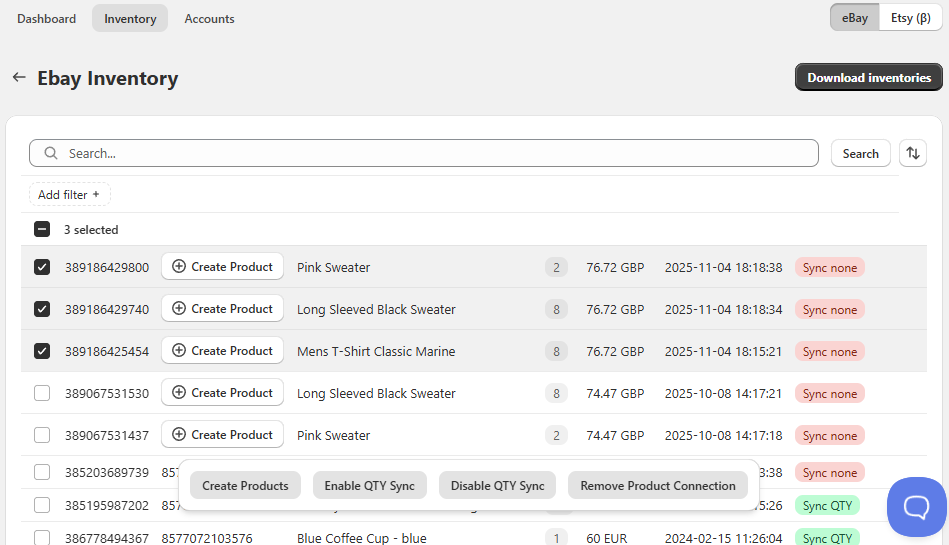
- Click ‘Create Products’ from the action bar below. Your items will be added to Shopify shortly, and you can check new additions on the Dashboard.
See the dedicated guides on our blog for eBay and Etsy importing.
Can I import more than 15000 eBay items?
Yes! Unfortunately, technical limitations on the eBay side add extra steps to the process. Feel free to contact the team at support@salest.io for assistance.
For eBay inventories with over 15000 SKUs, quantity sync is not supported.
My items don’t appear in Shopify. What do I do?
Salestio Product Import provides a detailed explanation for any issues that might appear in the Logs section. Scroll down on the Dashboard to see the latest updates. Click ‘View all logs’ to see full details. Try resolving the error, then import the item again.

A common error might appear for eBay items:
Item with id 111-example cannot be imported to shopify. Listing status is inactiveIn this case, make sure that the listing is active on the marketplace. Relist the item on eBay, then try importing again.
Syncing quantity
How do I sync product quantity to Shopify?
Before setting up the sync, make sure that the marketplace account is connected and the products are already imported to Shopify.
- Go to the Inventory tab in the app.
- Find and select the items that you want to sync.
- Run ‘Enable QTY Sync’ from the action bar.
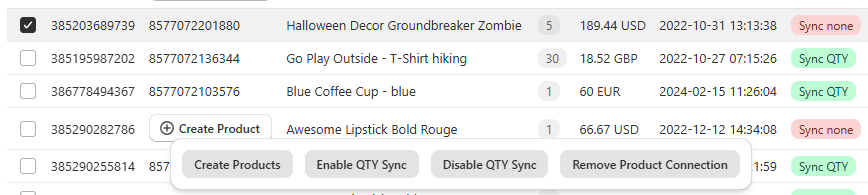
Salestio Product Import will immediately update the Shopify inventory according to your numbers on the marketplace. Additionally, enabled products are automatically scanned for changes and updated over time.
Are there extra charges for syncing?
The maximum number of the items that you can sync is defined by your current subscription plan. Click ‘Change Subscription’ on the Dashboard to review the available tiers. Each plan offers a different limit of items that you can sync at the same time.
Plan limit concerns only the synced items. You can import items without syncing them, and they will not count towards the selected plan.
Can I sync without an account?
Salestio accesses the marketplace account to retrieve the quantity information. Connecting a marketplace account is required to set up quantity synchronization.
How to sync product details from Shopify to eBay/Etsy?
The Product Import app is designed for fetching product data from eBay and Etsy.
For more tools, such as updating marketplace products and order sync, check out Salestio. The app offers sellers a way to designate Shopify as the primary store backend and link multiple marketplace accounts for management. Check out more details for your marketplace of choice in our guides for the Amazon, eBay, and Etsy integrations.
How do I stop syncing?
If you no longer want to sync a specific product, find and select it in the Inventory tab. Click ‘Disable QTY Sync’ from the action bar.
Disabling sync for a product will also free up sync slots to use for other items in your selected billing plan.
Salestio — eBay & Etsy Import is a great tool for sellers looking to migrate from marketplaces to their own Shopify website. Check out the app on the Shopify App Store.
If you have any unanswered questions, feel free to reach out to the team at support@salest.io.