10 Apr'26





Salestio imports marketplace orders into Shopify by matching product SKUs. If the SKU on Amazon, eBay, or Etsy does not match the SKU in Shopify, the order may fail to export. In this guide, you will learn how to fix a failed order in Salestio, save the SKU mapping for future orders, and upload mappings in bulk with CSV.
Why marketplace orders fail to import to Shopify
Salestio matches the products between Shopify and your marketplace accounts based on the product SKU. For example, when an eBay order for an “ITEM-01” SKU comes in, the app will look up the same SKU in Shopify to create the linked order in the store. The Shopify order will not be created if the item has a different SKU in your store (such as “ITEM-01-02” in Shopify as opposed to “ITEM-01” on eBay).
The following error may come up if this happens. You can see this error on the Dashboard or in the Salestio Order View (or your inbox if email notifications are enabled in the app).
Error during export order #204-531419-895699 in Shopify. Missing products in Shopify: SKU: ITEM-01See below how Salestio can tackle this situation.
Fixing one failed order
Before your marketplace orders appear in Shopify, Salestio will download and store them first. To open the Salestio Order View page, find and click your marketplace ID in Salestio > Orders tab.
See the full guide on order processing in Salestio to learn more about this flow.
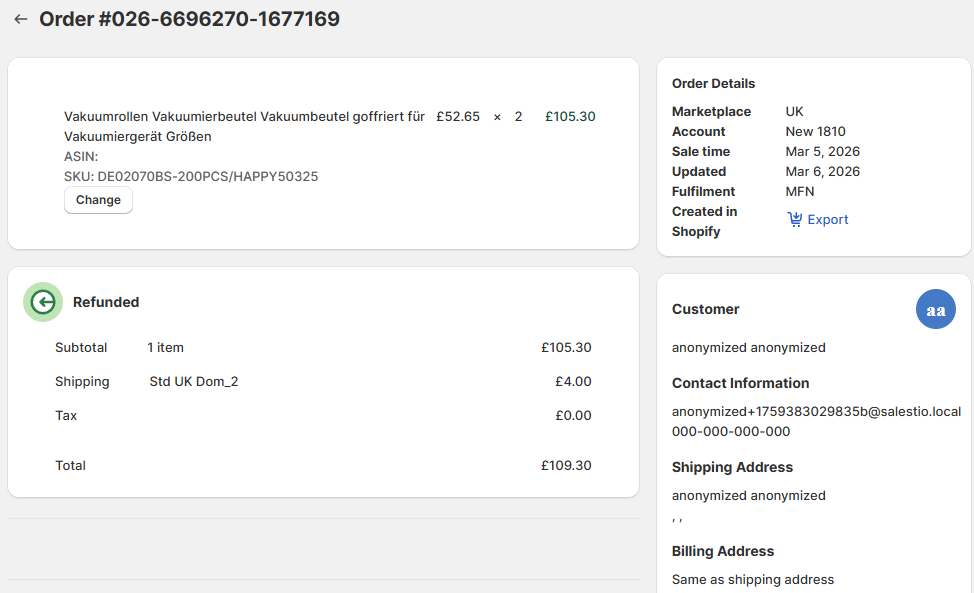
On this page, you can adjust the Shopify SKU that should be used for creating the order. Find the item that you want to edit and click “Change“. Select the desired item here (can be any product/variation from Shopify). Tip: paste the exact Shopify SKU here to find your item faster.
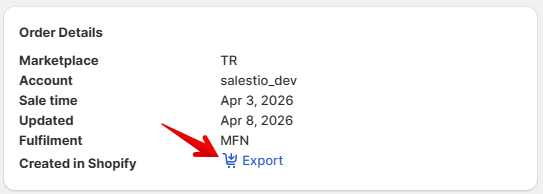
Done! Now the order can be exported to Shopify to properly synchronize with the marketplace. Salestio will create it automatically in the background, or you can click the “Export” button in Order Details to do this right away.
Save the SKU mapping for all future orders
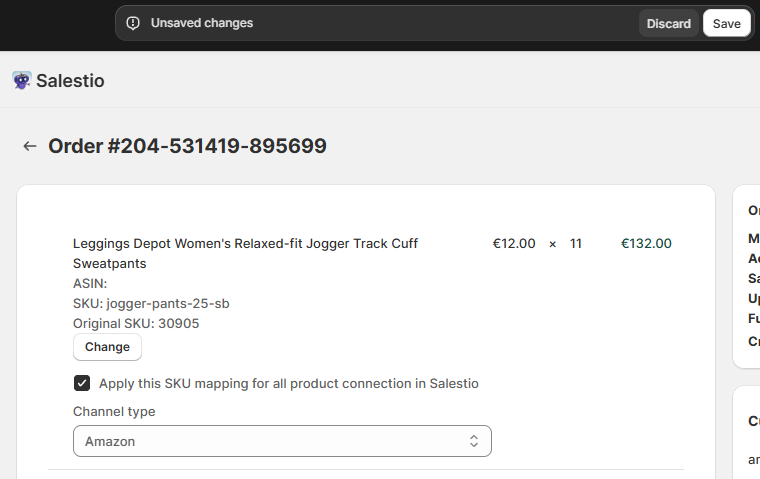
After assigning an SKU to the order, you can remember this change for all future orders. Enable the “Apply this SKU mapping for all product connection in Salestio” checkbox. Below, select the channel type:
- “Amazon/eBay/Etsy” to apply the mapping only to orders from the current marketplace.
- “All channels” to apply the mapping to any future orders from any marketplace.
Remember to save your changes at the top of the page.
Review and adjust your SKU Mapping
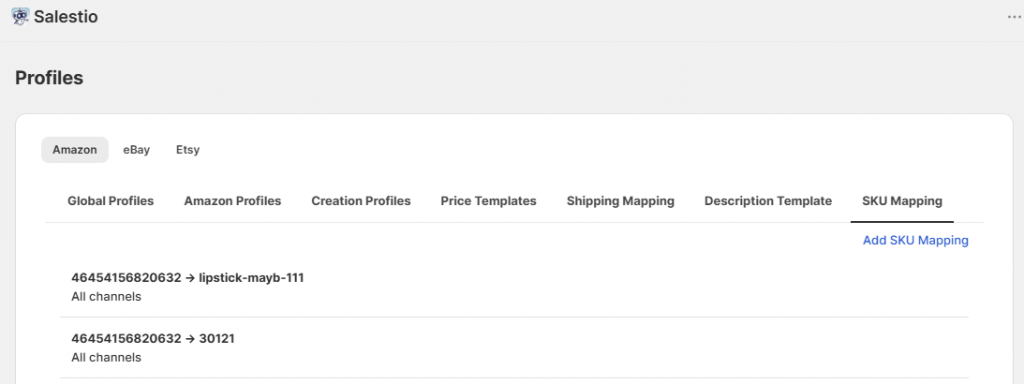
Any of the SKU adjustments from the Order View page can be viewed in Salestio > Profiles > SKU Mapping tab. Select one of the mappings in the list to remove it, adjust the SKU, or apply it to multiple marketplaces.
Upload SKU mappings in bulk with CSV
In case your stores have hundreds of SKUs that need matching, consider the alternative way and upload your own CSV file. The best way to compose the table is using a spreadsheet editor. Add two columns: Shopify SKU and marketplace SKU.

Upload your mapping in Salestio > Settings. There are two options:
- General Settings tab: mappings added here will apply to all connected marketplace accounts.
- Individual account tab: add the mapping from this tab to apply the changes to only one account. If you have a general mapping already, this one will overwrite it.
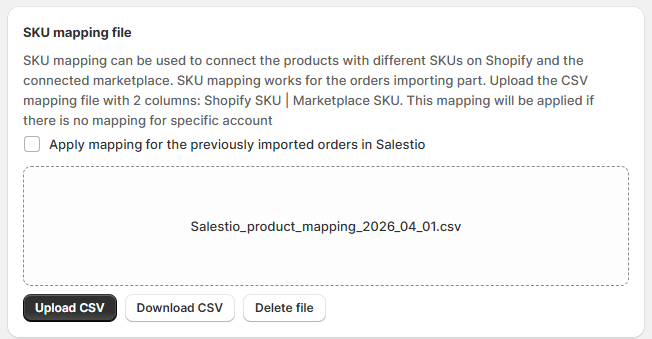
If you have some pending orders with a SKU error, enable the “Apply mapping for the previously imported orders in Salestio”. This way, all of the pending orders will be automatically updated to use the CSV mapping.
Full guide: SKU Mappings in Salestio
Editing the SKU vs adding an SKU mapping
Adding a SKU mapping through the order UI is a simple way of resolving listing conflicts between platforms that requires minimal setup. Some platforms, like Amazon, limit the ability to edit the SKUs (requires relisting the product with a 24h waiting period). This method can be preferable in such cases.
Uploading a CSV table requires some setup and takes more time. However, this method is very effective for large amounts of products.
Editing the SKU directly can be more time-consuming, as you need to go through either the marketplace or the Shopify inventories and adjust the items there.
In some cases, adjusting the SKUs is required. For example, when the marketplace item has no assigned SKU, or when some SKUs are duplicated.
For the eBay and Etsy integrations, SKU mappings apply only to order sync. If syncing items through Selling Lists is important, then editing the SKUs might be the preferred choice.
FAQ
Q: Why do marketplace orders fail to import into Shopify?
A: The most common error when creating the Shopify order is different SKUs between the platforms. To synchronize orders, Salestio relies on matching SKUs between Shopify and the ordered item from the marketplace.
See other reasons and solutions in our order processing guide
Q: How do I fix an order with the “Missing products in Shopify” error?
A: Open the order from Salestio > Orders tab and click “Change” on the item with the issue. Select the corresponding Shopify item, and Salestio will retry creating the order automatically.
Q: How do I apply the SKU mapping to future orders?
A: Inside the order with an adjusted SKU, enable the “Apply this SKU mapping for all product connection in Salestio” option. Salestio will automatically apply the same item pairing for future orders.
Q: How do I upload SKU mappings in bulk?
A: Make a CSV table with two columns: Store SKU | Marketplace SKU. Upload this table to Salestio > Settings, and the app will automatically use it for all future orders.
Q: Can I map multiple marketplace SKUs to one Shopify item?
A: Yes! To do this, add multiple mappings pointing to the same Shopify SKU. This way, orders from the different items will appear as the same Shopify product.
Find Salestio in the Shopify App store to start a Free 14-Day Trial.
Do you have any questions? Feel free to reach out to the team at support@salest.io.