19 Jun'26





Linking your eBay listings to BigCommerce allows you to centralize your inventory and pricing management within one platform. By having a unified hub for accurate price and stock values, you can significantly reduce the time spent on manual adjustments across all sales channels.
There may be cases when you want to connect your already existing eBay inventory:
- Moving from another marketplace integration to Salestio
- Having an established eBay store before starting out in BigCommerce
- Taking over management for another eBay store
Salestio can cover the above cases by offering tools to connect your eBay account and all listings in it with corresponding BigCommerce products.
This article focuses on linking existing eBay listings with selling BigCommerce products. In addition to this, Salestio can publish brand-new eBay listings based on your BigCommerce inventory. If your store needs a mix of both, we suggest starting with the connection of the live eBay inventory; this is the simplest way to cover the whole inventory and avoid duplicates. Keep reading until the end to learn more about publishing new listings.
Ensure SKU match
Salestio relies on the SKU to identify products both on eBay and BigCommerce. To find matches between the two platforms, the app looks for an SKU match. If your SKUs are different, please adjust them in BigCommerce or eBay accordingly.
Any eBay products published through Salestio use the BigCommerce SKU by default.
The products should also have matching variation structure. For example, if you have an eBay listing with 2 variants in size and 3 in color, the BigCommerce item should have the same amount.
Connect eBay and BigCommerce
Connect the eBay account to Salestio
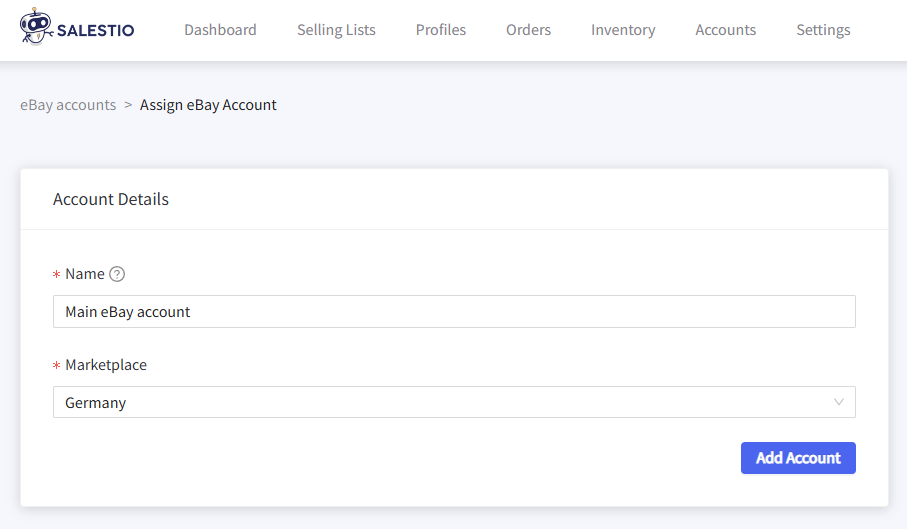
Before setting up the rest of the app, connect Salestio to your eBay account. Go to Salestio > Accounts tab to log in. Give your account a name (anything goes), pick the eBay marketplace, and save. Accept the app permissions on eBay, and your platforms are now linked.
Add a Selling List (optional)
Selling Lists organize the BigCommerce products in your app. This is an optional step in the context of connecting products, as Salestio will create the necessary profiles and lists when needed. Creating a Selling List manually can be useful if you want to customize the syncing options or sort the items beforehand.
Download eBay Inventories
To get the latest inventory list from your eBay account, go to Salestio > Inventory tab and click the Download inventories button. Select the target eBay account and confirm.
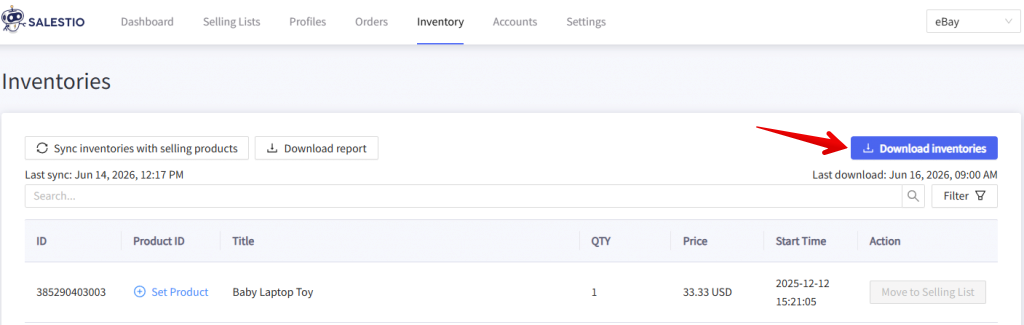
Give Salestio some time to pull the list of your eBay listings. Depending on how many products you have on your eBay account, it might even take up to an hour. When it is ready, you will see the list of eBay items on this page.
Connect the products and check the results
There are two options to link the items:
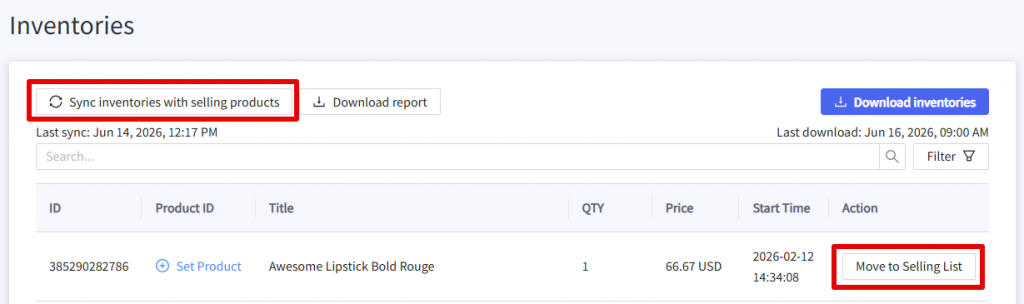
- Click the Sync inventories with selling products button in the Inventory tab. Select the target eBay account and start the sync in bulk. Salestio will link all possible products.
When linking the items through this action, Salestio will also automatically update the quantity after the items are connected. - Select the target items in the list and click the Move to Selling List button to connect individual items.
Pick the Selling List, and Salestio will create a connection.
Using the “Move to Selling List” action is possible only for Selling Lists in Product Mode. If you are using Collection Mode, run the “Sync inventories…” action instead.
Check the results in the Selling Lists tab. If you created some Selling Lists beforehand, the items will remain there, but the status will change to Linked. It means that the connection between BigCommerce and eBay products is established, and BigCommerce stock and prices will be synced to eBay. If Salestio finds some items that were not in any of the Selling Lists, they will appear in an automatically created one called “Migrated for account_name”.
If you notice any errors instead of the Linked status, check the logs to find out what happened:
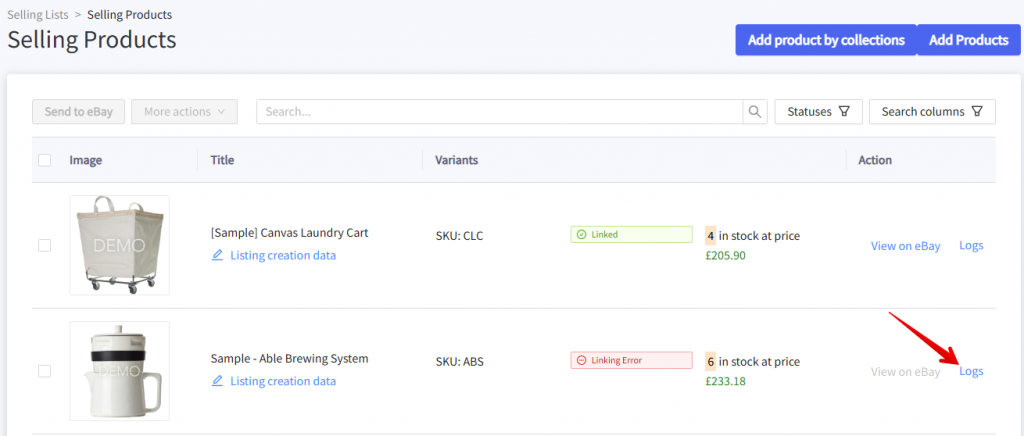
The quantity must be a valid number greater than 0To resolve this error, add some stock for this item on the corresponding BigCommerce product page and try sending it again.
Missing name in the variation specifics or variation specifics set.This message can appear when the eBay variation structure doesn’t match your BigCommerce product. You can fix this by adding/removing the eBay variants through Salestio (run the Full Revise action). Additional setup is required to publish or update listing information beyond price or quantity. See the “Publish new listings on eBay” section below for more details.
Verify the connection
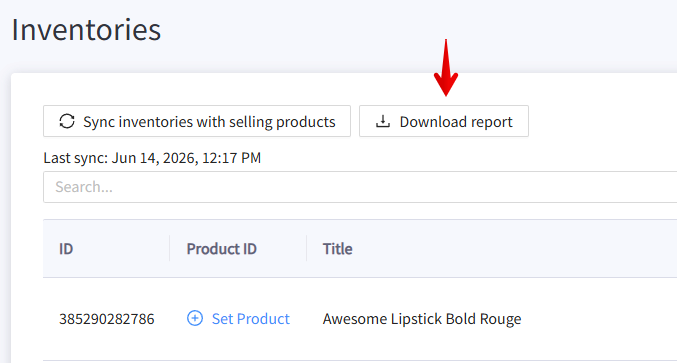
If you want to verify if any of the eBay items remain unlinked, check the report from the Inventory tab. Quick steps to get the report:
- Go to Salestio > Inventory and click Download inventories to get the updated list
- Click “Download report”
- Open in a spreadsheet editor of your choice
Full article: Use Synchronization Report in Salestio
In case some items remain Not Linked, follow the steps below to verify the settings.
- Check if the SKU matches for the BigCommerce – eBay item pair. If the SKUs are different, adjust it on either platform. If changing it on eBay, run Download inventories again, then try syncing once more.
- Check if the correct account is selected in the Selling List. This can be viewed from the Selling Lists tab. If the product was placed in a list with incorrect settings, Salestio will also add it to a “Migrated…” Selling List for the respective account. Account and marketplace selection are locked after a Selling List is created. To select something different, please create another Selling List.
Sync actions
Salestio will sync the “Linked” items automatically when stock or price changes in BigCommerce. If you would like to push the stock and/or price numbers from BigCommerce to eBay manually, run this action from the Selling Lists tab. Select the Selling List (or individual items inside) and run one of the update actions (Revise QTY, Revise Price, Revise Quick).
Additionally, you can disable automatic price and/or stock sync (Salestio > Settings > eBay account settings), as well as fine-tune the syncing rules. See the articles below for more details:
Custom Pricing Rules for eBay and Amazon Listings
Manage Listing Quantities with Salestio
Full Revise updates all listing information, including variants, titles, and descriptions. To perform Full Revise, Salestio requires a Creation Profile setup (see the next section for details.)
Publish new listings on eBay
See the full steps to configure Salestio for publishing below:
- Add the Creation Profile from Salestio > Profiles tab.
eBay requires additional information for publishing products on the platform, which can be specified through the Creation Profile in Salestio. Here you can map BigCommerce categories to eBay categories, adjust titles, and fill in product specifics, such as materials, colors, and compliance info. - Create an eBay Profile in Salestio > Profiles.
Here, specify the eBay marketplace, enable product creation, select the new Creation Profile, and add necessary shipping details (Country, Location, Postal Code) - Optionally, create a custom Description Template in Salestio > Profiles if you want to make any edits to the eBay descriptions. You can always use the default template, which will send the BigCommerce description as is to the marketplace. See the guide below for customization tips:
eBay Description Templates - Finally, add a Selling List or adjust your current one. Add your new eBay Profile and Description Template when setting up the Selling List settings.
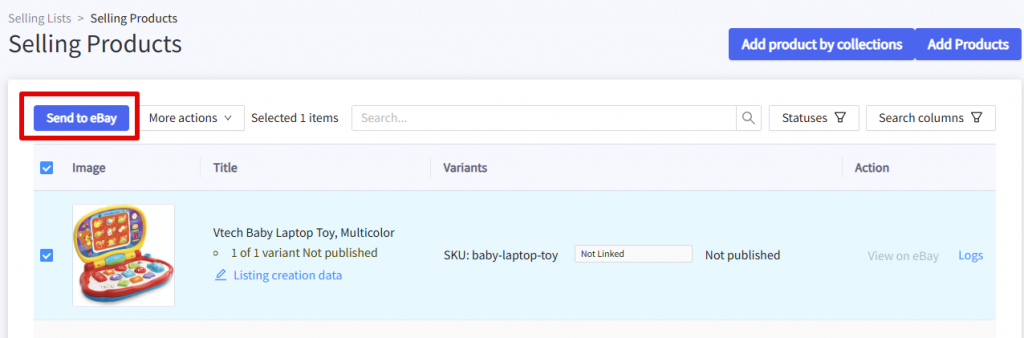
- To publish an item, add it to a Selling List, select it, and run the Send to eBay action:
Full article: Get your eBay store running with Salestio for BigCommerce
Salestio assists the sellers in integrating an already running eBay store into the BigCommerce inventory management. By following the steps from this article, you can sync the two platforms in a few simple steps. Don’t have Salestio yet? Find the app on BigCommerce Apps.