24 Jul'26




If you have been actively selling on Etsy and now want to connect WooCommerce products to your Etsy inventories, Salestio has an easy way to do so. The app offers different customizations and options for product connection, so in this article we will explore the possibilities and walk you through the process.
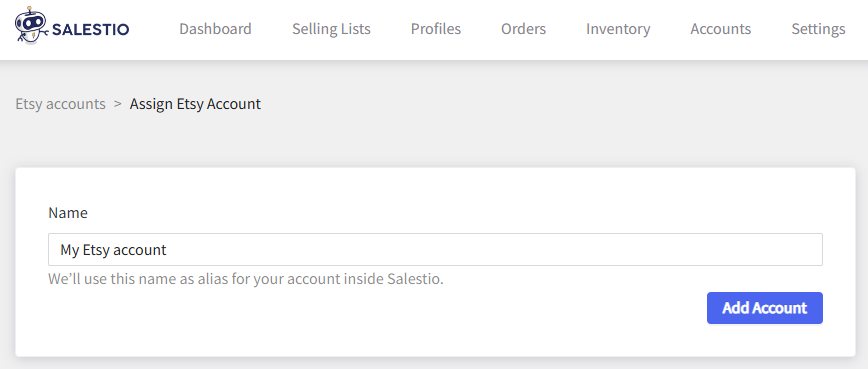
Make sure to connect your Etsy account to the app before following along. To connect, go to Salestio > Accounts tab.
This guide focuses on the case when the listings are already active on Etsy. For a full guide to publish on Etsy, see the article below:
Export your WooCommerce store to Etsy with Salestio
- Create a Selling List (optional)
- Download the Etsy inventory
- Connect the listings
- Review the results
- Check the synchronization report
- Troubleshooting
Create a Selling List (optional)
This is an optional step because Salestio can create the Selling List automatically during the next steps. Adding a Selling List manually lets you predefine your own profiles and settings. Otherwise, the products are synced with the same price and quantity as in the WooCommerce store.
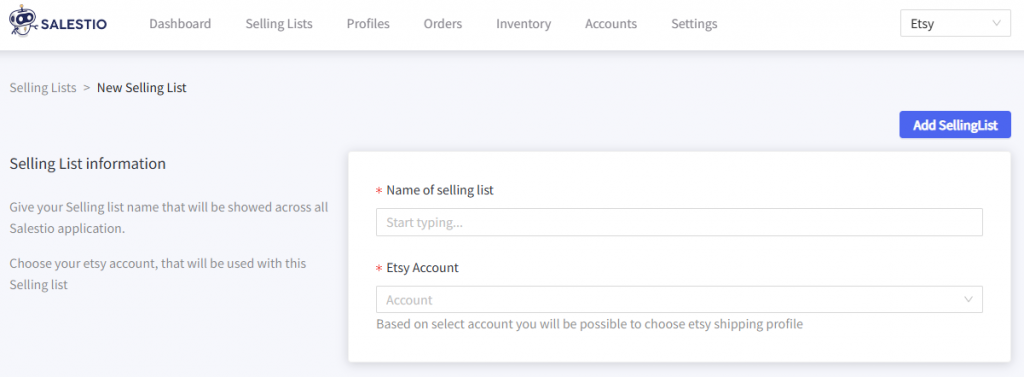
When setting this up, pick a name for the Selling List, the Etsy account, and assign a Global Profile (for setting quantity and price settings.) Adjust the other profiles as needed.
For instance, you may want to add a Creation Profile, which is needed for publishing new Etsy listings or fully updating product page details (titles or images) for existing ones.
After setting up the Selling List, add your products using the buttons at the top. In Category mode, the products are added automatically, so instead, give the app a few minutes to populate your list. The products appear in the Selling List with a Not Linked label.
Download the Etsy inventory
To obtain your active Etsy listings, go to Salestio > Inventory tab and click Download inventories. When multiple Etsy accounts are connected, they will appear as selectable options. Select the target account and click “Download”.
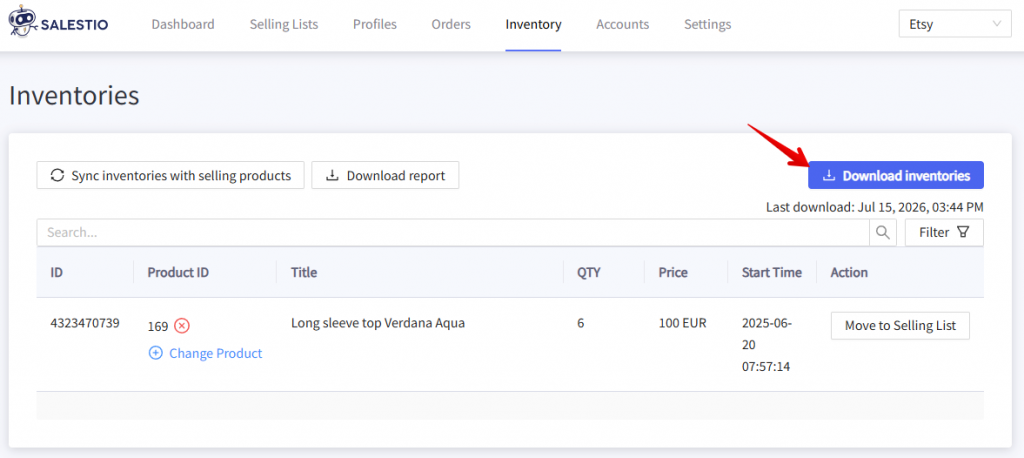
Depending on the Etsy product count, the process may take from 30 minutes to several hours.
Connect the listings
Salestio relies on SKU matches to find product pairs between WooCommerce and Etsy. To ensure correct sync, verify if your SKUs match between the platforms.
To start the connection process, click the Sync inventories with selling products button in the Inventory tab. Select the target Etsy account and start the sync. Salestio will look up all product matches, automatically connect them, and update the Etsy quantity according to the current stock in WooCommerce.
As another option, you can link individual items. Find your product in the Inventory tab and click Move to Selling List. This will connect only the selected product without running any other updates.
The “Move to Selling List” option is available only for Selling Lists in Product mode. If your product is already placed in another Selling List in Category mode, use the full “Sync inventories…” option.

Review the results
To check the results of product connection, go to Salestio > Selling Lists tab. If you manually added products to any Selling Lists earlier, they will remain there, but the status will change to Linked. Salestio will place the rest of the matched items in an automatic Selling List “Migrated for *account_name*”. Open the Selling List to see the product statuses.
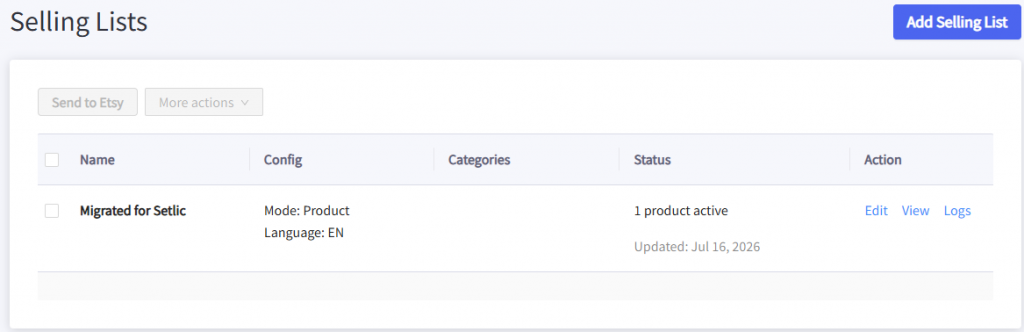
Salestio will sync the “Linked” items in the background when stock or price changes in WooCommerce. If you would like to update the products manually, select them in the list and select the “Update QTY & Price” action at the top.
Due to the specifics of Etsy platform, quantity and price cannot be updated separately.
Check the synchronization report
Salestio offers a simple way to form a report of all marketplace items and their connection status:
- Go to Salestio > Inventory tab
- Click Download inventories to get an updated product list from Etsy
- Click Download report
- Open the file in any spreadsheet viewer
Each of the Etsy items in the report features a “Linked” value (Yes or No), indicating whether the item is getting updates through Salestio. If you notice any items that are not linked here, look them up in the Selling List to see if there are any issues preventing sync.
Full article: Use Synchronization Report in Salestio
Troubleshooting
If something goes wrong during listing updates, the items in Salestio will change to an error status instead of “Linked”. Check the Logs to find out more or click View details below the product status:
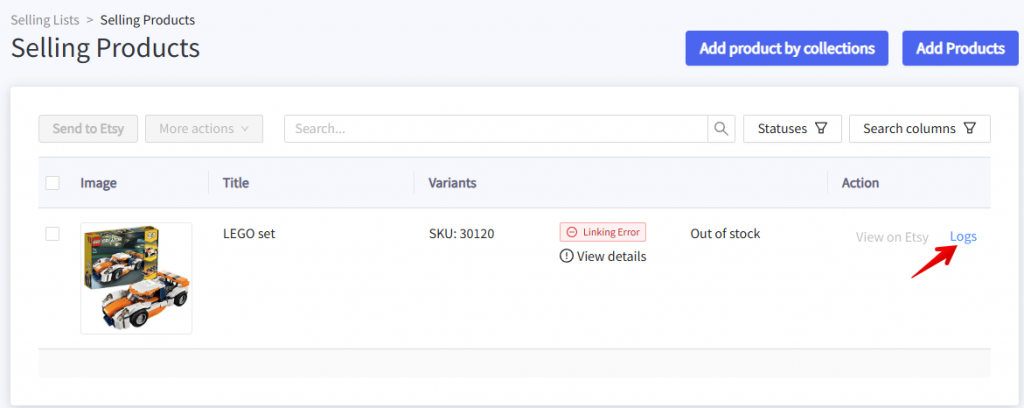
See the sections below for solutions to possible issues.
Missing Processing Profile
In some cases, Etsy might return this log message for item updates:
A readiness_state_id is required for physical listingsThe readiness state is a new field introduced by Etsy in the summer of 2025. It can be added through a Processing Profile. The platform gradually made this profile mandatory, so old products that have been published without it might receive the above error.
Make sure to set up a Processing Profile directly from your Etsy account > Shipping settings > Your processing profiles. See the detailed help article from Etsy
Once the Processing Profile is added to Etsy, add it through Salestio > Selling Lists > Edit. Update the Selling List manually after adjusting the settings: select the Selling List and run the Update QTY & Price action at the top.
Mismatched variations
If an Etsy item has different variation names than the ones in WooCommerce, the following error may appear during updates:
Missing name in the variation specifics or variation specifics setTo resolve this, adjust the variation structure directly on Etsy or on the WooCommerce product to match, then run Update QTY & Price again.
As another option, update the Etsy listing structure directly through Salestio. To do this, add a Creation Profile and assign it to the Selling List. Run the Update action from the Selling List to send all product information (titles, images, and variations.)
Products missing from the inventory tab
Salestio downloads the items from the selected Etsy account. Before clicking Download inventory, verify the account status in Salestio > Accounts tab. If you notice that the account is not Active, click Edit and connect it again.
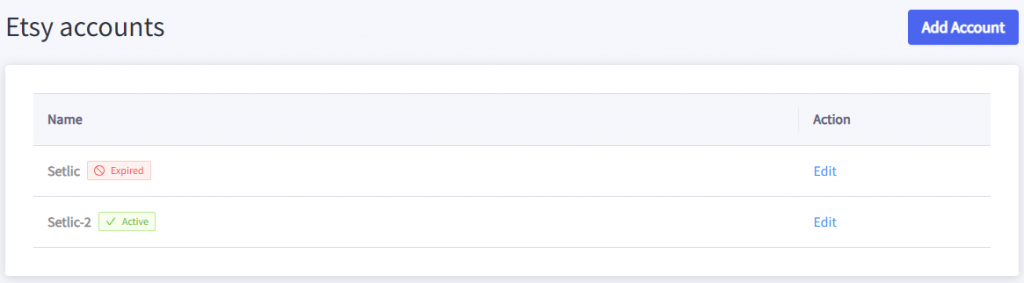
When downloading products in the Inventory tab, make sure to select the target Etsy account.
Some items remain Not Linked
To link the items, Salestio checks if the SKU and account match. Try the troubleshooting steps below:
- Check if the SKU matches for the WooCommerce-Etsy item pair. If the SKUs are different, adjust it on either platform, then run Download inventory and sync again.
- Verify if the correct account is selected in the Selling List. To see this, find your Selling List and click Edit.
If the product was placed in a list with incorrect settings, Salestio will also add it to a “Migrated…” Selling List for the respective account.
Account and marketplace selection are locked after a Selling List is created. To select something different, please create another Selling List.
More solutions to possible errors: Common errors and how to fix them
This article uses for Shopify for examples, but the tips apply to most situations
Salestio helps sellers to manage multiplatform sales inside a single store. Connect Etsy, Amazon, and eBay storefronts to a single WooCommerce website. Get the Salestio app to start a Free 14-day Trial