20 Mar'26





When working with Amazon, some Salestio users might want to publish a few items directly on Seller Central. In Salestio, such items need a few extra steps to establish the link between platforms. In this article, we will take a look at the case when some new products were listed outside of Salestio. Linking the new items allows the app to sync the quantity and price from the store to Amazon.
Salestio automatically establishes the link when an item is published directly through the app. When the product is listed manually, Salestio will not sync it with your E-commerce store. Follow the steps below to set up the connection.
Steps to link new items
Prerequisites: this guide assumes that the products are already listed on Amazon and exist in Shopify. It is advised to use matching SKUs for Amazon listings and their store counterparts. If you want to keep the SKUs different, see the workaround in the next section.
First of all, locate the matching items in the store and add them to the desired Selling List in the app. This is an optional step that lets you organise the products ahead of time.
Go to Salestio > Inventory tab to access the Amazon product list from the account. Click “Download inventories” to get the updated inventory list from Seller Central.
Salestio keeps a snapshot of your Amazon inventory in this tab, which is updated periodically or during the “Download inventory” action. Because of this, some recently published or deleted items might not appear here. You can see the date of the last inventory download at the top of the page.
After the updated inventory is downloaded, use one of the two ways to link the items:
- Run the “Sync inventories with selling products” action at the top of the page. Salestio will look up SKU matches for all available products. If you didn’t add the new items to Selling Lists before, the app will add them to the automatic “Migrated for…” list.
Running this action will also update the quantity for freshly linked Amazon listings. - Find and select the new items in the Inventory list. Click the Move to Selling List action and pick your preferred option.
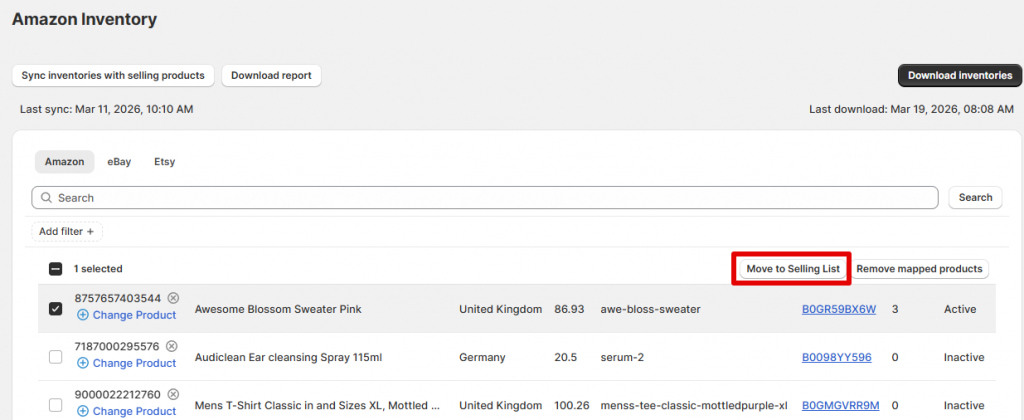
Check the results in the Selling Lists tab. Successfully connected products will have a Linked status.
Both of the above steps should be repeated after more products are listed directly from Seller Central (Download inventory > Sync inventories/Move to Selling List).
Salestio is designed with your e-commerce store in mind as the source of product data. Because of this, the process is not fully automatic when the items are published outside of the app.
See the guide below to learn how to add new items to the Amazon catalog directly through Salestio:
Create new Amazon listings with variations
Using the SKU Mappings
In some cases, the new Amazon items may have a different SKU from the store products. To link products like this, add an SKU Mapping after downloading the inventory list:
- Go to Salestio > Profiles > SKU mapping and add a new mapping here
- Indicate Channel Type: Amazon and select your account here
- Add the store SKU and the Amazon SKU of the item
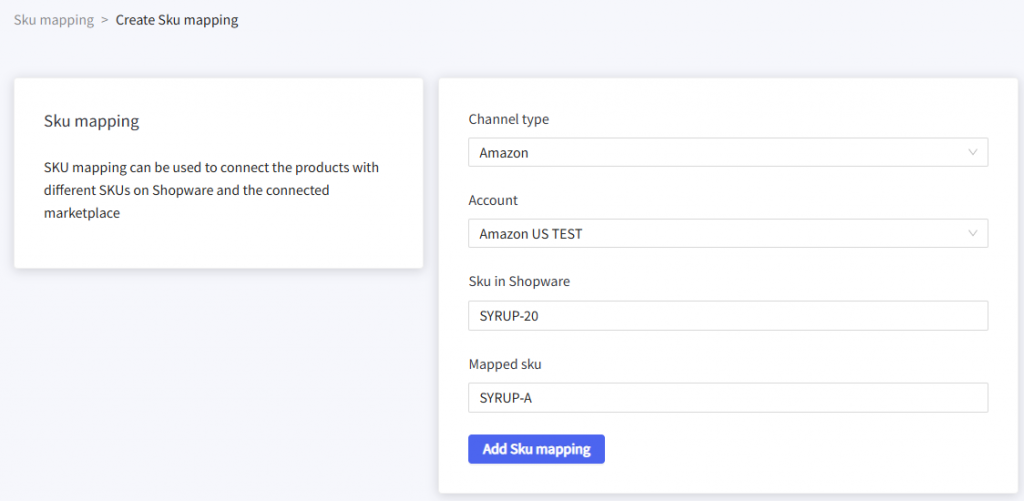
Save this mapping and return to the Inventory tab to link the item (using the “Sync inventories…” or “Move to Selling List” actions).
If you have a large number of SKUs to map, consider uploading a mapping file. See the guide below for more details:
SKU Mappings in Salestio: Customize Product Pairs Between Platforms
Verify the connection
Salestio offers a way to check the connection to the Amazon inventory. This can help identify any items that failed to connect because of SKU mismatches or other issues. Follow the steps below to get the Synchronization Report:
- Go to the Inventory tab and run the “Download inventories” action again to get the updated product list.
- After updating the list, click “Download report” to get the file.
- Open the CSV file using any text editor.
We suggest using a spreadsheet app for easier navigation
In the report, look for the Linked column with a Yes/No indicator to check if all products are connected inside Salestio.
Full article: Use Synchronization Report in Salestio
Salestio offers a flexible way of syncing your Amazon listings with an e-commerce platform like Shopify, BigCommerce, Shopware, and more. Not a Salestio user yet? Get a Free 30-day Trial for your platform here.