18 Sep'26




Salestio helps sellers expand their store to external marketplaces. In this article, we will focus on the details related to listing your Shopware products on Amazon.
Add Amazon account
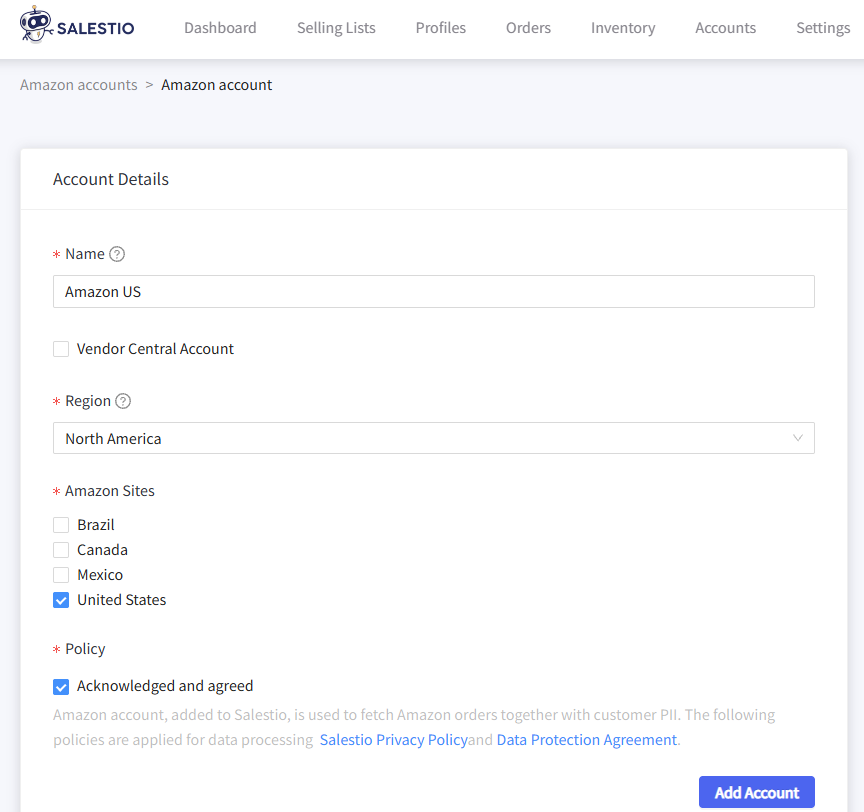
Salestio requires a Pro Seller account on Amazon to publish and synchronize the items. The account should be able to list items. You can verify that your account is ready by listing an item directly through Seller Central.
To connect the account, open Salestio > Accounts tab and click “Add Account”. You will be redirected to the “Assign Account” page. Pick an account name and target marketplaces, then save the account to log in on Amazon.
Add a Selling List
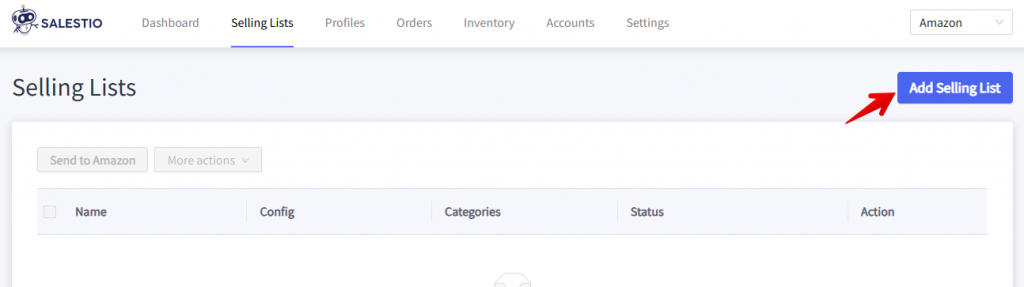
Selling Lists in Salestio organize items into groups with the same synchronization rules. Here is where you send new items to Amazon, update existing ones, and check their status. To create a Selling List, head to Salestio > Amazon > Selling Lists tab and click Add Selling List:
Pick a name for the Selling List, then select the connected Amazon account. Below, pick the mode for this Selling List:
- Product mode: add and remove items manually. Editing the product list will be available after the Selling List is created.
- Category mode: items will be added and removed from the Selling List automatically based on the content of the selected Shopware categories.
When using this mode, select the categories below this section.
In the next step, select the Amazon marketplace. Make sure that this marketplace is available for your account and was selected during connection in Salestio. Marketplace selection affects which profiles are available in the next steps.
Related: Selling on multiple Amazon marketplaces
The last section is Selling profiles. Salestio comes with default presets, which you can select here. Pick the default options if you want Amazon listings to have the same prices and other settings as your main store.
Check more in-depth guides on configuring your profiles:
How to Manage Listing Quantities with Salestio
Custom Pricing Rules for eBay and Amazon Listings
Add products and send
Products are added to Selling Lists depending on the selected mode:
- In Category mode, new items will appear automatically. Give the app a few minutes to populate the list.
- In Product mode, items should be added manually. Click “Add Products” at the top and pick your items from the list.
Confirm the product identifiers
Amazon is based on a unified catalog of products, with different sellers joining or leaving shared product pages. Salestio will need a barcode, like EAN or UPC, to correctly identify your Shopware product and place it on the correct Amazon page.
Add the barcode to the Shopware product page or indicate the ASIN in the Selling List before sending the products.
Related: SKUs and Barcodes: Understanding Product Identifiers
After all the profiles are configured, send the items to the marketplace. There are two ways to publish the products:
- Send product one by one: select the items in the Selling List and click the “Send to Amazon” button at the top
- Send in bulk: go to the Selling Lists tab and select the entire Selling List here, then run the “Send to Amazon” action
Sent products will change the status to Pending Linking. Check back in a few minutes to see the results. Successfully published products will end up in the Linked status:

Troubleshooting
If any products have an error status, click “Logs” and look for the latest messages. Logs indicate if some information is missing, a seller account needs an update, or if there is an issue in the app configuration.

Selling Variant with sku 'awesome-sku' action was completed with an error. externally_assigned_product_identifier: 'External Product ID' is required but missing.This error means that Amazon did not receive any barcodes for the item. As mentioned earlier, each item can be identified by a GTIN barcode like EAN/UPC, or by an ASIN. Check if the identifier is correctly added (barcode on the Shopware product page or ASIN in the Selling List) and try sending the item again.
Selling Variant with sku 'awesome-sku' action was completed with an error. merchant_suggested_asin: 'Merchant Suggested ASIN' is required but missing.This error means that your product does not exist in the Amazon catalog yet. It can also mean a typo in your barcode, so it is worth double-checking if the item is on Amazon.
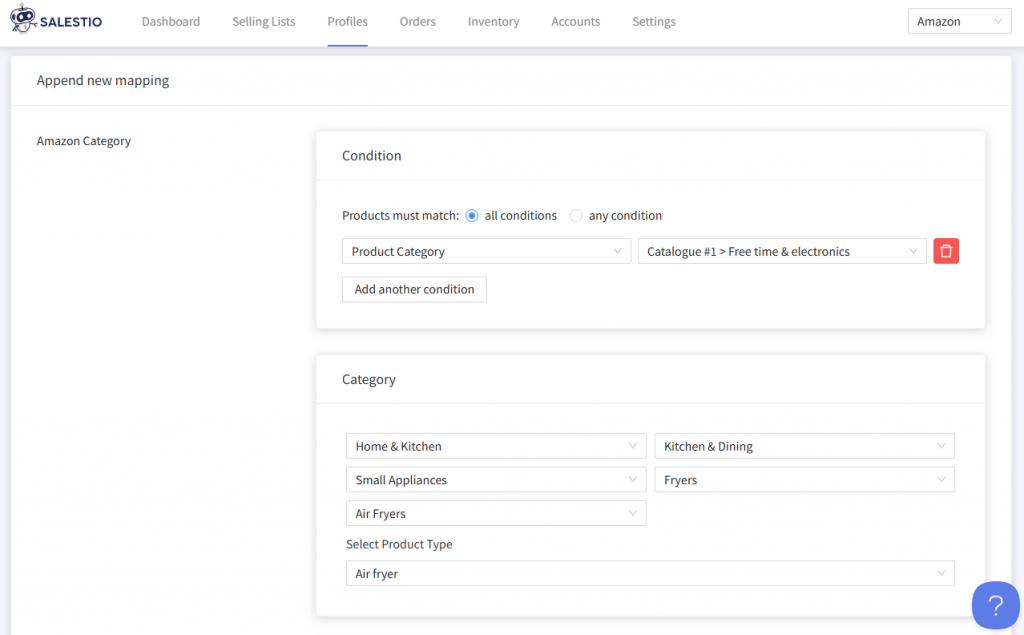
To create new items, Amazon requires additional information, and you can provide this through a Creation Profile:
- Add a Creation Profile from Salestio > Profiles tab
- Enable Product Creation in the Amazon Profile
- Send the products again
Full guide: Create new Amazon products from Shopware
List on Amazon: Common errors and how to fix them
If you want to start selling on Amazon, Salestio can help by automating the process. Don’t have the Shopware app yet? Grab a Free 14-day Trial here.
For any questions and comments regarding Salestio, feel free to message support@salest.io.