21 Aug'26





If you have been actively selling on Amazon and now want to connect BigCommerce products to your Seller Central inventories, Salestio has an easy way to do so. The app offers a few customizations and options for product connection, so in this article we will explore the possibilities and explain the process.
Before proceeding with any of the below steps, connect the Amazon account to Salestio. This can be done in Salestio > Accounts tab.
The article assumes that the Seller Account already has some listings published on Amazon. For a guide to publish Amazon items through Salestio, check out the post below:
Expand your BigCommerce store to Amazon with Salestio
To successfully connect the items between platforms, the products must have matching SKUs. We will present a few solutions for cases when the SKUs do not match; keep reading for more details.
- Prepare the Selling List structure
- Download the inventory list from Amazon
- Connect the items
- Review the results
- Troubleshooting
(Optional) Prepare the Selling List structure
This is an optional step because Salestio can create the Selling List automatically during the next steps. Adding a Selling List manually lets you predefine your own profiles and settings. Otherwise, the products are synced with the same price and quantity as in the BigCommerce store.
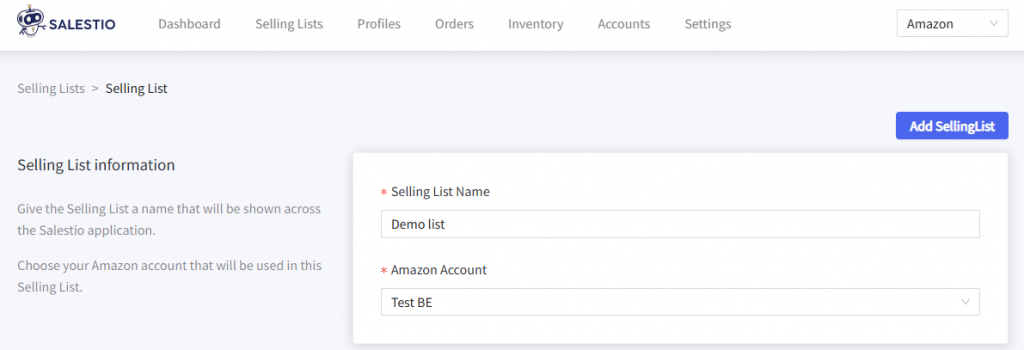
When settings this up, pick a name for the Selling List, the Amazon account, and assign a Global Profile (for setting quantity and price settings.) Adjust the other profiles as needed.
After setting up the Selling List, add your products using the buttons at the top. In Category mode, the products are added automatically, so instead, give the app a few minutes to populate your list. The products appear in the Selling List with a Not Linked label.
Download the inventory list from Amazon
To start the linking process, we must retrieve the available Amazon listings on the account. Go to Salestio > Inventory tab and click “Download inventories” to get started. When multiple Amazon accounts are connected, they will appear as selectable options. Select the target account and click “Download”.
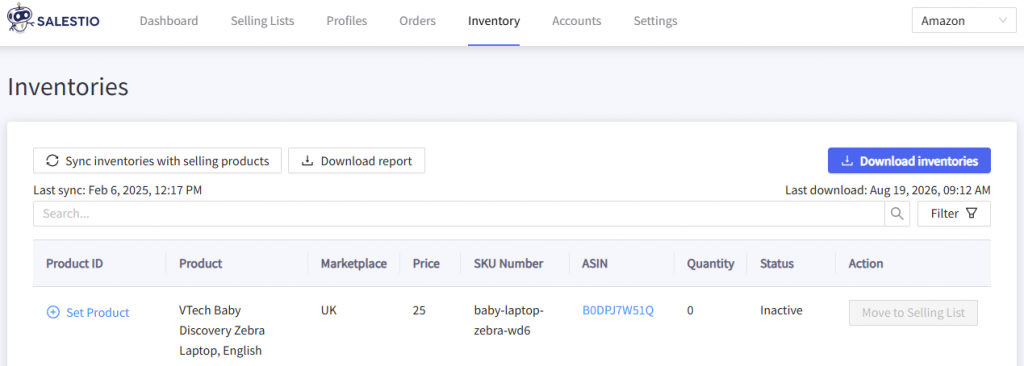
Depending on the Amazon product count, it may take 30 to 60 minutes to display all of the products in Salestio.
Salestio downloads only FBM listings from your Amazon inventory.
Salestio uses the product SKU to find item pairs and establish a connection. If the SKUs already match, skip to the next step and start connecting the products.
Consider the two options to resolve SKU matching in case your products have different SKUs across the platforms:
- Edit the BigCommerce products to match the SKUs to Amazon.
- Configure an SKU mapping in Salestio without making edits to any of the products.
Connect the items
To start the connection process, click the Sync inventories with selling products button in the Inventory tab. Select the target Amazon account and start the sync. Salestio will look up all product matches, automatically connect them, and update the Amazon quantity according to the current stock in BigCommerce.
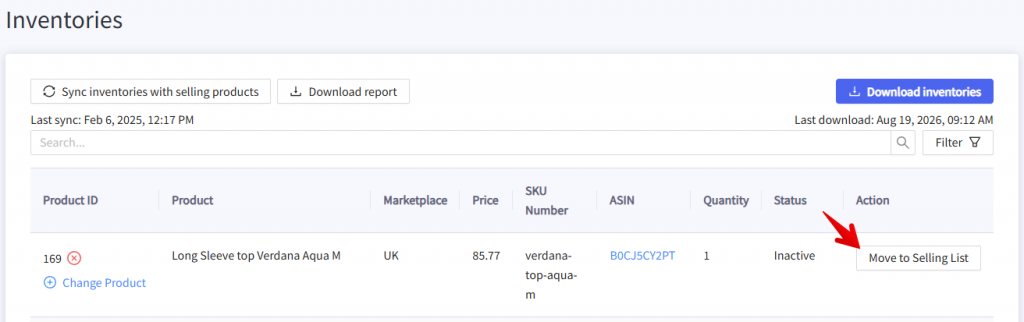
As another option, you can link individual items. Find the target item in the list and click the “Move to Selling List” button. Select the Selling List, and Salestio will create a connection.
The “Move…” option is available only for Selling Lists in Product mode.
Review the results
Check the results in the Selling Lists tab. If you created some Selling Lists beforehand, the items will remain there, but the status will change to “Linked”. It means that the connection between BigCommerce and Amazon products is established, and Bigcommerce stock and prices will be synced to Amazon. If Salestio finds some items that were not in any of the Selling Lists, they will appear in an automatically created one called “Migrated for account_name amazon_marketplace“.
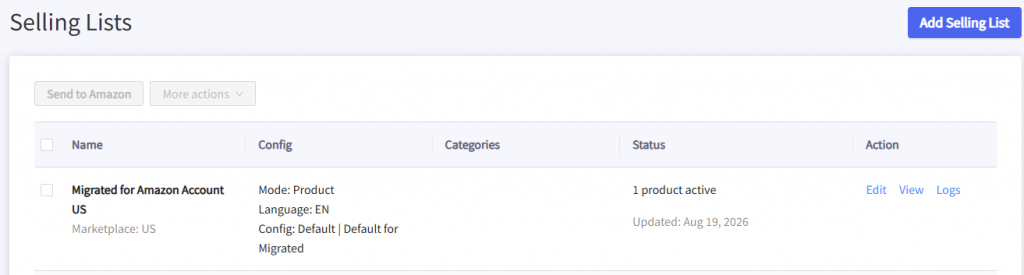
Salestio will sync the “Linked” items in the background when stock or price changes in BigCommerce. If you would like to push the stock and/or price numbers from BigCommerce to Amazon immediately, run this action manually from the Selling Lists tab.
Select the Selling List (or individual items inside) and run one of the update actions (Update QTY, Update Price, Update QTY & Price).
Check the synchronization report
Salestio offers a simple way to form a report of all marketplace items and their connection status:
- Go to Salestio > Inventory tab
- Click Download inventories to get an updated product list from Amazon
- Click Download report
- Open the file in any spreadsheet viewer
Each of the Amazon items in the report features a “Linked” value (Yes or No), indicating whether the item is getting updates through Salestio. If you notice any items that are not linked here, look them up in the Selling List to see if there are any issues preventing sync.
Full article: Use Synchronization Report in Salestio
Troubleshooting
Depending on the app and Seller account configuration, some steps might not go as planned. Let’s review the possible cases.
Products missing from the Inventory tab
Salestio downloads the items from the selected account and marketplace. This is important to keep in mind when retrieving the list from Amazon.
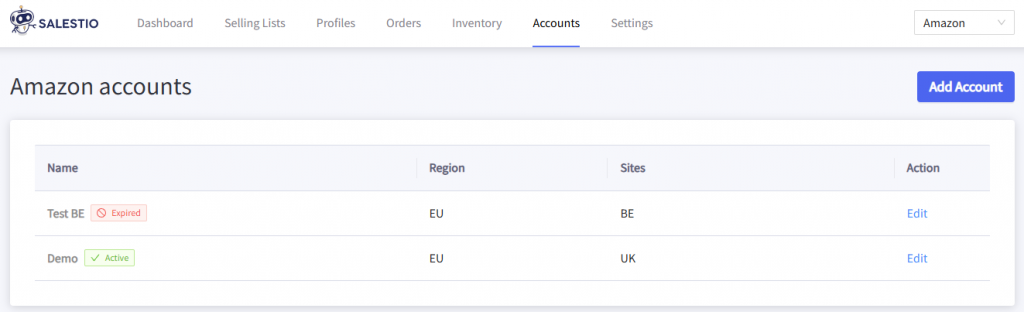
Check the account connection in Salestio and ensure the correct settings. Linked accounts will have an “Active” badge, as well as the list of connected marketplaces. If some marketplaces are missing or the account shows up with a red badge, try reconnecting it. Click the account in the list, select the marketplaces, and click “Save account” at the bottom.
Some items remain Not Linked
To link the items, Salestio checks if the SKU, account, and marketplace match. Please try the steps below to find out the issue:
- Check if the SKU matches for the Amazon – BigCommerce item pair. If the SKUs are different, assign the correct one in the Inventory tab and try syncing again. Consider other options to match the SKUs: editing the BigCommerce product page directly or setting up an SKU mapping to establish the SKU pairs.
- Check if the correct account and marketplace are selected in the Selling List. This can be viewed from the Selling Lists tab. For example, if you need to link an item from Amazon IT, the Selling List has to be configured with the Italian account and Italy marketplace. If the product was placed in a list with incorrect settings, Salestio will also add it to a “Migrated…” Selling List for the respective marketplace.
Account and marketplace selection are locked after a Selling List is created. To select something different, please create another Selling List.
Salestio assists the sellers in integrating an already running Amazon store into the BigCommerce inventory management. By following the steps from this article, you can sync the two platforms in a few simple steps. Don’t have Salestio yet? Find the app on BigCommerce Apps & Integrations and start a Free 14-Day Trial.